
Configure Extensions
Extensions help you configue additional fields and properties, modify the properties of standard fields or create and map a new field from the SAP system.
Data flows to the app in the form of collections. A collection is a group of fields (Standard fields) which are pre-configured in the app to execute the business transactions. A collection also includes few optional fields based on standard industry practices. You can modify the behavior of standard fields using Extensions menu. For example, you can hide the standard field if it is not required for your transactions or change the field type or the UI Label.
An Extension is an additional field that you can configure and enable it depending on your specific requirements. Changes done in Extensions menu are stored in the SAP NetWeaver Gateway table: /INVCEC/COCKPIT and the transaction code: /n/INVCEC/COCKPIT.
Learn how to configure additional fields and properties on the transaction screens (list, header, item details).
To configure fields for transaction screens:
-
Click the Add
 icon next to the search
field.
You can also click the Copy
icon next to the search
field.
You can also click the Copy button on the details
pane of an existing extension to populate the properties in the Create
Extension section.
button on the details
pane of an existing extension to populate the properties in the Create
Extension section. -
In the Create Extension section, enter this information:
Table 1. Extension configuration attributes Field Description Module Name Select the module where the field is configured. Screen Name Select the screen within the module where the field is displayed. Category Select between Standard and Extension options to choose the configuration type. Note: Select Standard to customize the type of input required to be displayed on the header.Section Name Helps you group the Extension fields into sections for retrievals or Posting Forms. Section Position Define the position of section within the screen relevant to other sections. Source Type Select the source like BAPI or SAP Table from where the data is retrieved. - BAPI: Select this option if the extension field is part of the BAPI structure. And the value entered in the extension field is posted to the backend ECC.
- Table: Select this option if the extension field is part of the SAP table. And the value in the extension field is pulled from the backend ECC table.
Entity Set Collection to which the Standard field belongs. Note: Auto-populated based on Module and Screen selected if the Category field is set to Standard. For example, this field is populated with GRPOHeaderCollection if Goods Receiving module and PO Header screen are selected.Entity Type Auto-populated based on Module and Screen selected if the Category field is set to Standard. Table / BAPI Name Select the table/BAPI to fetch the data from. Note: This field is applicable only if you selected Extension in the Category field.Table / BAPI Description Auto-populated based on Table / BAPI Name. Note: This field is applicable only if you selected Extension in the Category field.Field Name Select the table/BAPI field to retrieve the field data. Field Description Populated based on the Field Name. UI Label Enter the text to be shown on the application UI. Field Type Define the type of the field. Following are a few of the UI field types available for mInventory: Table 2. UI Field Types Field Type ID Field Type DD Drop Down DF Date Field TF Text Field SF Scan Field ID Input Drop Down DFR Date Field Range SID Scan Input Drop Down UI Position Position for the extension compared to other fields on the transaction screen. Default Value Value to be populated in the extension field. Case Sensitive To show the extension field value in Uppercase or Lowercase. Active To show/hide the extension on the transaction screen. Overview Enable/disable the extension field in Overview section of the transaction screen. For example, header fields and line item fields in the Item Overview list screen are displayed in Overview section. Detail Enable/disable to show the extension in Detail section of the transaction screen. Mandatory To show the extension as Mandatory field on the transaction screen. Validation Required To configure validation rules for the extension field. UI Validation Specify the validations for user entered values. Note: This field is displayed only if the Validation Required is enabled.UI Validation Message Enter the alert message to be displayed if the UI validation is applicable. Note: This field is displayed only if the Validation Required is enabled.Authorization Relevant Enable/disable security authorization relevancy. This is relevant for fields of type ‘drop down’, and when activated, will filter values based on security org values set up in SAP security roles. Access Category Enable/disable extension field based on user access: - T-Transaction Code
- U-User Group
- R-Role
- A-Authorization Object.
Access Value This field is used for data related to security. Based on the access category, value in this field must be maintained. For example, if you configure a transaction code in the Access Category field then the t-code name must be specified in this field. Extension configured is displayed in the mobile application only if the transaction code is assigned to the user. Dropdown Table Select the Source table from where the values of a dropdown field are retrieved. Note: This field is displayed only if the UI Field type is set to DD - Drop Down or ID - Input Dropdown.Dropdown Field Select the Field in the source table from where the values of a dropdown field are retrieved. Note: This field is displayed only if the UI Field type is set to DD - Drop Down or ID - Input Dropdown.DD Dependency Field Select the Dependent field on the transaction screen that facilitates filtering of the field values. For example, Storage Location search field is dependent on Plant field.
Note: Displayed only if the UI Field type is set to DD - Drop Down or ID - Input Dropdown.Parent Table Select the Table from where the field is retrieved. Parent Key Select the field to define the relationship between the dropdown field and table. Condition Enter the logic to show the configured field. For example, you can show an extension 'Supplying Plant' only if the Purchase Order type is UB (Internal Purchase Order). Text Required Define how the dropdown values are displayed. Possible values: - 0 – Not Required (not relevant)
- 1 – Only Description (only the description of the value is displayed)
- 2 – Key and Description (both the key and description of the value are displayed)
Text Table Select the Table from where the text is retrieved. Note: This field is displayed only if the Text Required is set to Only Description or Key and Description.Text Field Name Select the table field name from where the text is retrieved. When the value in Text Required field is set to 1 or 2, the corresponding Description is fetched from the text table in SAP. Note: This field is displayed only if the Text Required is set to Only Description or Key and Description.Text Key Field Name Select the field to define the relationship between the dropdown field and table. Figure 1. Create Extension 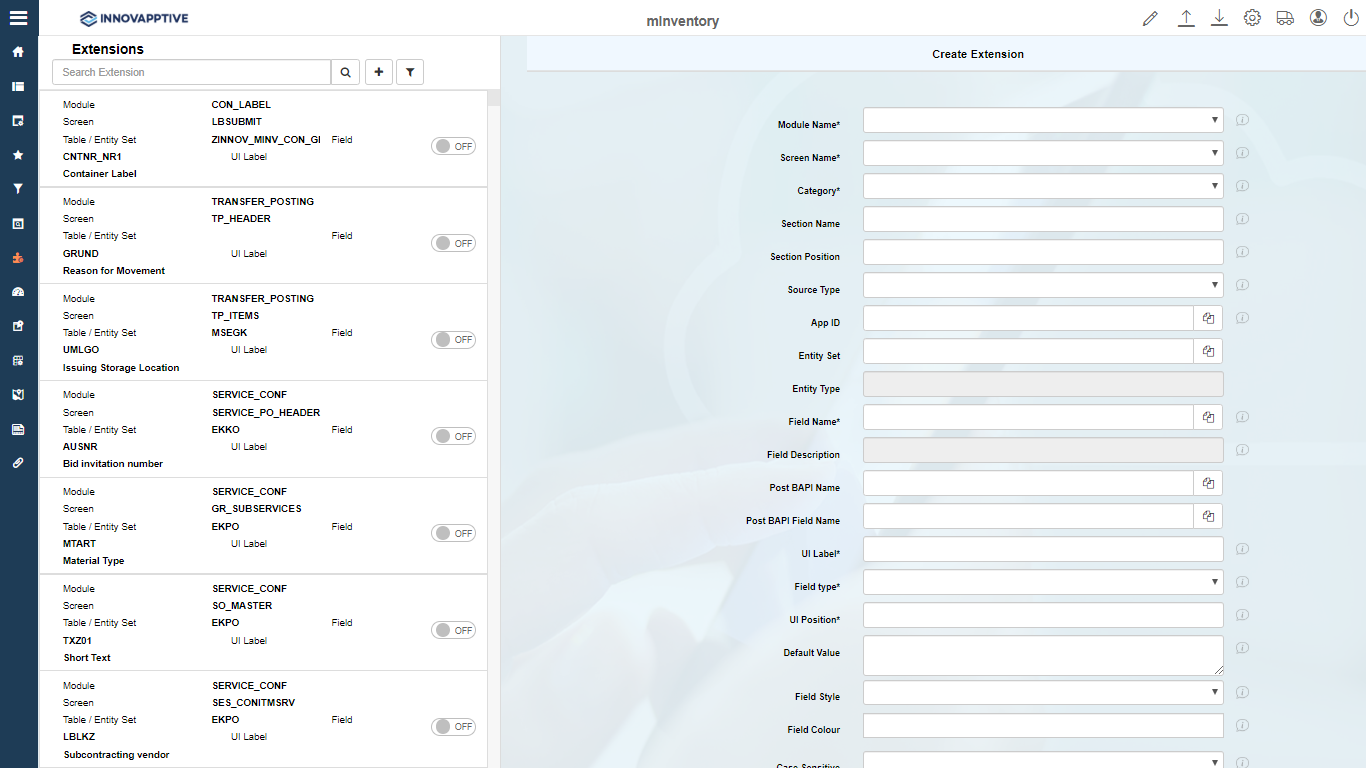
- Extension ConfigurationConsider adding extension field Posting Date in GR - Others module for Movement Type 201 and also populate the value to the Current Date. Note that Posting Date is a field at the Header level and not item level. Do the following configurations:
Table 3. Sample Extension Configuration Field Value Module Name Goods Receiving Screen Name Others Header Category Extension Table/BAPI Name BAPI2017_GM_HEAD_01 Field name PSTNG_DATE Post BAPI Name This value is autopopulated: BAPI_GOODSMVT_CREATE Post BAPI Field name PSTNG_DATE Field Type DF - Date Field Default Value SY-DATUM - Standard Field Configuration
Consider changing the UI type for Batchfield on the GR-PO Line item level and enable it on PO Item screen in Overview and Details sections. Now Batch is a field in the GRPOItemCollection which brings data for PO line items for Goods Receiving. Do the following configurations:
Table 4. Sample Standard Field Configuration Field Value Module Name Goods Receiving Screen Name PO Items Category Standard Entity Set This value is autopopulated: GRPOItemCollection Entity Type This value is autopopulated: GRPOItems Field Name CHARG Post BAPI Name This value is autopopulated: BAPI_GOODSMVT_CREATE Post BAPI Field Name BATCH UI Label Batch_test Field type ID - Input Dropdown