
Cancel a Material Document
If you made a typing error or an input error (for example, wrong quantity or wrong movement type) while entering a material document, you must cancel the document, since you can no longer change this data.
- Tap Goods Receiving on home screen.
- Select Material Document from the Reference Document list.
- Tap Done.
-
On the Material Documents screen:
- Tap
 (Calendar) if you want to enter a
new posting date.
- Select the Material Documents using check box.
- Enter a new storage location code in the Storage Location field, if the code is different from the default storage location code.
- Tap Cancel to cancel the material documents.
- Tap OK in the confirmation message screen.
Figure 1. Cancel Material Document 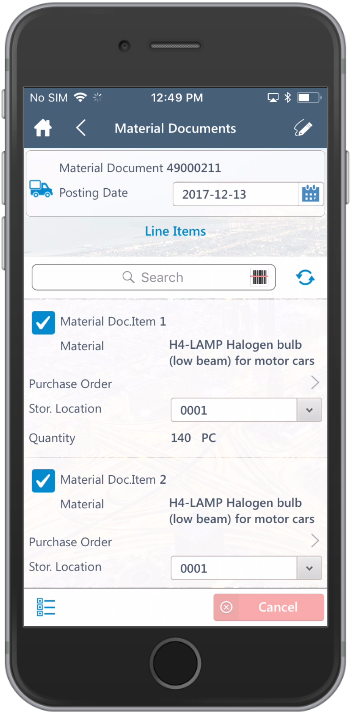
- Tap