
Transfer stock using Movement Type
To transfer stock using other Movement Type:
- On the Home screen, tap Transfer Postings.
- Tap Transfer Postings Others.
- Enter the Movement Type, Plant and Storage Location.
-
Tap the Add
 icon in the Line Items
section.
Tap the Scan icon to scan the barcode and navigate to the Line Item detail screen.
icon in the Line Items
section.
Tap the Scan icon to scan the barcode and navigate to the Line Item detail screen. -
Enter this information:
- Material: Tap to enter the material code of the
line item. You can also tap the drop-down to search the material code on
the Material Search screen.
- Material: Tap to enter the material code
string (first few digits) and then tap
Search. Note: You can also filter the results by Description and Plant. The list of material codes matching the specified string are displayed under Search Results.
Figure 1. Material Search Screen 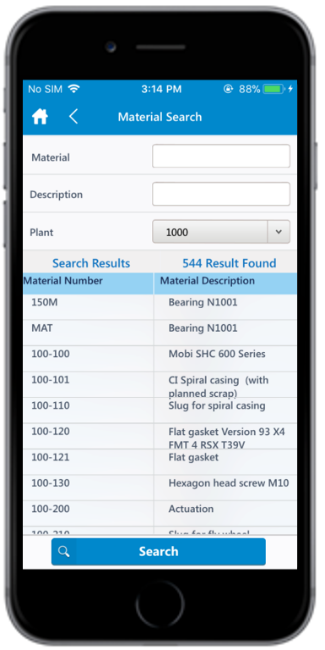
- Material: Tap to enter the material code
string (first few digits) and then tap
Search.
- Quantity: Tap to enter the quantity to be transferred.
Figure 2. Transfer Posting Others - Line Items 
- Material: Tap to enter the material code of the
line item. You can also tap the drop-down to search the material code on
the Material Search screen.
- Tap Done.
- Tap Confirm. A message appears asking whether you want to post the transfer.
- Tap Yes. A message appears confirming that the posting is successful.