Kit and Stage Stock Materials
Kitting and Staging helps warehouse operators to KIT (collect) the stock items of an order and place order for non stock items. When non-stock items arrive, both stock and non-stock items are combined as a KIT and work order status is updated to user status KITTED and goods are issued to the requester.
Stock: Number of Materials that are in stock.
Non-Stock: Number of Materials that are not in stock.
Staged: Number of materials staged.
To Stage the materials:
-
In the Home screen tap the Kitting module.
Figure 1. Select Work Order 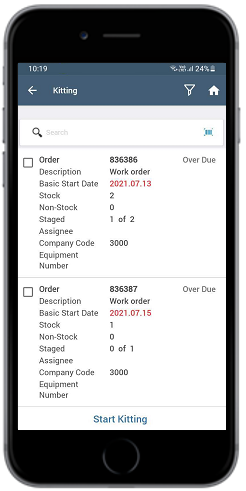
- In the Work Orders List screen, search and select the Order from the list.
-
Tap Start Kitting.
Note: You can select multiple Orders and tap the Start Kitting button, then you are directly navigated to the Material List screen. Select the required materials and tap Confirm Picking.
-
In the Material List screen, select the Material under the Stock
tab.
Figure 2. Select Material 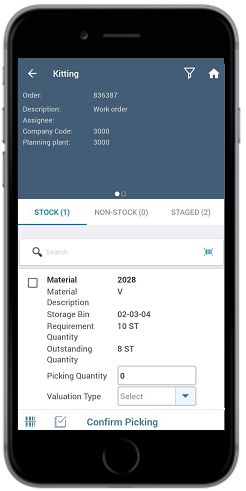
-
Enter the material quantity in the Picking Quantity field.
Note: If you want to move the batch managed material, enter the batch number in the Batch field.
-
Tap Confirm Picking.
Figure 3. Select Staging Area and Storage Bin 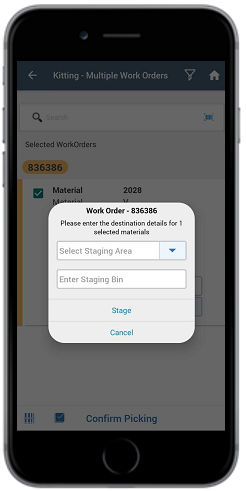
-
Select Staging Area, enter Stage bin, and tap Stage.
A message appears confirming that the material is staged for Work Order.
-
In the Success screen, tap Go To Print Labels to print labels or tap
Go To Kitting to stage more materials.
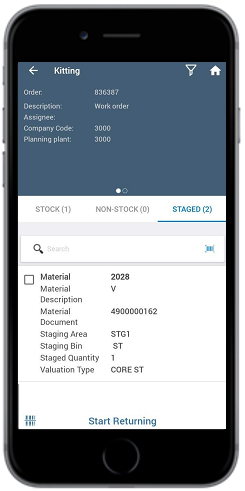
When the kitting is done, the materials are moved from the Stock tab and displayed in the Staged tab.
Figure 4. Staged Materials