
Login to mInventory
Login with username & password, and configure passcode, touch ID, and face ID
To login to mInventory application:
-
Open the application.
Figure 1. Login Screen 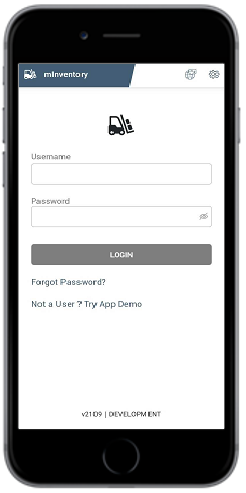
- Enter your Username and Password in the Login screen.
- Tap Login.
-
Create and confirm App Passcode in the Create Passcode and Confirm
Passcode screens.
Figure 2. Configure Passcode 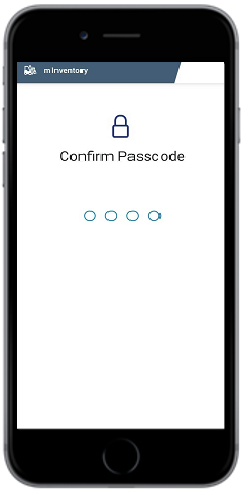
Note:- You can use only numeric characters (numbers) for Passcode.
- Passcode is device specific; you can use it only in the device that you have set.
- If you forget the passcode, uninstall and reinstall the application, and create the passcode again.
- You must create the passcode every time you log out of the application. If you close the application without logging out, you can use the same passcode.
-
Enable login access by your fingerprint that is enabled on the device tapping
Enable in the Touch ID screen.
Figure 3. Configure Touch ID 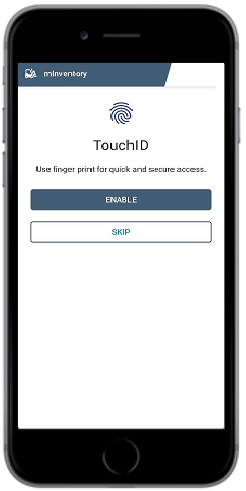
-
Enable login access by your face id that is enabled on the device tapping
Enable in the Face ID screen.
When you open the application next time you can use either username & password or touch ID or face ID to access the application.
Figure 4. Configure Face ID 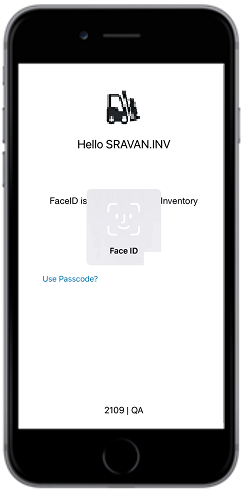
Note:Application Session Timeout: If you keep the mInventory application in an ideal state (without using) for some time, it logs you out of the application. The session timeout feature that helps you secure your data in the application from accidental misuse when you keep your device away for any reason. The ideal time after which mInventory can log you out can be configured in the RACE configuration application. Ask your RACE configurator to modify the session timeout time depending on your need. This session timeout feature is applicable in both online and offline modes.
Remove User Profile from Device
When you login, your profile gets registered with the device and continues to be registered to your username even after you logout. The next user must unregister before logging in.
- In the Login screen, tap Remove User.
- Enter User Name and Password in the Remove User screen.
- Tap Remove User.