Add reference documents to the form
Attach additional reference files related to the tasks on the form. These files provide additional details of the task or asset to the mobile user.
Note:
These files are added to the Attachments section of the form in the mobile
application.
To add documents or files to the form:
-
Click the Dynamic Forms button on the left panel and click the
Dynamic Forms option.
Note:You can also expand the Menu
 and click the
Dynamic Forms option.
and click the
Dynamic Forms option. - In the Home screen, enter the name of the form in the Search Forms field or select a form from the Drafts or Categories section.
-
In the Form Details screen, click the Update Form
 icon at the left side pane.
-
In the Update Form pop up window, click the Add
 icon in the Upload Files section.
Note:This option is displayed only for the existing forms and with this functionality you can,
icon in the Upload Files section.
Note:This option is displayed only for the existing forms and with this functionality you can,- Attach multiple documents to the single form and the document can be any format such as PDF, Excel, or Doc.
- View the attached documents inside the form in the application.
- Post the forms along with the attached documents to the backend.
- Open the documents by clicking the hyperlink of the relevant document and view it in the third-party app.
Figure 1. Form Attachments 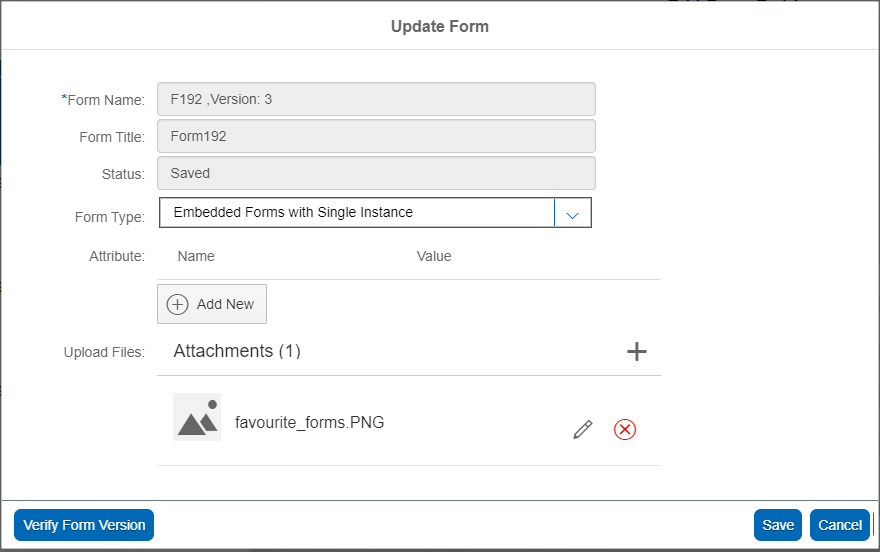
-
Browse and upload the file.
- To rename the attachment, click the Edit
 icon.
icon.
To remove the attachment, click the Delete
 icon.
icon. - To rename the attachment, click the Edit
-
Click Save.
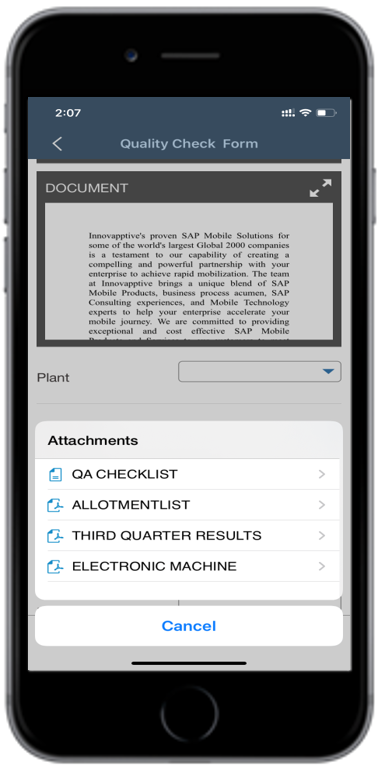
Result: To view the attachments added to the form on the mobile application, click the Attachments
 icon. This icon is displayed only if the attachments are
added to the form.
icon. This icon is displayed only if the attachments are
added to the form.Figure 2. Form Attachments 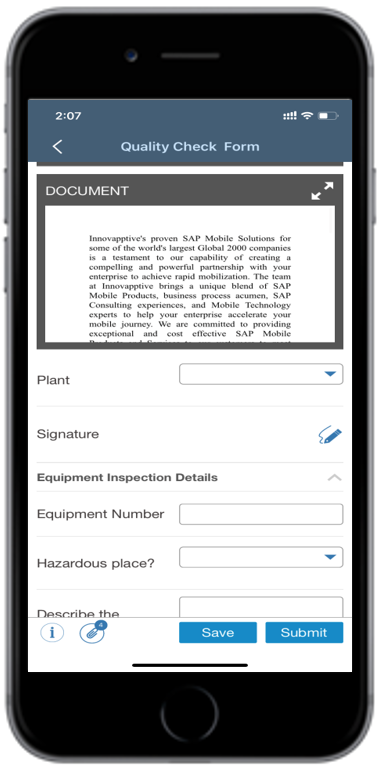
Figure 3. Form Attachments