
Import Round Plans from Template
While creating a new round plan, you can import sections and tasks from an existing template to quickly build the plan and save hours of your time.
To import sections and tasks from the template:
- Expand Operator Rounds and select Round Plans section.
-
In the Round Plans screen, click Create
New and select Create Manually.
or
Select the existing round plan and click Edit Round on the right-side window
- In the Plan Details screen, update the details like Plan Name, Plan Description, Tags, Notes and Attachments, & Additional Details.
- Click Save & Next.
- Click the Import Tasks button on the right side.
- In the Import From window, you can see two tabs: Templates and Round Plans.
- Choose the appropriate tab based on the source from which you want to import tasks.
-
From the list, select a template or Round Plan to import the sections and
tasks.
Figure 1. Import Tasks 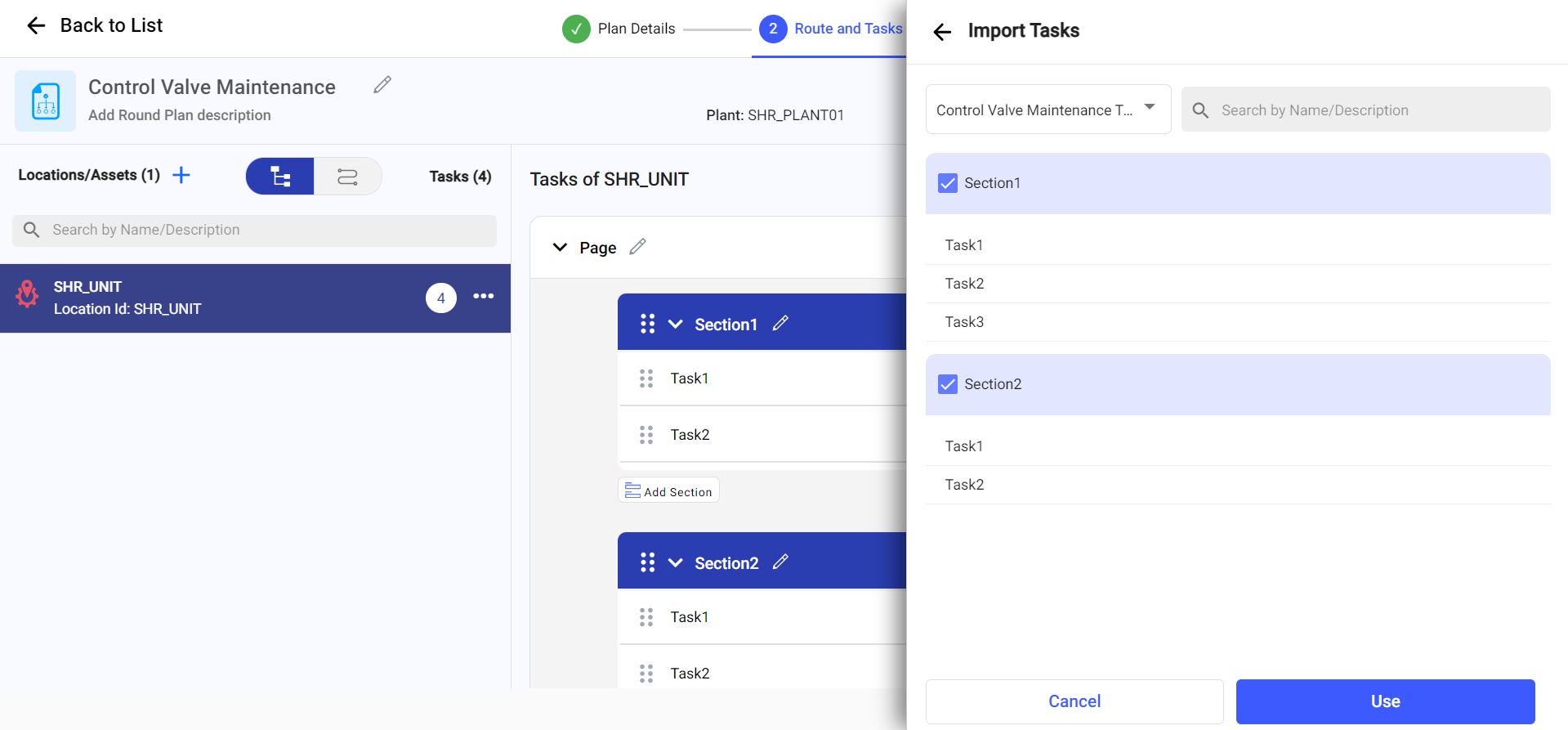
Note:- By default, one filter of the Location/Asset is applied, which the user is currently working on. You can remove the filter to see a list of templates irrespective of the assets or plants.
- You can do a fuzzy search or search the templates associated with the tags. For example, Maintenance.
- Select the whole section with tasks and click Use.
-
You can view two options:
- Move:
- Select this option to import the sections or tasks. The selected tasks, or sections are moved from the source round plan to the target round plan.
- Choose the Existing Page or New Page option.
- Click Move.
- Copy:
- Select this option to copy the sections or tasks from the round plan while keeping them in the original source.
- Choose the Existing Page or New Page option.
- Click Import.
- Move: