Auto Assign Forms
Set up rules to automatically assign embedded forms to Work Orders based on criteria such as Equipment, Functional Location, Task List, Maintenance Plan, Order Type, or other attributes.
Configure Auto Assignment
-
Add Auto Assignment Rule
- Click the Add button under the Auto Assign Forms section.
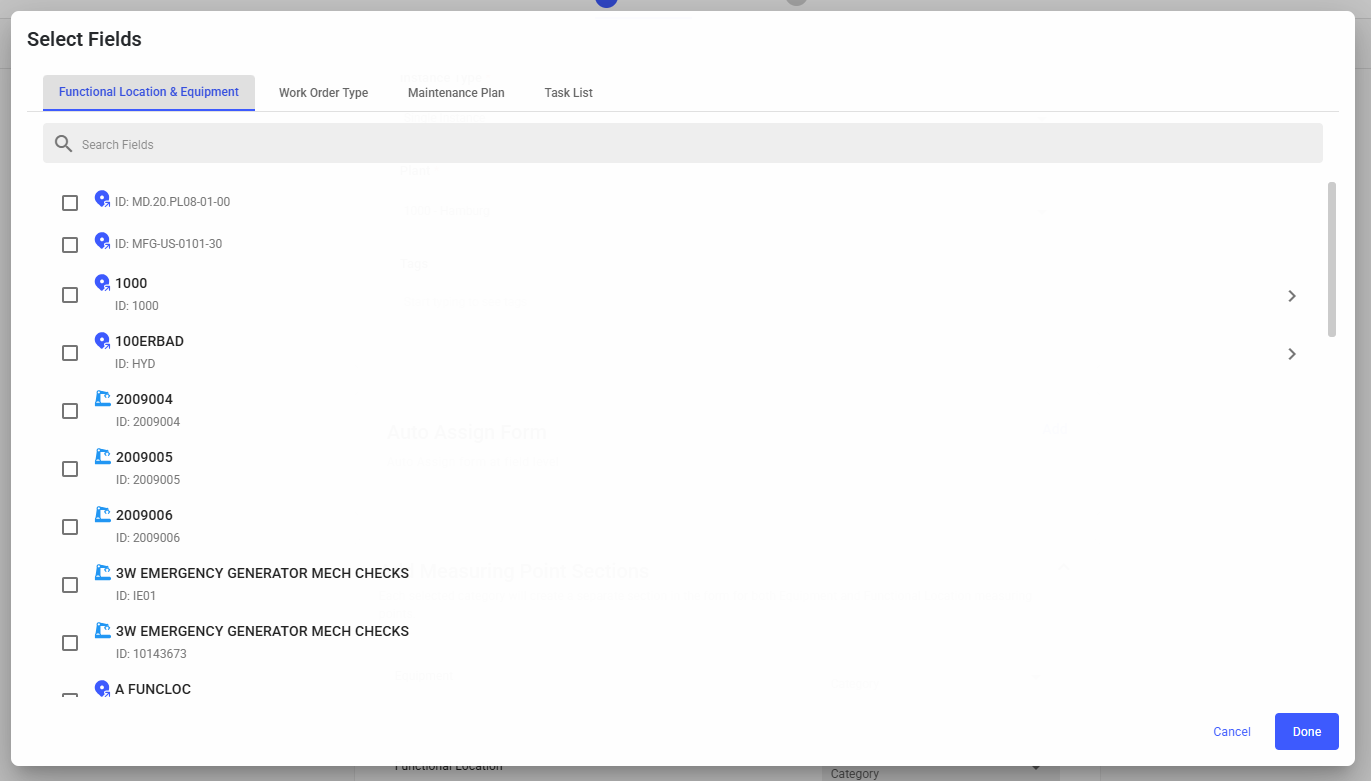
- A pop-up window will open with a tabbed view.
-
Define Assignment Criteria
The pop-up has four tabs, each representing a criteria type:
- Functional Location / Equipment
- View a hierarchical structure of functional locations and equipment related to the selected Plant.
- Select one or more nodes where the form should auto-attach.
- Work Order Type
- Displays a list of available WO types.
- Use checkboxes to select one or multiple types.
- Maintenance Plan
- Displays all available maintenance plans.
- Multi-select support is available.
- Task List
- Displays task lists.
- Supervisors can select one or more lists for auto-assignment.
- Functional Location / Equipment
-
Save & Apply
- After making selections in one or more tabs, click Save.
- The form will now automatically attach whenever a record (WO, EQ,
FL, Maintenance Plan, or Task List) matches the configured
conditions.Note:Mobile Behavior: Auto-attached forms are visible in the WO/Notification detail screen on mobile.
Figure 1. Auto Assign Forms