
Establish a Connection with Maximo for Master Data Integration
The Maximo integration allows mRounds to synchronize Locations and Assets directly from IBM Maximo, eliminating manual export-and-upload cycles and ensuring that plant structure and asset information remain accurate as the Maximo system of record evolves.
- Automated Master Data Sync: Keeps mRounds Locations and Assets aligned with Maximo without manual intervention
- Full Load and Incremental Updates: Performs a complete data load on first sync; subsequent runs retrieve only changed records, making ongoing syncs fast and resource-efficient.
- Location Hierarchy Preservation: Imports parent-child location relationships so round plans and assignments reflect the actual physical plant structure.
- Graceful Asset Retirement: Deactivates assets in mRounds when Maximo marks them inactive, preserving historical round data while excluding retired assets from new scheduling.
To create a connection for Maximo:
- Click the Integrations Manager module on the left side pane.
- Click the Add button in the Connections section on the left side.
-
In the Add Connection window, do the following:
- Select Maximo Server from the Select Connector drop-down.
- Enter a descriptive name in the Connection Alias field.
- Select the Authorization type from the drop-down: API Key, Basic (MAXAUTH), or OAuth Token. Fill in the fields that appear based on the selected authorization type.
- Enter the Maximo base URL.
- Enter the API key used to authenticate the Maximo connection.
- Click Test Connection to verify the connection.
- Click Save Connection if the connection is successful.
Figure 1. Add Maximo Connection 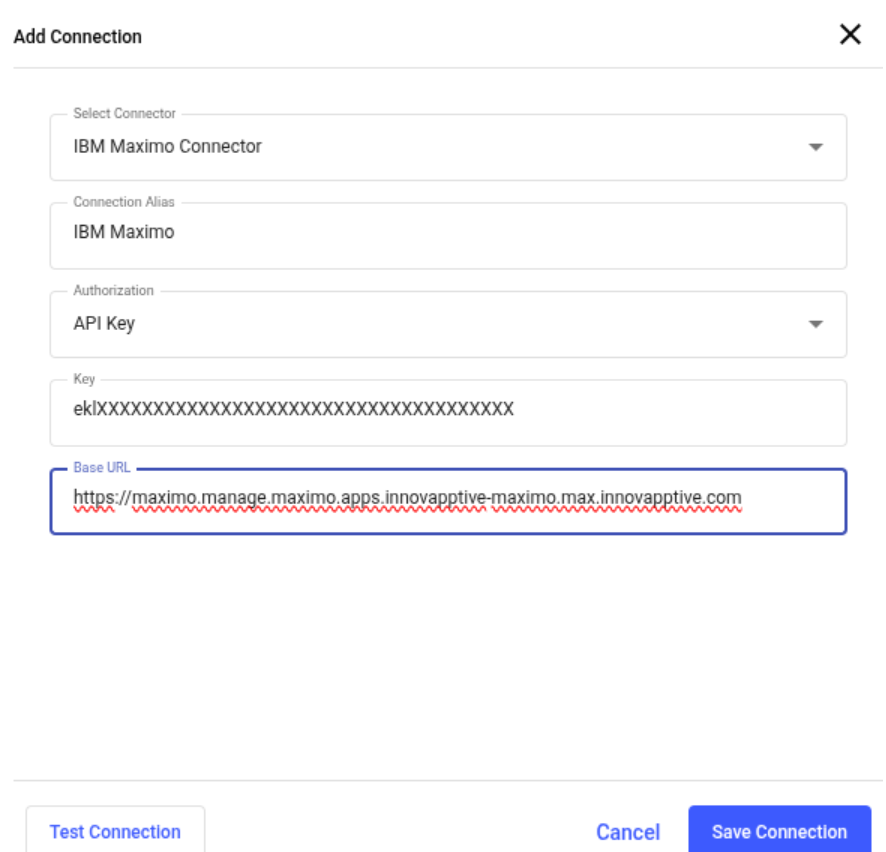
The connection is created successfully and displayed in the Connections section. In this section, you can:- Click the More icon next to the connection:
-
-
Select View Details to see the connection details.
-
Select Edit Connection to update the connection details.
-
Select Delete Connection to remove the connection.
-
-
Configure Master Data Synchronization with Maximo
Once the Maximo connection is established, configure an integration point to define the sync schedule, plant mapping, and field mappings for Locations and Assets.
To add a Master Data integration point for Maximo:
- Click the Integrations Manager module on the left side pane.
- Select the IBM Maximo in the Connections section.
-
Click Add Integration on the right side.
Figure 2. Add Integration Point 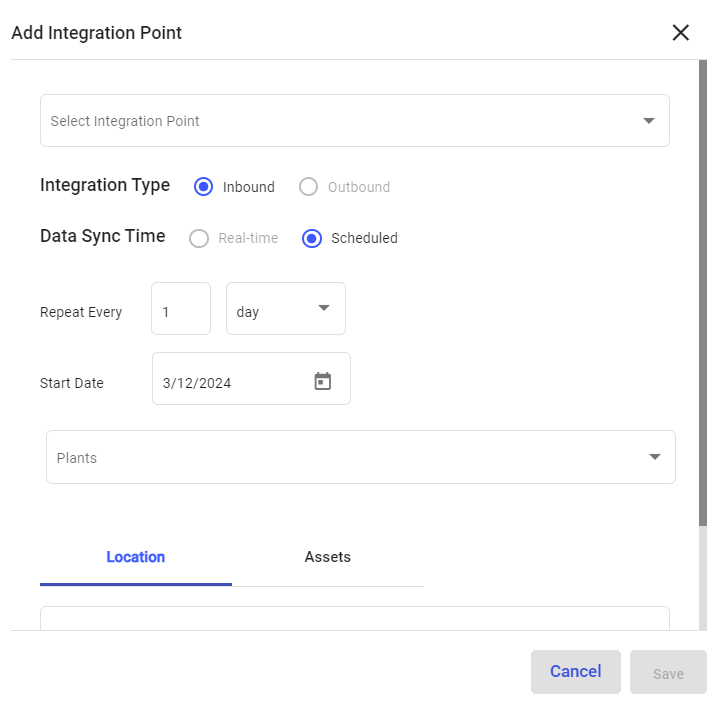
-
In the Add Integration Point window, do the following:
- Select the integration point (Master Data) from the Select Integration Point drop-down.
- Select Integration Type as Inbound.
- Select Data Synchronization as Scheduled.
- Select Repeat Every <number> <day, week, month or year>.
- Select Start Date.
- Select plant from the Plants drop-down where the location or asset residing.
- In the Location or Assets tab, enter the collection in the URL field.
- In the Column Configuration section, map the CBO data columns to SAP data columns.
- Click Save.
Figure 3. Location Column Configuration 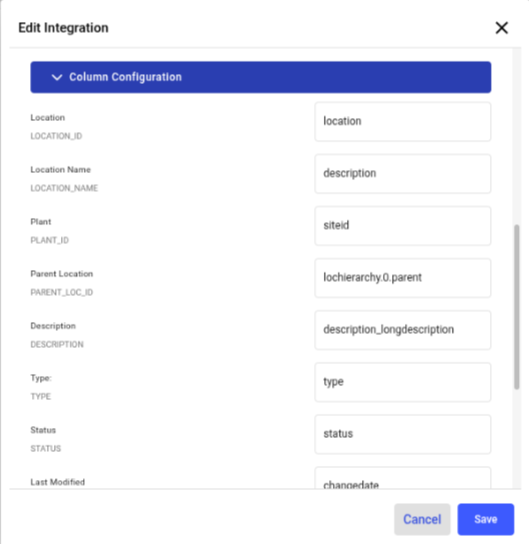
The Integration Point is created and you can view it in the Integrations section.
The master data synchronization in the application occurs based on the configured schedule. You can also sync the data manually.