
Add Operations from a Task List
Divide a work order into operations selected from an existing task list and assign each one to a technician based on expertise.
Operations help with the following:
- Better Task Distribution: Assign different operations to technicians based on their expertise.
- Parallel Work: Splitting a work order into multiple operations lets technicians work on different parts of the job at the same time.
- Flexibility: Operations can be reassigned to other technicians in case of emergencies or technician unavailability.
Not all operations require a technician assigned individually — the person assigned to the overall work order can still review and confirm operations with no individual assignment.
-
In the Operations tab, tap the Add
 icon.
icon.
Figure 1. Add Operations 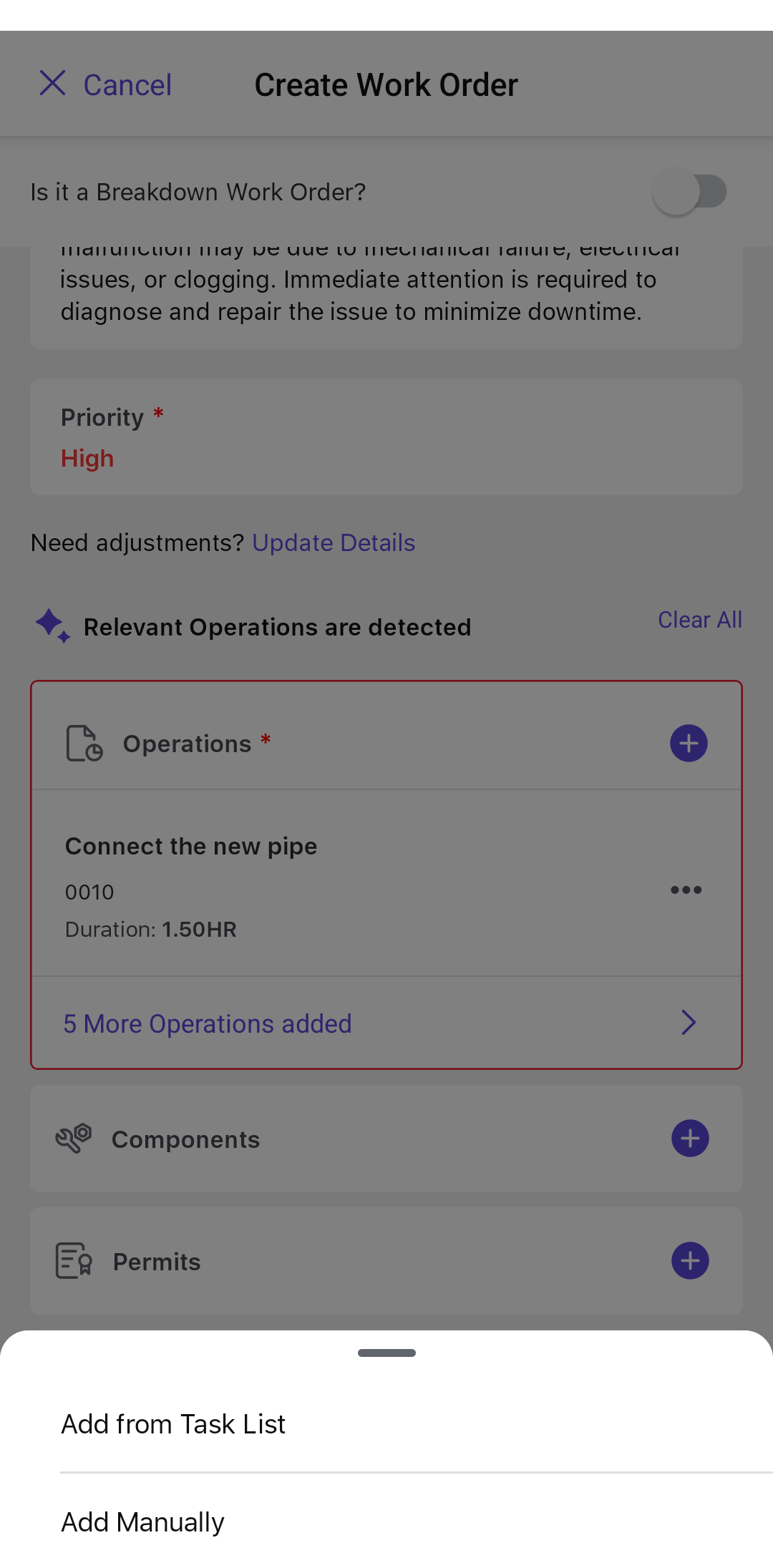
-
Choose the relevant operation from the list in the General,
Equipments, or Functional Locations tab.
Note:
- Tabs are only displayed if they contain operations.
- If none of the tabs have operations, the entire section is hidden and the message "No Operations are present in the tasklist." is shown.
Figure 2. Add Operations From Task List 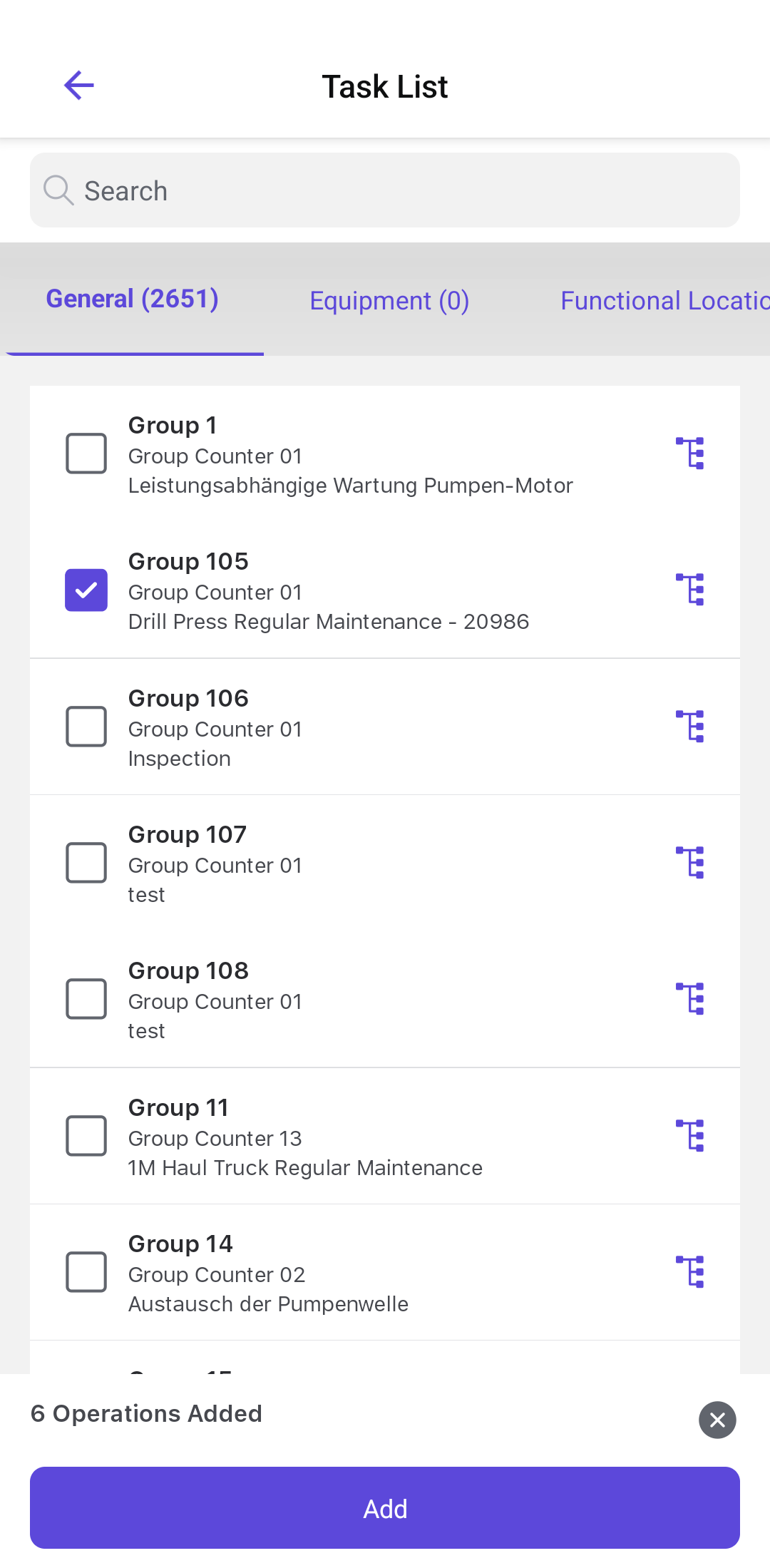
The selected operations are added to the work order. Review or edit them, then add any required components, permits, Work Instructions, or forms.