
Edit or Remove an Operation
Modify an operation's details, or remove, duplicate, or add a sub-operation to it.
To modify an existing operation:
-
In the Operations screen, tap the More
 icon next to the
operation.
icon next to the
operation.
Figure 1. More Options 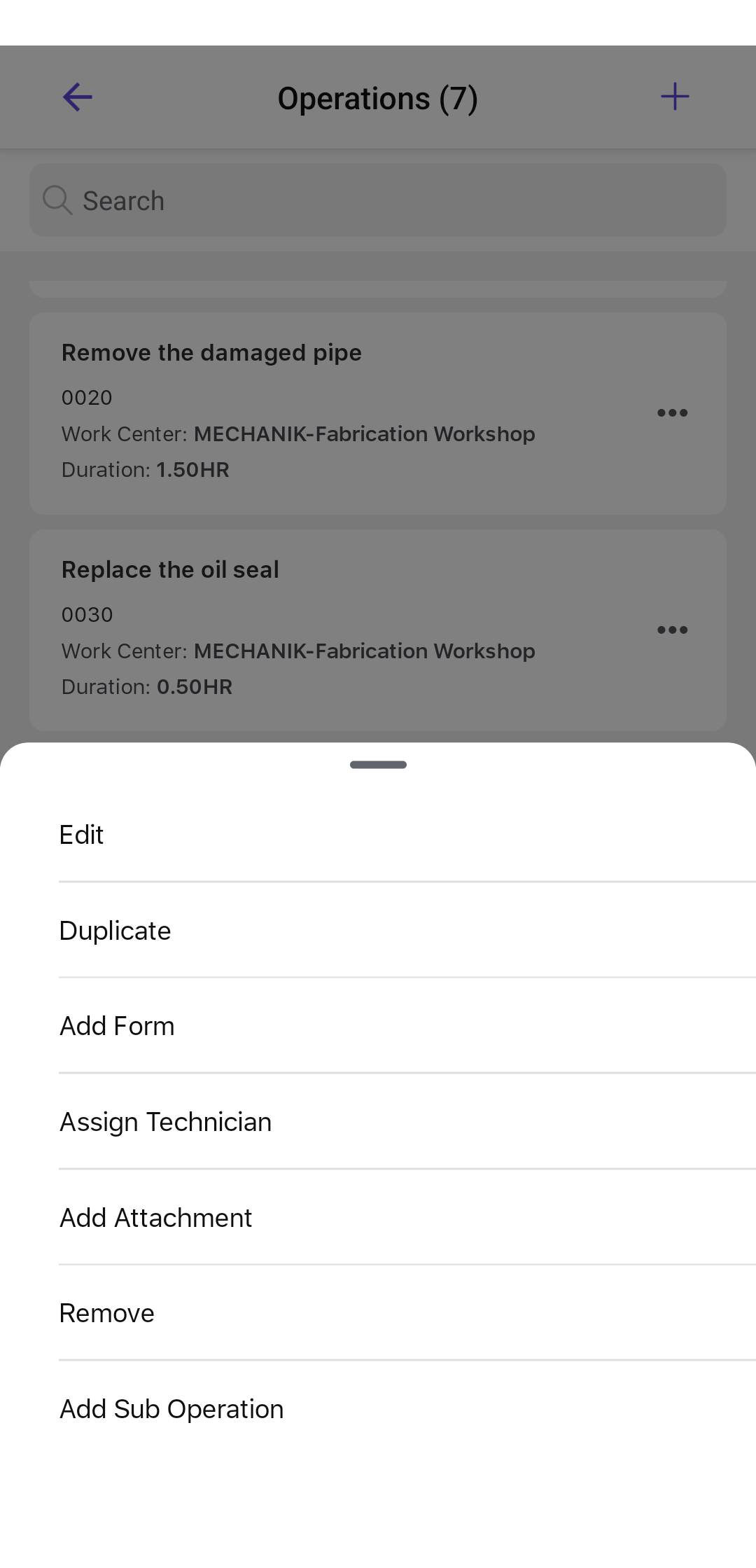
-
Select the required action:
- Edit to modify Description, Planning Plant, Work Center, Control Key, Plant, Activity Type, Number of Resources, Duration, Unit of Work, Equipment, or Functional Location.
- Duplicate to duplicate the operation.
- Add Form to add forms from the list.
- Assign Technician to assign the technician based on the work center or plant.
- Add Attachment to add images, videos, and documents.
- Add Sub Operation to add a sub-operation — see Add Sub-Operations.
- Remove to delete the operation.
Figure 2. Edit Operation Details 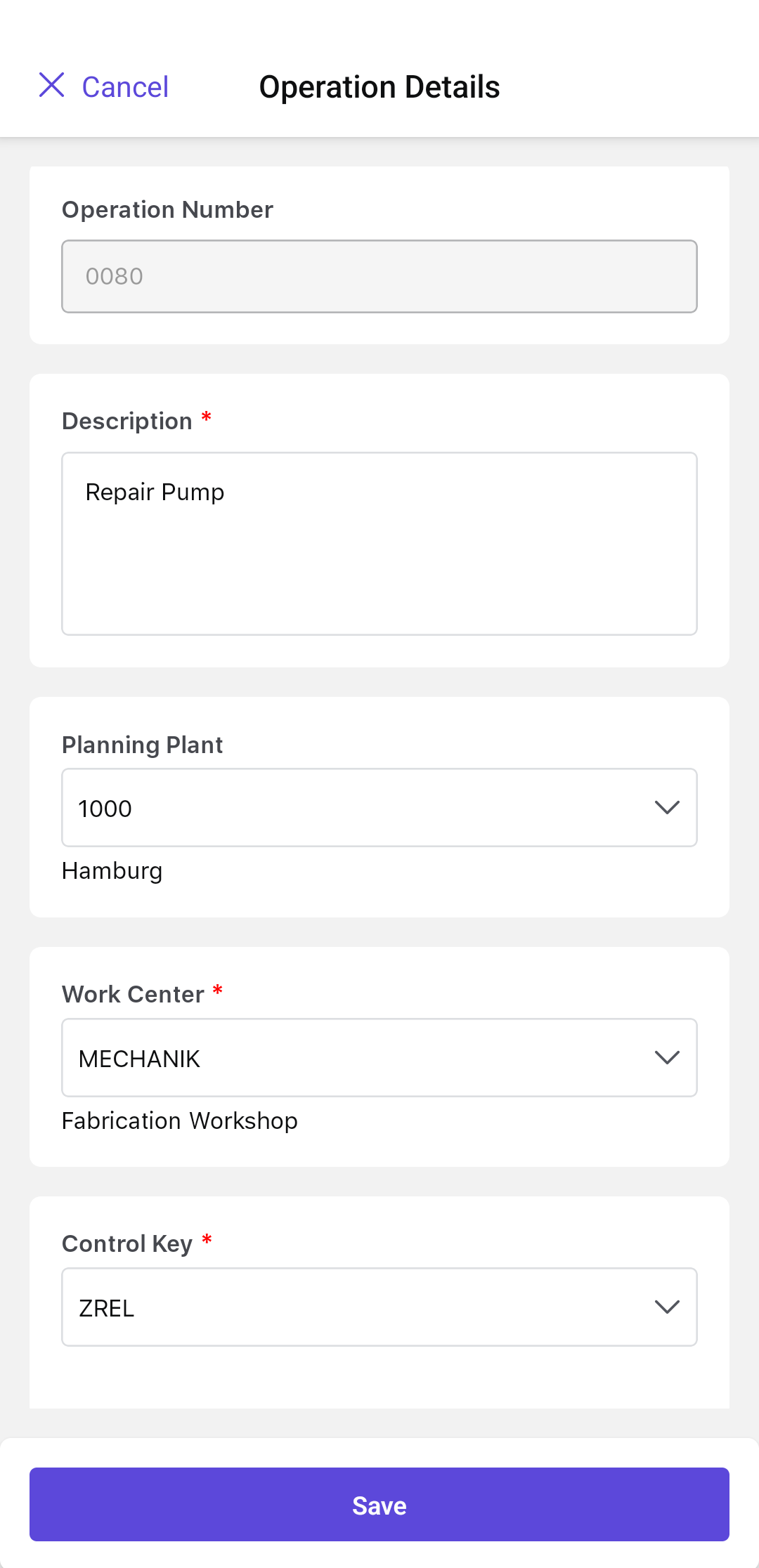
The operation list reflects the saved changes. Continue with any required sub-operations, components, permits, Work Instructions, or forms.
Next: When prerequisites are complete, review work-order readiness.