
Review AI-Suggested Details
Review and adjust the work order details the AI assistant suggests before saving.
The AI assistant (AI Plan) uses your input to suggest the right equipment, identify likely root causes, and recommend appropriate operations.
Tip:
Review and adjust the AI-suggested details
before saving the work order.
Note:
Rate AI-generated responses using the Like or Dislike
buttons to help improve suggestions.
-
Review the AI-suggested fields:
Figure 1. AI Generated Work Order Details 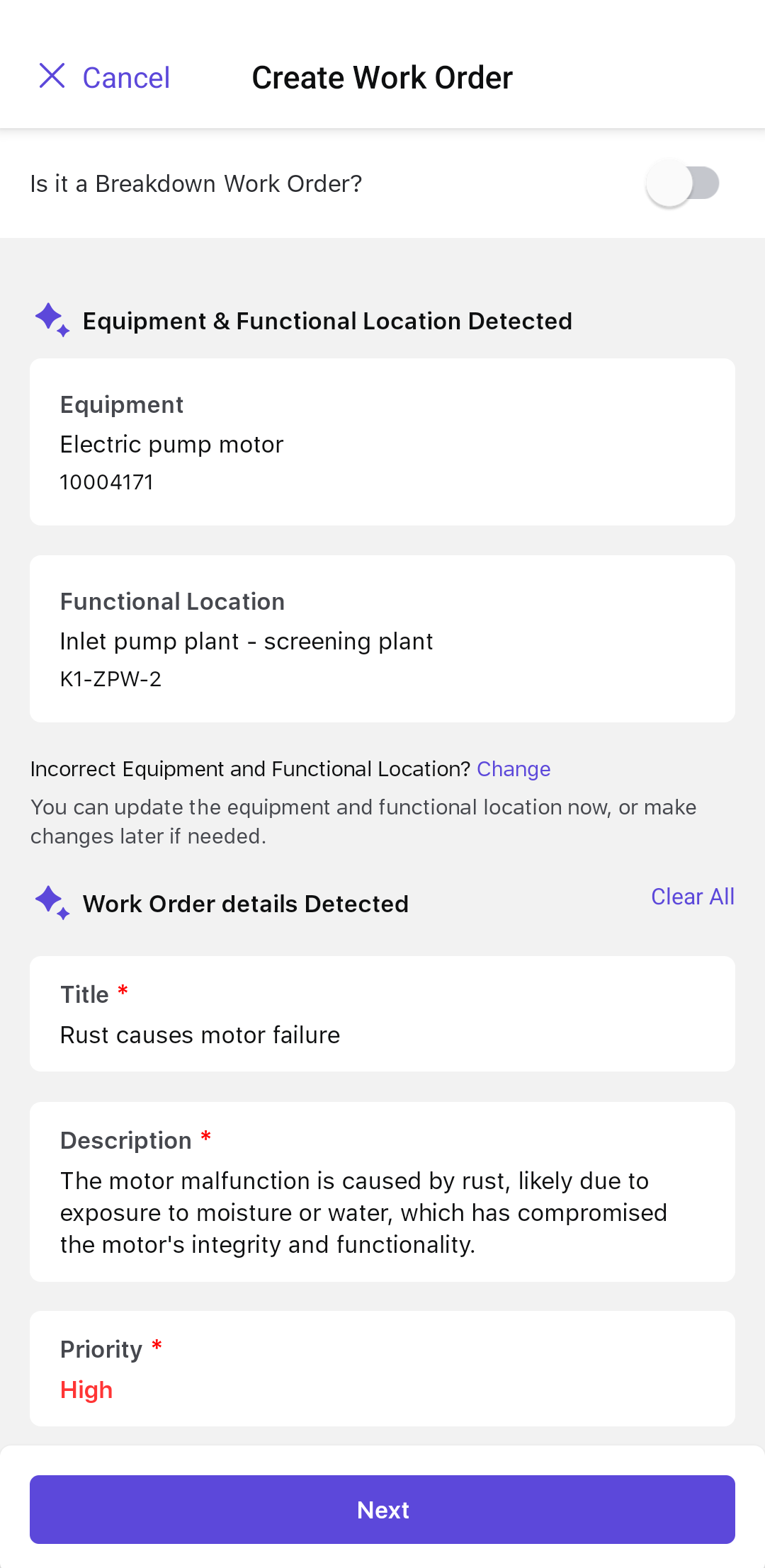
- Equipment: The machine or equipment in need of maintenance or repair.
- Functional Location: The area where the equipment is located. See Select Equipment and Functional Location to change it.
- Title: Title or a brief description of the work order.
- Description: A detailed explanation of the work order.
- User Status: Tap to change the status of the work order — for example, INIT, APPR, RJEC, CLSD.
- Work Order Type: Select the required type from the drop-down — for example, Corrective WO, Preventive WO.
- Maintenance Activity Type: Populates automatically based on the selected Work Order Type.
- Maintenance Plant: Populates automatically based on the selected Equipment or Functional Location.
- Planning Plant & Planning Group: Populate automatically based on the rules.
- Priority: The urgency of the work order. See Set Priority and Risk to change it.
The work order contains reviewed values rather than unverified AI suggestions. Next, confirm the equipment and functional location used for planning.