
Start a Work Order
Begin creating a work order by describing the issue using the camera, a text prompt, or voice input.
To start a work order:
-
Tap the Create
 icon at the
bottom-right of the screen.
icon at the
bottom-right of the screen.
-
In the Create Work Order screen, describe the issue using one of the
following methods:
-
Use the Camera: Tap the Camera
 icon to capture
or upload a photo of the issue. The system uses the image to identify
the problem and suggest relevant fields.
icon to capture
or upload a photo of the issue. The system uses the image to identify
the problem and suggest relevant fields. - Type a Prompt: Enter key details like equipment, functional location, and severity in the text box.
-
Use Voice Input: Tap the Mic
 icon and speak
your description. The system records and analyzes your input to
auto-fill details using AI.
icon and speak
your description. The system records and analyzes your input to
auto-fill details using AI.
Figure 1. Create Work Order 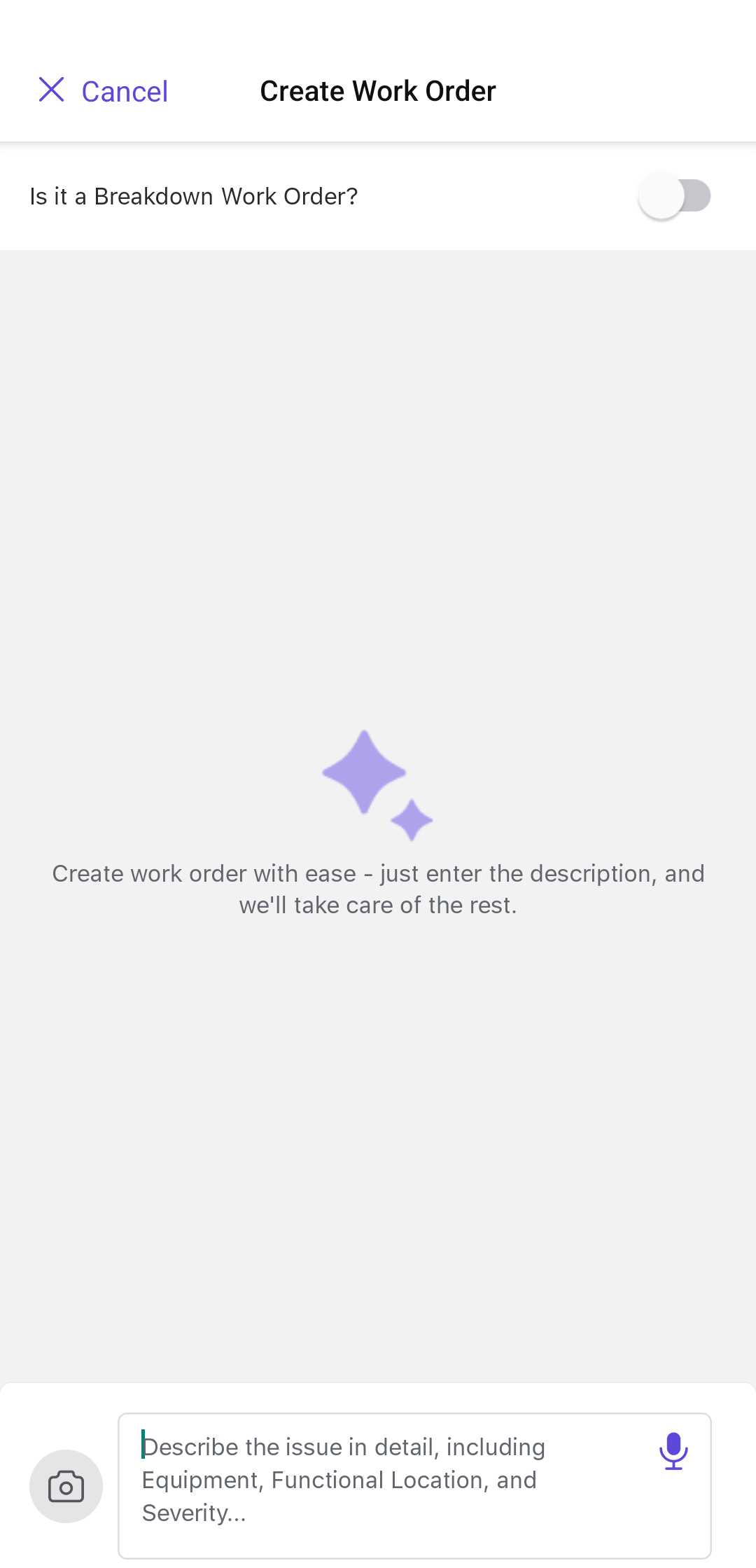
Note:Switch the Is it a Breakdown Work Order? toggle if it is an emergency work order. -
Use the Camera: Tap the Camera
-
Tap the Enter
 icon.
icon.
The AI assistant (AI Plan) processes the input and displays suggested equipment, root causes, and operations for review.
Next: review the AI-suggested details before accepting the generated plan.