
Create an Issue
Create an Issue when a task reveals an abnormal condition that needs investigation or follow-up after the round.
Create an Issue directly from a round task or from the Issues screen.
From a round task: Use this when you notice an abnormality while executing a Round task. The Issue opens with the task's asset already filled in. For example, if the vibration reading for P-204 approaches the alert threshold, tap Issue below the task.
Independently: Use this when the finding is not related to the task you are completing. For example, if you notice a problem with P-210 while completing a task for P-204, you can create an Issue for P-210 even if it is not on your assigned route.
The application will open an issue template prefilled with the asset or functional location, troubleshooting details, issue type, and priority. Review and submit the issue.
To create an issue:
-
Open the Create Issue screen using either method:
- From a Round Task: Tap Issue below the task. The screen is prefilled with
details from the task, such as the asset or functional location, troubleshooting
details, issue type, and priority.Note:If issues already exist for the same asset or location, a message appears when you open the Issue screen.
- From the Issues Screen: tap the Add Issue
 icon at the top.Note:If issues already exist for the same asset or location, a message appears after you select the asset and location.
- From a Round Task: Tap Issue below the task. The screen is prefilled with
details from the task, such as the asset or functional location, troubleshooting
details, issue type, and priority.
-
In the Create Issue screen, do the following:
- Enter the issue title in the Title field.
- Enter the issue description in the Description field.
- Tap the Add Photo button in the Photo field to add images.
- Select the Category as
Observation,
Maintenance, Incident,
Near Miss, or Hazard
from the list.Note:If you select the Category as Maintenance, the Convert to ERP Notification toggle is changed to Yes and the issue is converted to a notification automatically.
- Select the Priority and select the
Event Execution as
Shutdown, Turnaround,
or General from the list.
Figure 1. Create Issue 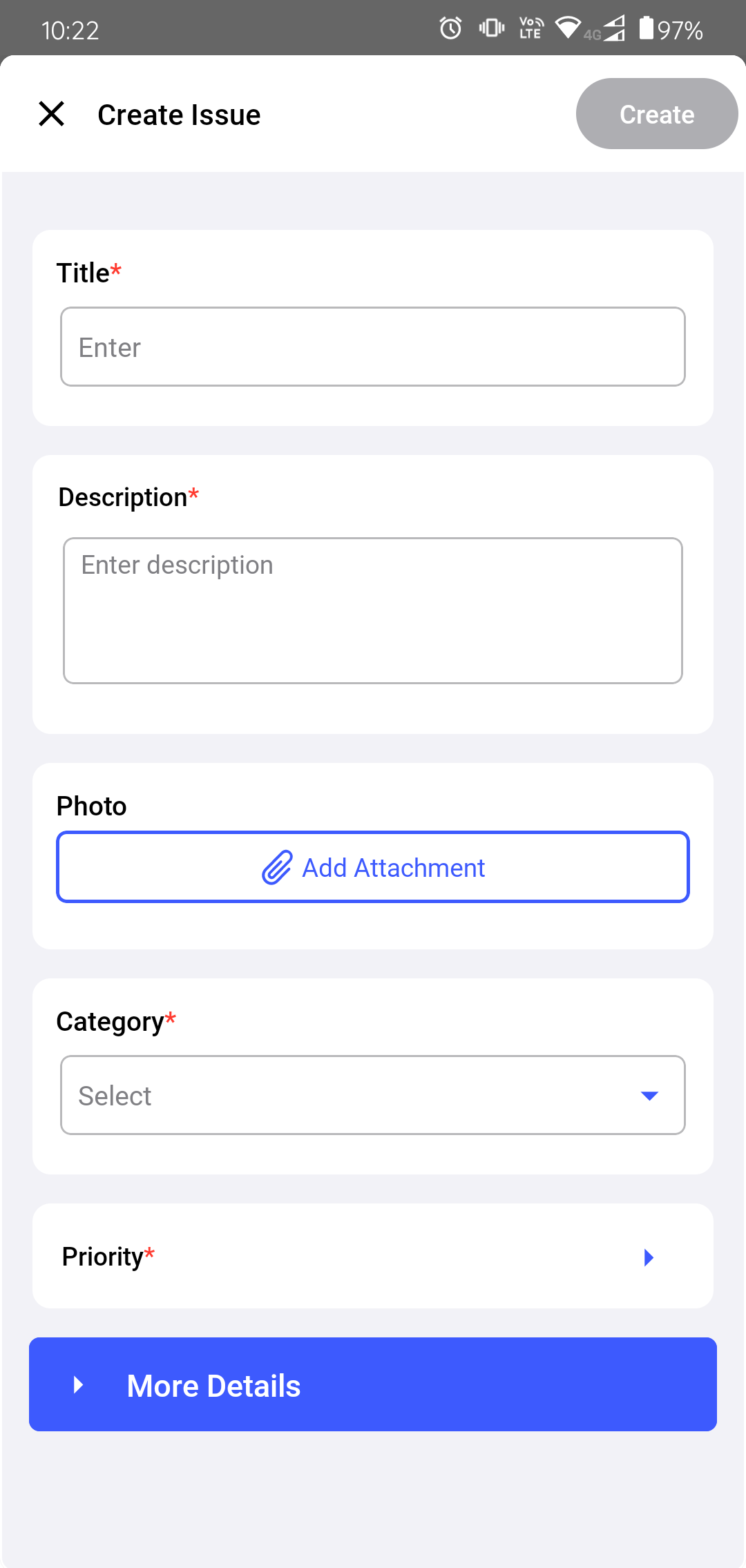
- Expand the More Details section, do the
following:
- Select the Plant,
Unit,
Location, and
Asset from the respective
dropdowns.Note:The Plant and Unit values auto-populate if they are already selected in the User Preferences screen.
When you scan an asset, these details are instantly added.
- Select an operator from the Assign to drop-down to assign the issue. Tap Save once you select the users.
- Select the Start Date and Time.
- Select the Due Date and Time.
- Select the Status as Open, In-Progress, or Resolved.
- Select the Plant,
Unit,
Location, and
Asset from the respective
dropdowns.
- Switch the Yes toggle in the Convert to ERP Notification field if you want to convert the issue to notification.
Figure 2. Fill More Details 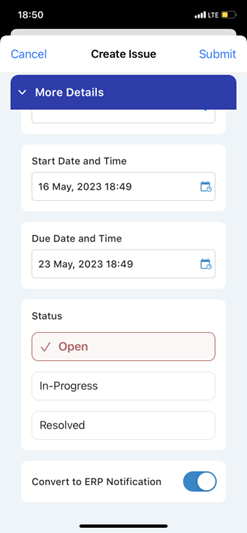
The Issue is created and appears in Open Issues. If it is assigned to you, it also appears in My Issues.
Next: If you are responsible for the investigation, assign the Issue to yourself. Return to the round and continue the remaining tasks.