
Schedule a Standing Instruction
Set up a standing instruction in advance for a future date range — for a planned outage, a scheduled audit.
Submit the report. See Generate and Submit the Shift Handover Report.
Supervisors can schedule an instruction ahead of time for a specific period. The instruction appears automatically during the scheduled period and disappears when the period ends, helping prevent outdated instructions from remaining on screen.
For example, a planned outage is scheduled for this coming weekend. On Friday, create the standing instruction and set it to apply from Saturday 6:00 AM to Sunday 6:00 PM. The weekend shift will see it automatically, and by Monday it will no longer appear. This also works well for holiday coverage or other planned activities.
To schedule a standing instructions:
-
Click Schedule.
TIP: Leave End date blank if the instruction should stay active indefinitely, starting from the Start date.
Figure 1. Schedule Standing Instruction 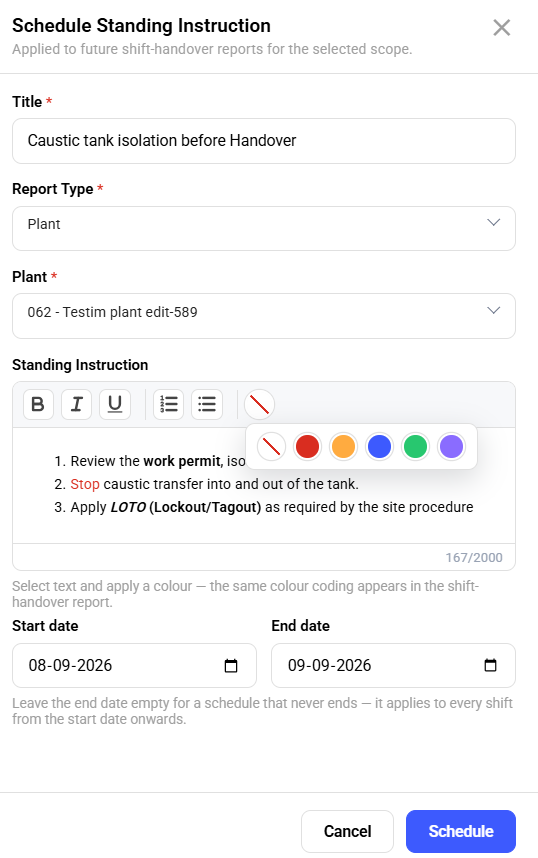
The standing instruction applies automatically within its scheduled window, without manual entry each shift.