
Download Data Needed for the Shift
If you are going to work in a location where there is no or limited internet connectivity, select the offline option. This step downloads the data that is needed for you shift onto the device and you can complete your tasks using the data.
To download the data that is needed for your shift:
-
In the Tell Us Your Preferences screen, tap Continue to continue without
selecting the preferences.
Figure 1. User Preferences Screen 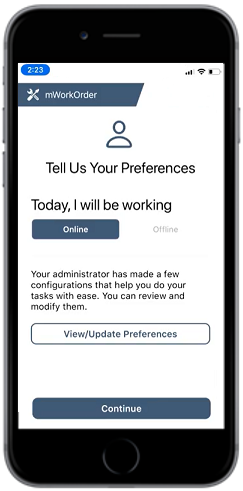
In the Tell Us Your Preferences screen, you can,
- Select Online or Offline mode. If you don’t select the option, the app is continued in online mode.
- Tap View/Update Preferences button to view or update user
preferences.
Figure 2. View or Update User Preferences 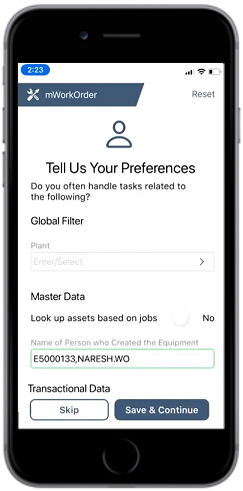
- Update the preferences and tap Save & Continue button or skip the preferences by tapping Skip button.
- Tap Reset on top right corner to reset the preferences.
-
The Progress Bar screen displays the sync status with the success or failure
indication.
Figure 3. Progress Bar Screen 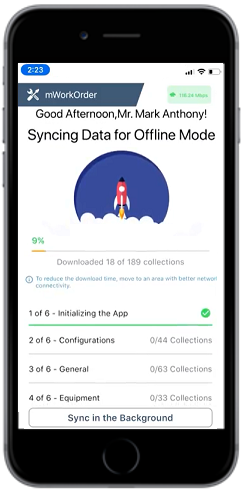
-
Tap Sync in the Background button to run the sync process in the
background and continue with your work.
Note: For more information on using the mWorkOrder application in offline mode, see How to use mWorkOrder in Offline mode