
Login into the mWorkOrder Application
Login with username & password, and configure passcode, touch ID, and face ID.
To login using Username and Password:
-
Open the application.
Figure 1. Login Screen 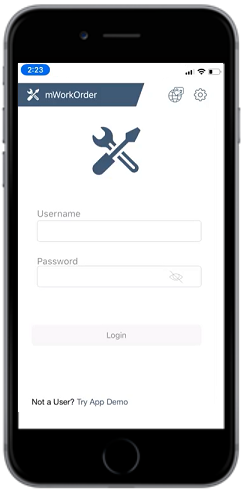
- Enter your Username and Password in the Login screen.
-
Tap Login.
The application displays work orders and operations assigned to you on the dashboard. For more information, see Home Screen of mWorkOrder.
-
Create and confirm App Passcode in the App Passcode screen.
Note: Passcode is device specific; you can use it only in the device that you have set. If you forget the App Passcode, uninstall, and re-install the application, and create it again.
- Tap Enable in TouchID screen to enable touch id or tap Skip to skip the process.
-
Tap Enable in Face ID screen to enable face id or tap Skip to
skip the process.
Next time when you open the application, you can login using either username & password, touch ID or Face ID
-
After login, you can Download Data Needed for the Shift
Note: Application Session Timeout: If you keep the mWorkOrder application in an ideal state (without using) for some time, it logs you out of the application. This is a session timeout feature that helps you secure your data in the application from accidental misuse when you keep your device away for any reason. The ideal time after which mWorkOrder can log you out can be configured in the RACE configuration application. Ask your RACE configurator to modify the session timeout time depending on your need. This session timeout feature is applicable in both online and offline modes.
Remove / Unregister User Profile from Device
When you login, your profile is registered with the device and continues to be registered to your username even after you logout. Multiple users can be registered to the same device. You don't have to unregister when your shift ends. When you log off, another user can log in to the same device and continue to use it.
- In the Login screen, tap Remove User.
- Enter User Name and Password in the Remove User screen.
- Tap Remove User.