
Standard Login
This section provides instructions on logging into the mInspections application and setting up passcode, touch ID, and face ID for added security.
To login using Username and Password:
- Open the mInspections application.
- In the Welcome screen, enter your company or domain.
- Tap Next.
-
In the Sign In screen, enter your
Username.
Figure 1. Enter Username 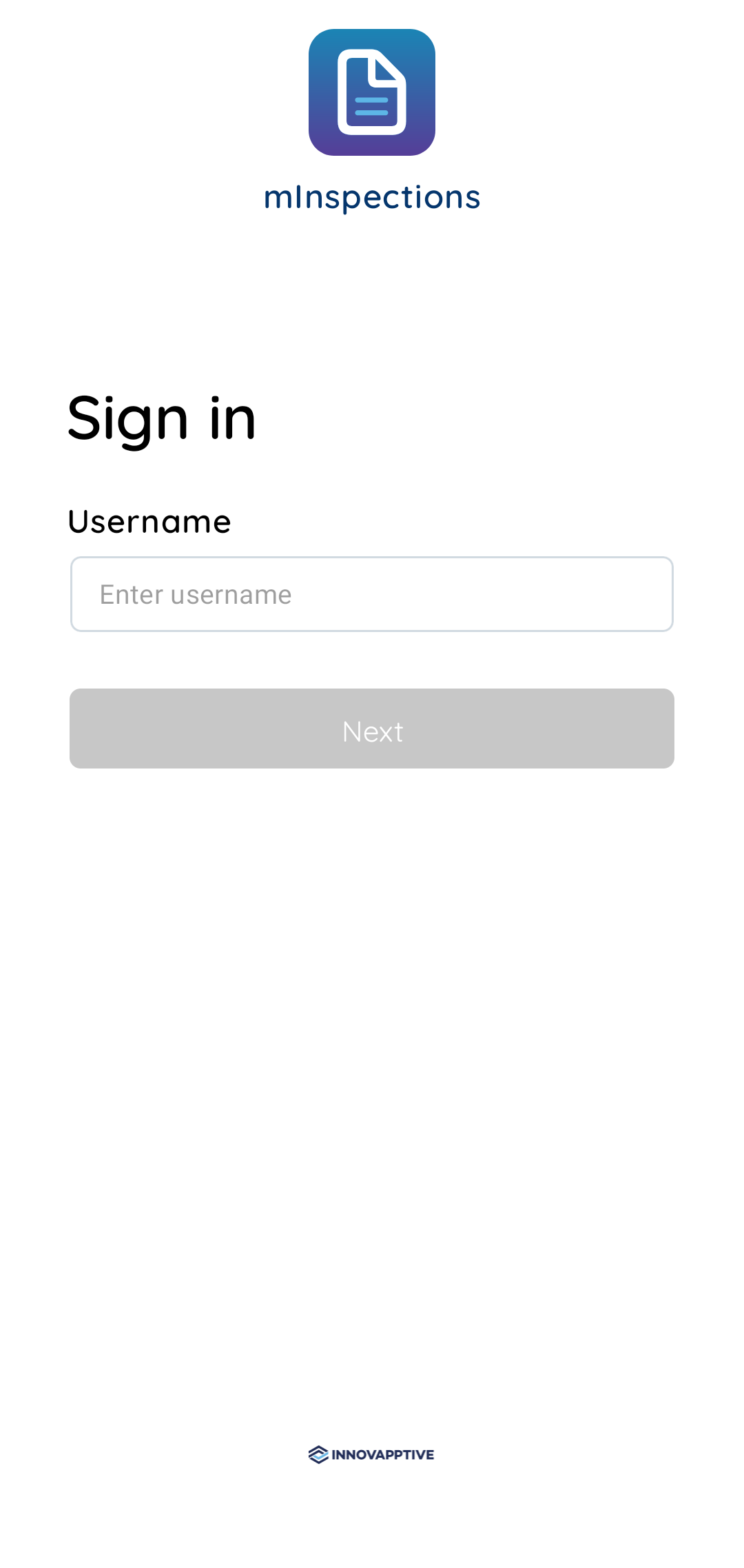
- Tap Terms and Conditions to read End-User License Agreement (EULA) of Service.
- Tap Next.
- In the Password screen, enter Password.
-
Tap Sign In.
Figure 2. Create Passcode 
-
Create and confirm app passcode in the Create Passcode
and Confirm Passcode screens.
Note: To disable password configuration, please contact the Innovapptive tenant management team.
Figure 3. Enable Touch ID or Face ID 
- In the Enable Quick Login screen, enable Face or Fingerprint identification for login access by tapping Enable Touch ID or Face ID.
- In the User Preferences screen, select Plant, Unit, Position, Shift, and Sync Task Reading History. For more information, see Select or Change a Plant.
-
Tap Save.
The application syncs the data based on the selected preferences and displays the Home screen. For more information, see Access Forms in Offline Mode.