
Integrate mRounds with IBM Maximo
The IBM Maximo integration enables bidirectional data flow between Maximo and mRounds. You synchronize location and asset master data from Maximo into mRounds, ensuring that your maintenance rounds reflect the current state of your plant infrastructure.
When technicians identify issues or anomalies during rounds, mRounds automatically sends notification data to Maximo, creating maintenance records through your configured endpoint and triggering your established maintenance workflows.
Configuration is managed through the Integrations Manager interface where you establish a secure server connection and configure individual integration points with endpoint paths and field mapping for master data synchronization and notification creation.
Create an IBM Maximo Server Connection
The IBM Maximo Server connection establishes secure communication between mRounds and your Maximo system. This connection uses your chosen authorization method to authenticate requests and serves as the foundation for all subsequent data exchanges between the two systems.
-
Open Integrations Manager.
Figure 1. Connection screen 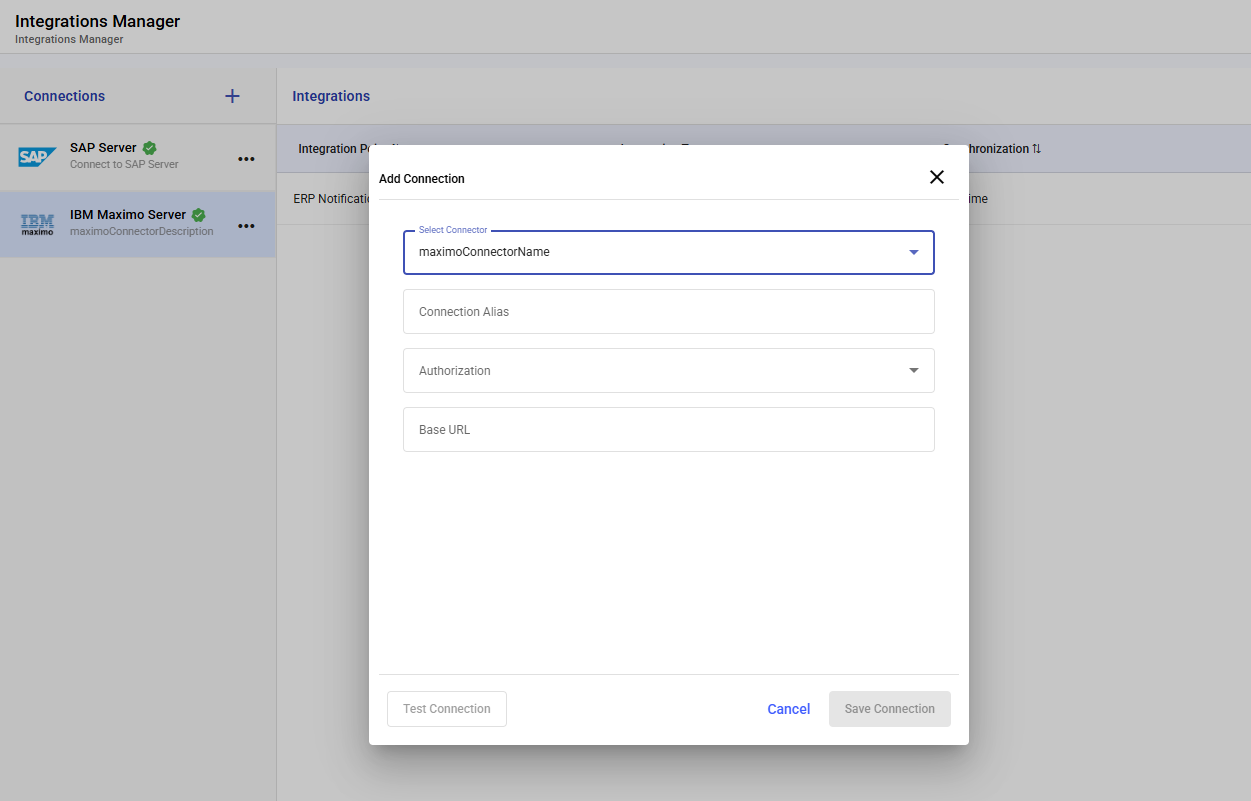
- In Connections, click +.
-
In Add Connection, do the following:
- Select Connector: IBM Maximo Server
- Connection Alias: enter a name (example: Maximo - Prod)
- Authorization: select the supported method and complete required fields.
- Click Test Connection.
- Click Save Connection.
Configure Inbound Integration for Master Data (Locations and Assets)
The inbound master data integration pulls location and asset information from Maximo into mRounds. This synchronization ensures that technicians see current, accurate facility data when they perform maintenance rounds. Schedule these updates to run automatically at regular intervals, keeping your mRounds data aligned with your Maximo master records.
To add an inbound master data integration:
- In Integrations Manager, select your Maximo connection.
- Click Add Integration (or select Master Data and click Edit).
-
In the Add/Edit Integration window, do the following:
- Select Integration Point: Master Data
- Integration Type: Inbound
- Data Sync Time:
- Scheduled (recommended): set Repeat Every and Start Date
- Real-time (optional): use only if validated
- Plants: select the relevant plant.
- URL Path: enter the Maximo endpoint/object structure path used to pull master data (provided by your Maximo admin).
- Configure Data Mapping to map Maximo fields to mRounds fields.
- Click Save.
Note: If your Maximo setup uses different endpoints for Locations and Assets, create separate inbound integrations (one per endpoint) and map fields accordingly.
Configure Outbound Integration for ERP Notification (Send to Maximo)
The outbound ERP notification integration sends issue and anomaly data from mRounds to Maximo, automatically creating maintenance records when technicians report problems during their rounds. This integration uses your configured endpoint and object structure to create records in Maximo, ensuring that maintenance issues trigger your established work order processes without manual data entry, reducing response times and improving operational efficiency.
To add an outbound ERP notification integration:
- In Integrations Manager, select your Maximo connection.
-
Click Add Integration (or select an existing ERP Notification and click Edit).
Figure 2. Connection screen 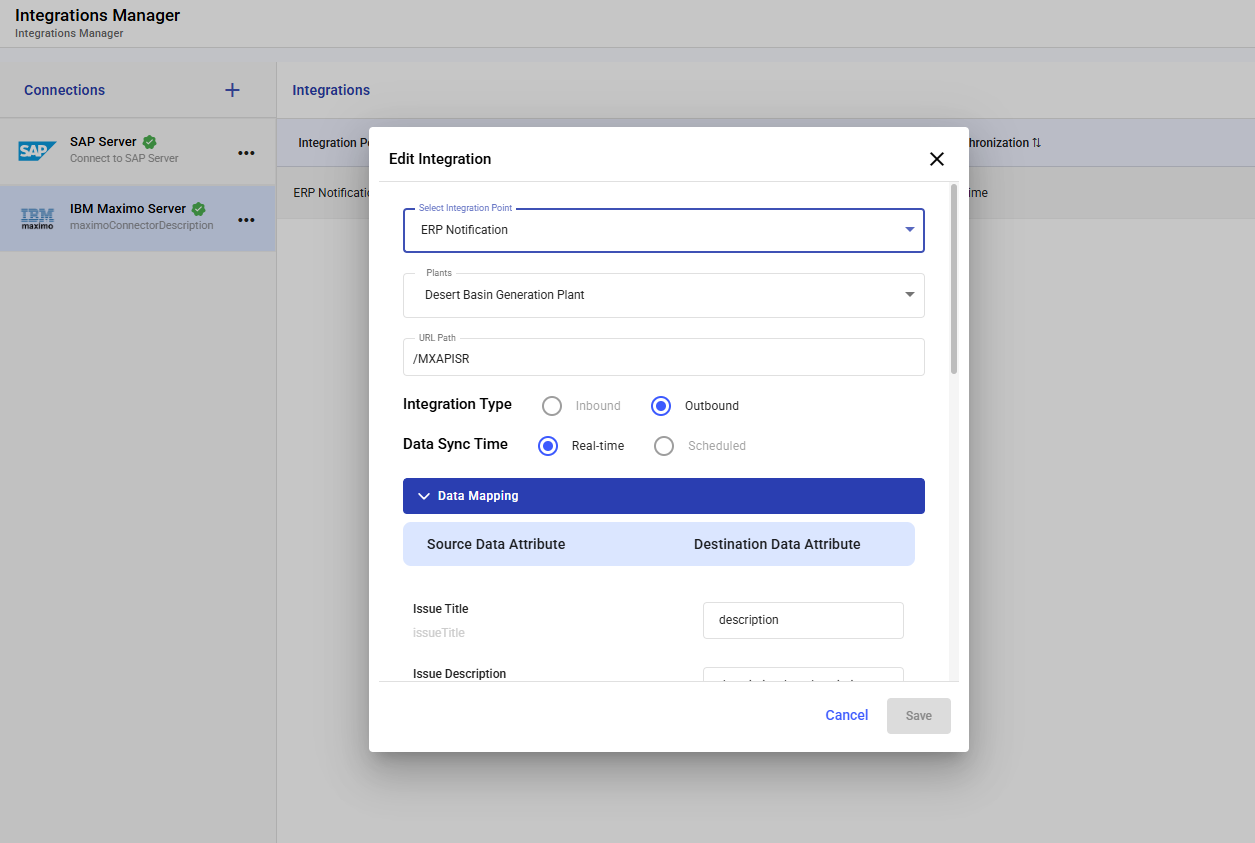
-
In the Add/Edit Integration window, do the following:
- Select Integration Point: ERP Notification
- Plants: select the relevant plant.
- URL Path: enter the Maximo endpoint/object structure path (example: /MXAPISR).
- Integration Type: Outbound
- Data Sync Time: select Real-time (recommended) or Scheduled (if batching is required).
- Expand Data Mapping and map Source Data Attribute →
Destination Data Attribute.
- Example commonly used: Issue Title → description
- Click Save.
Result: When an issue/ERP notification is created in mRounds (per your configured workflow), a corresponding record is created in Maximo using the configured endpoint and mappings.