
Okta Configuration for Innovapptive CBO (Mobile)
To configure Okta for mobile application:
- Log in to your Okta organization as an administrator.
- Click on the hamburger menu and select Application.
- Click the Create App Integration button.
-
In the Create a new app integration window:
- Select Sign-in Method = OIDC - OpenID Connect.
Figure 1. Select Sign In Method 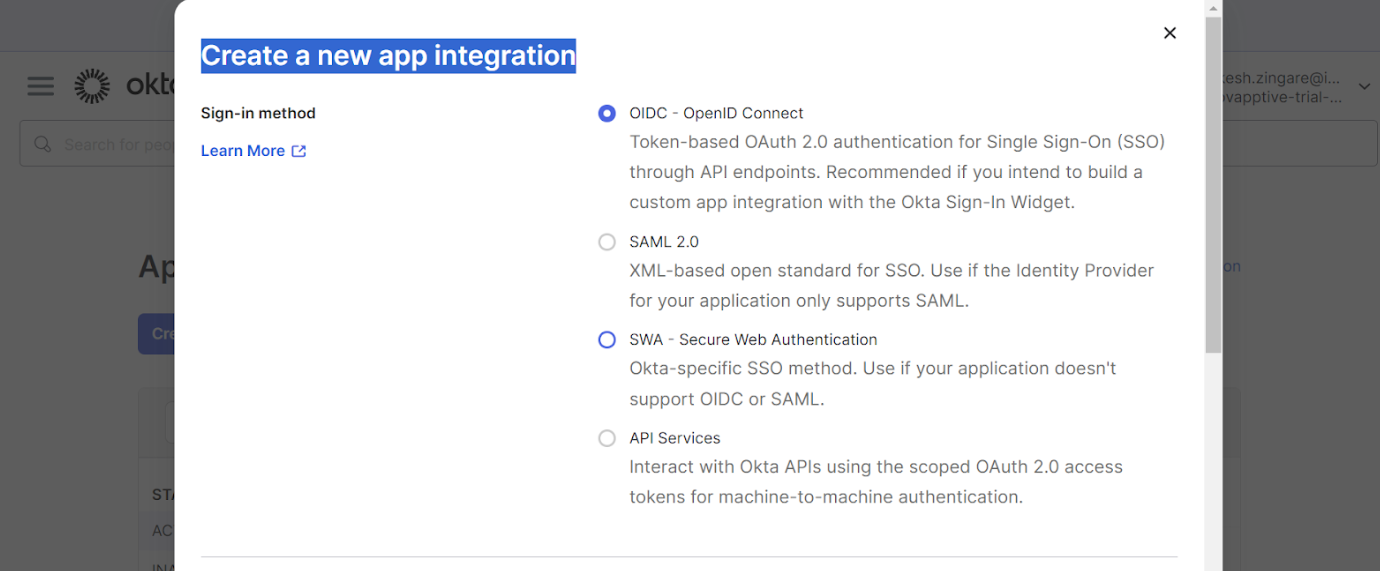
- Select Application Type = Native Application.
Figure 2. Select Application Type 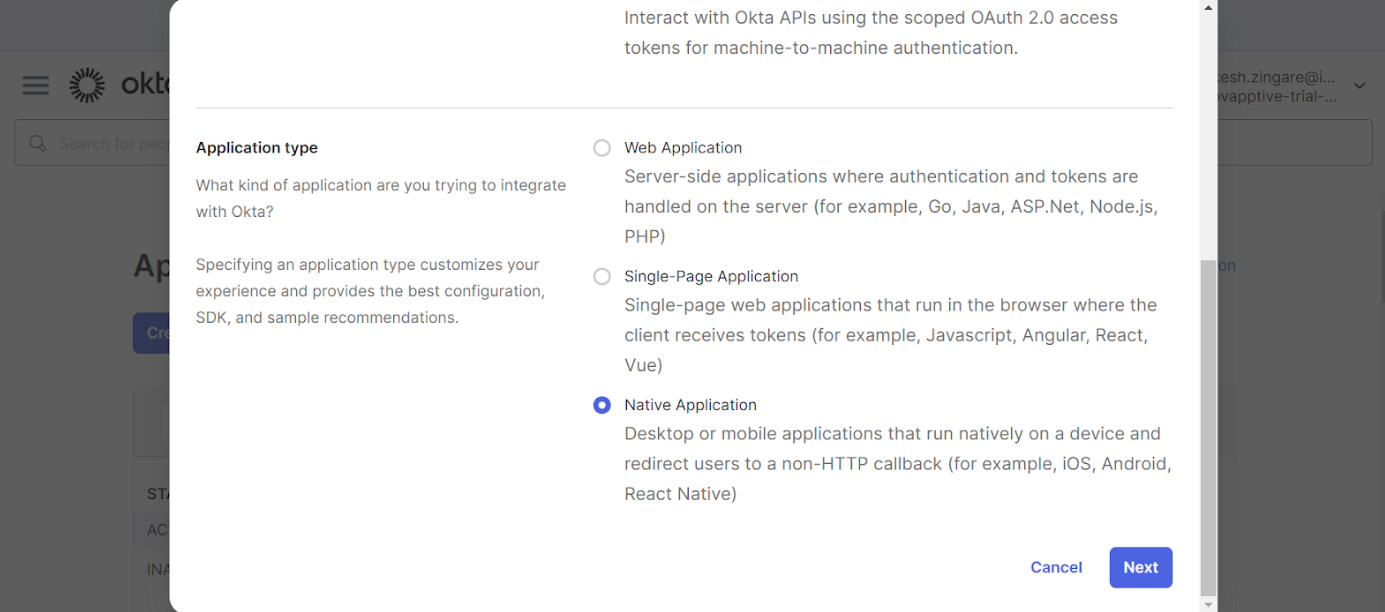
- Click Next.
- Add name “Innovapptive CBO Mobile <Environment>” in App
integration name input.
(Environment – DEV/QA/PRD)
- Select Grant type,
- Authorization Code
- Refresh Token
Figure 3. Native App Integration Screen 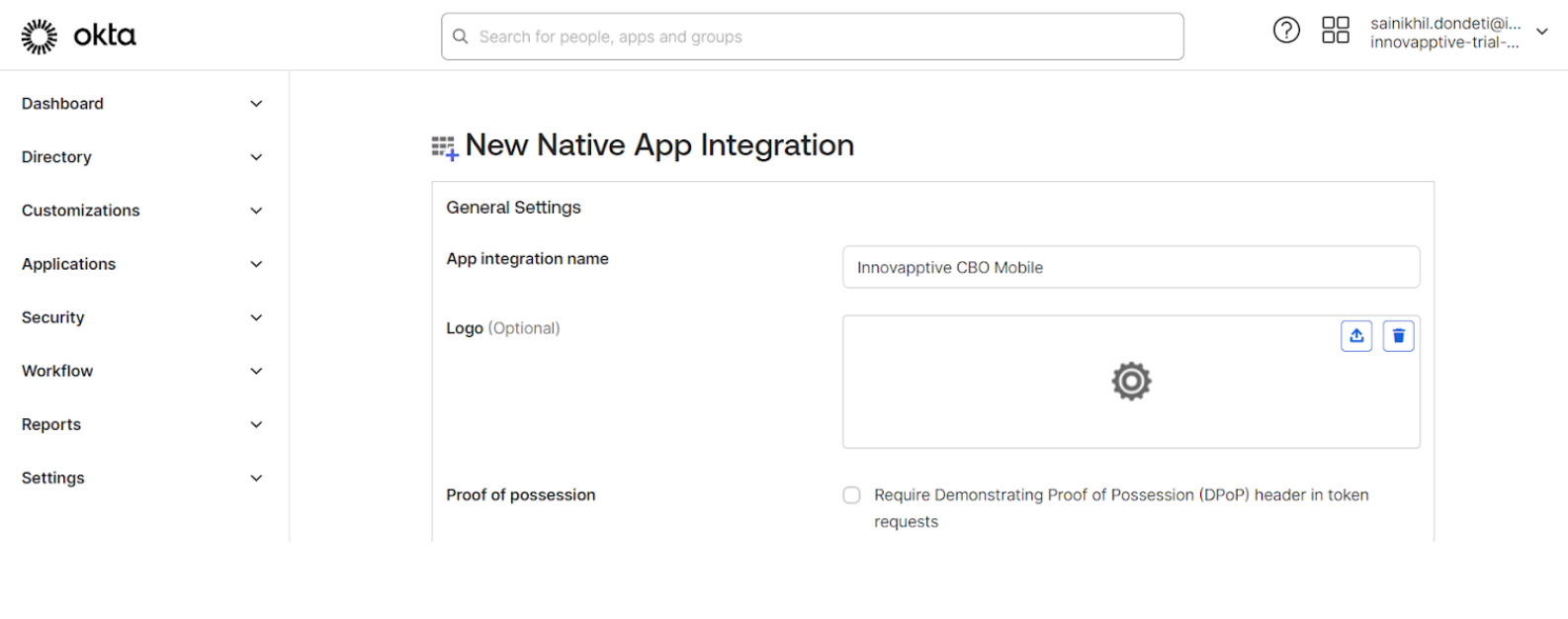
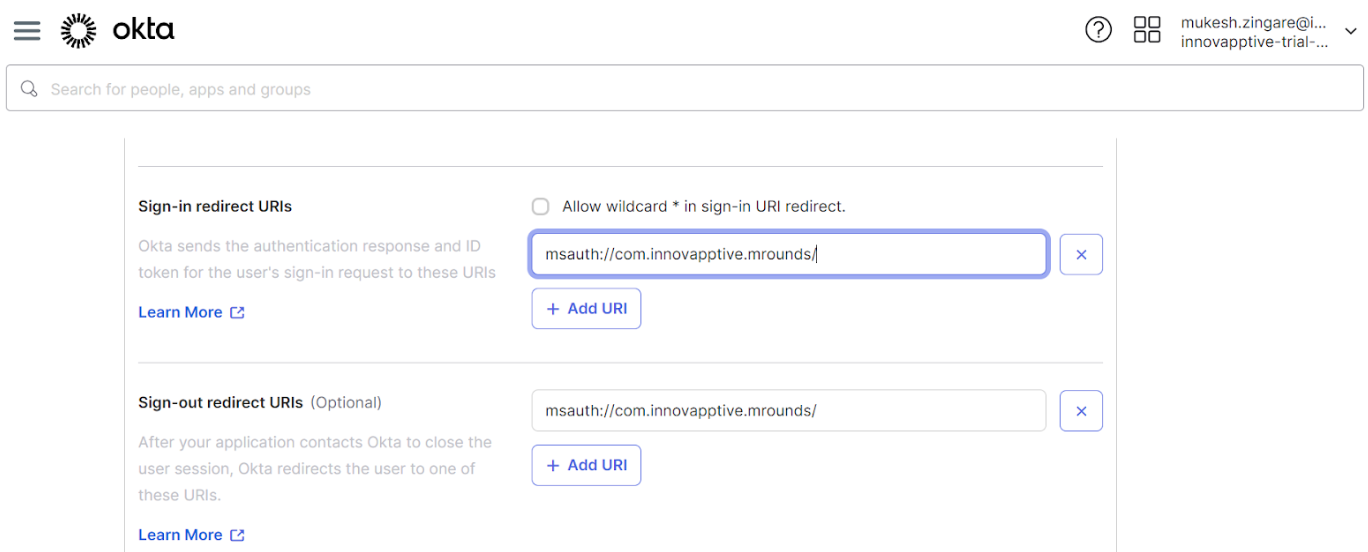
Note:No advanced properties required - Add msauth://com.innovapptive.mrounds/ in
Sign-in redirect URi’s
Sign-out redirect URi’s
- Select Control access given below and select immediate access.
- Click Save.
Figure 4. Select Controlled Access 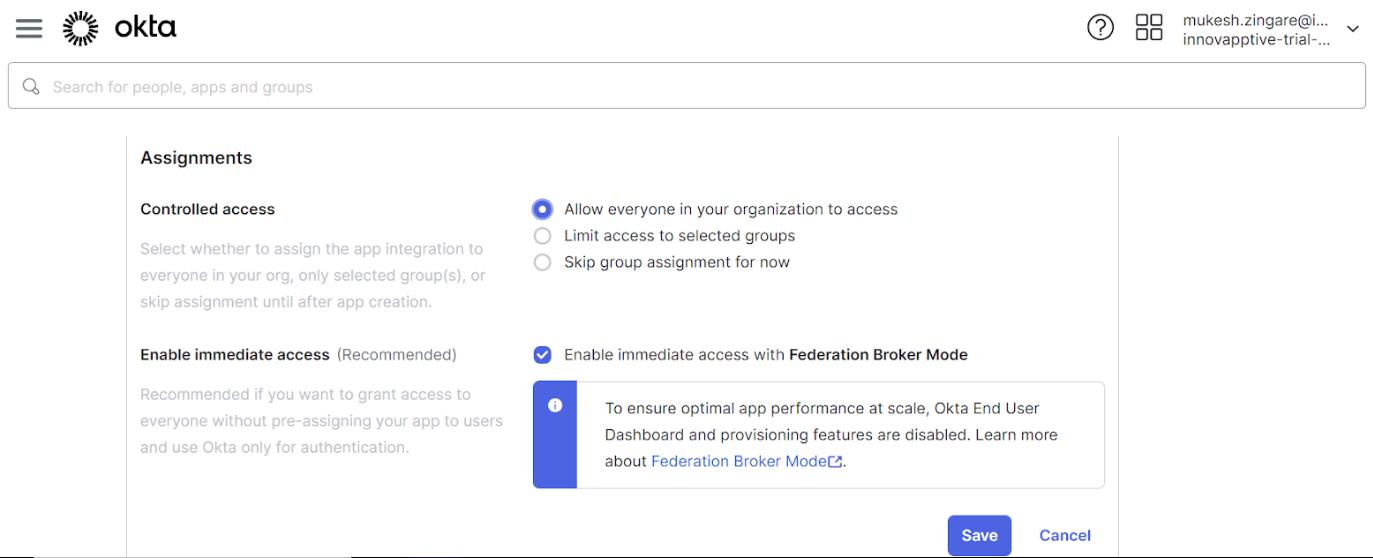
- Navigate to the General tab.
- Under the Client Credentials section, click edit and change the Client Authentication to Client Secret.
- Uncheck the option Require PKCE as additional verification and
click Save.
Figure 5. Select Values in General Tab 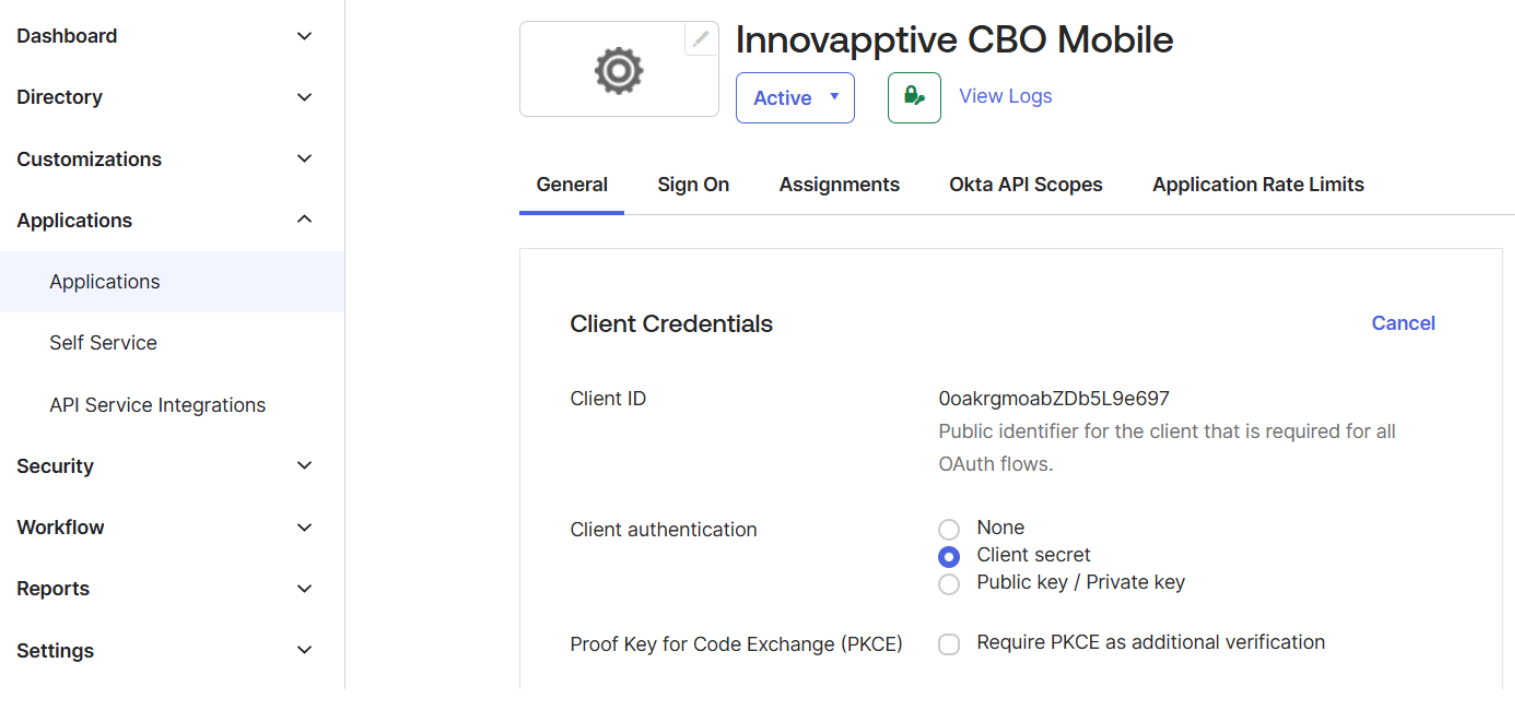
- A new client secret is generated.
Share Secret securely with Innovapptive for tenant configuration.
Figure 6. Share Secret 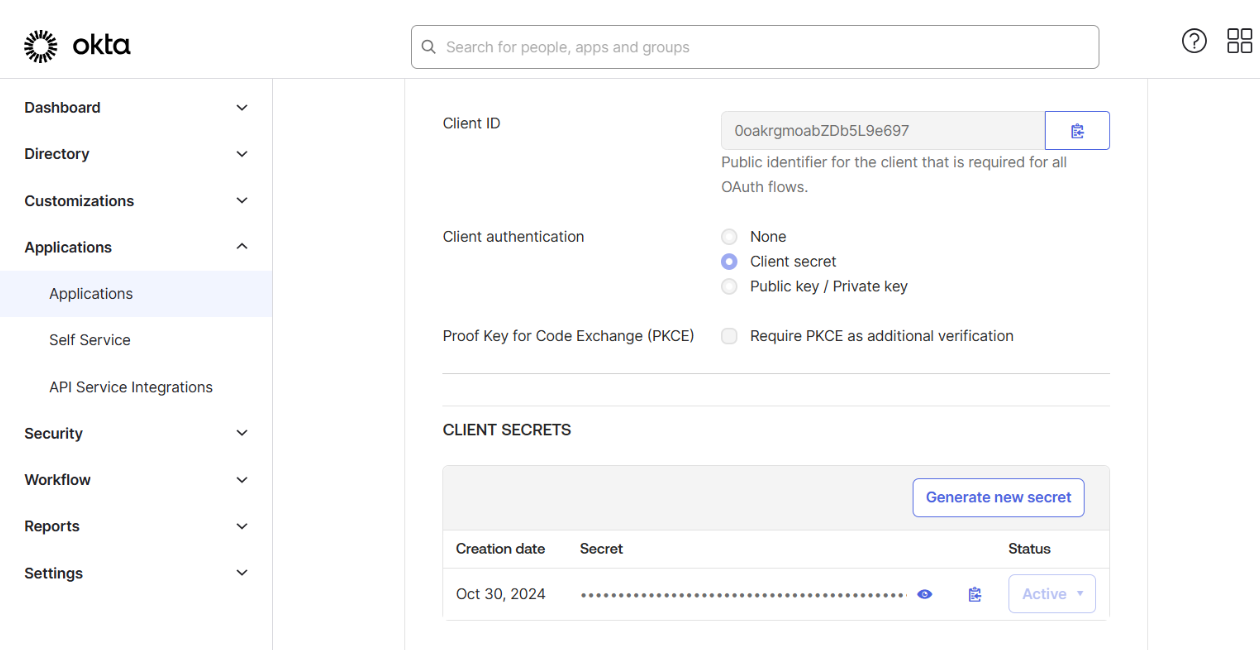
- Select Sign-in Method = OIDC - OpenID Connect.