Okta Configuration for Innovapptive CBO (Web)
To configure Okta for CBO web application:
- Log in to your Okta organization as an administrator.
-
Expand Applications on the left-side pane and select
Applications.
Figure 1. Applications Screen 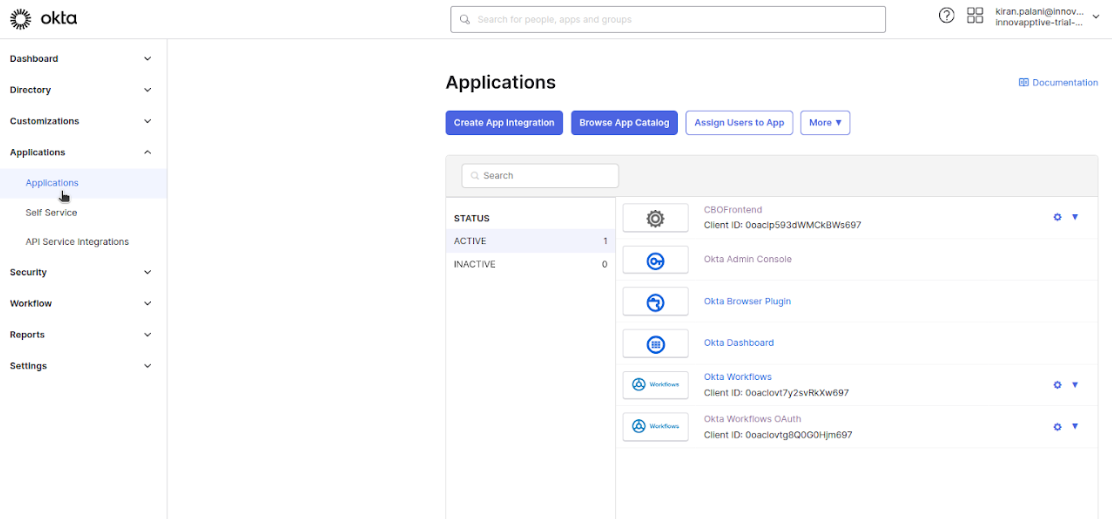
-
Click Create App Integration.
Figure 2. Create App Integration 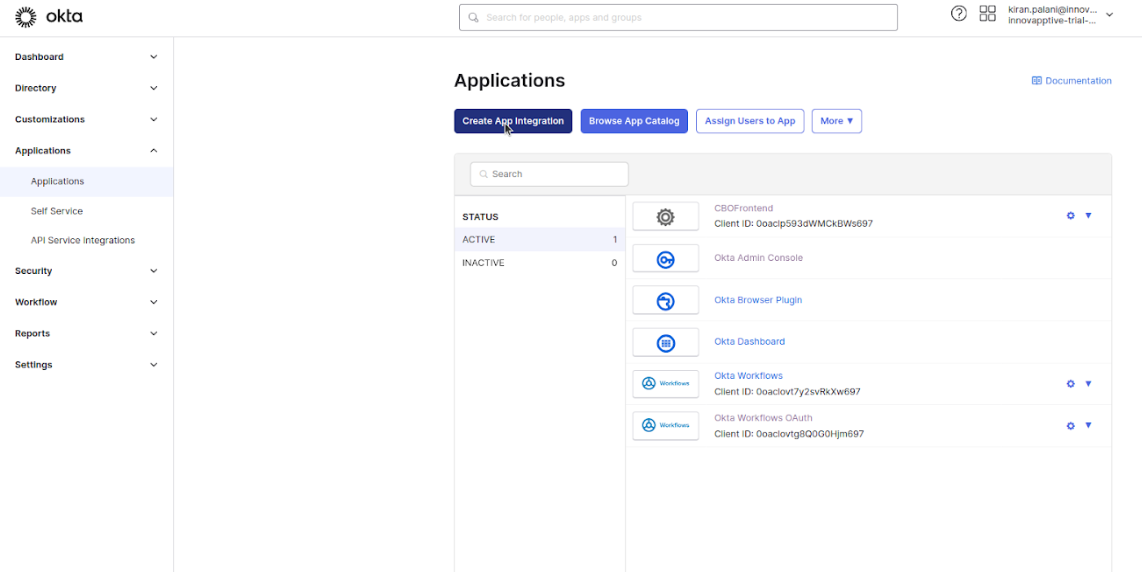
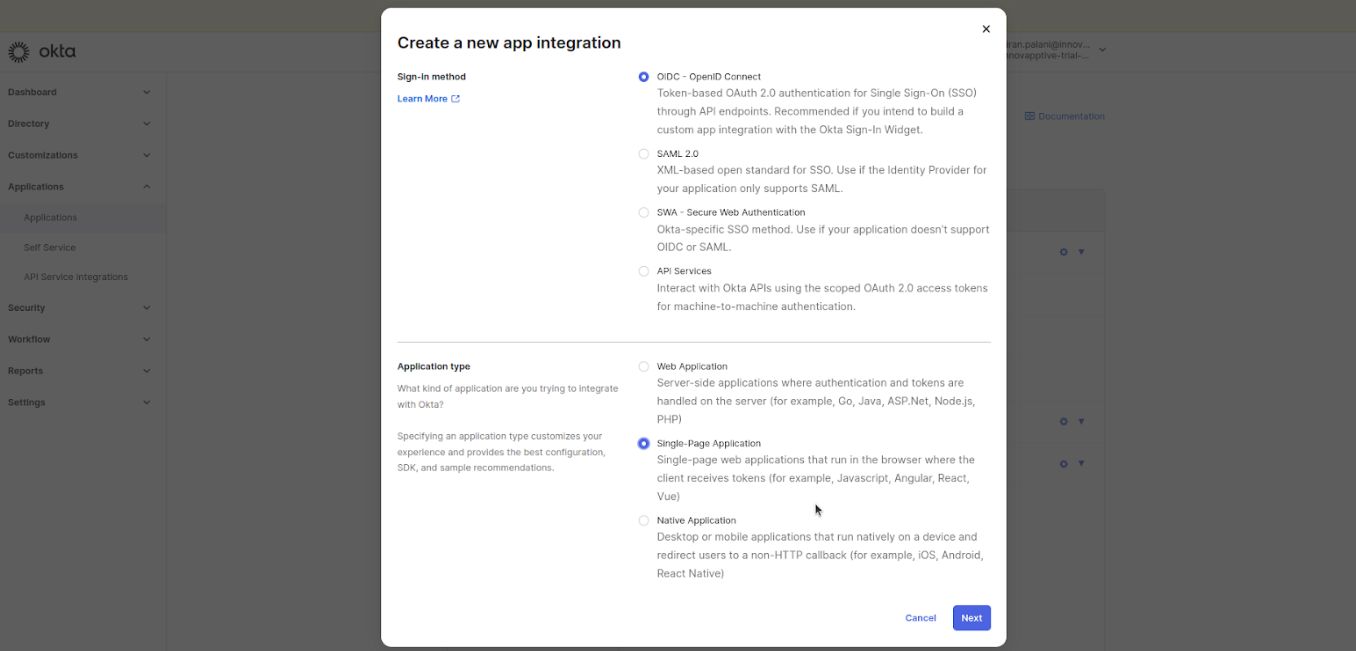
- Select OIDC - OpenID Connect as the sign-in method.
- Choose Single-Page Application for the Application Type.
-
Click Next.
-
Add name Innovapptive CBO <Environment> in the App integration
name field.
(Environment – DEV/QA/PRD
-
In the Grant Types section, select the following options:
- Authorization Code (default)
- Refresh Token (enable to allow for silent authentication)
-
Update Sign In and Sign Out URI’s with tenant specific URI’s.
(Innovapptive will provide the URL details)
Figure 3. Single Page Integration 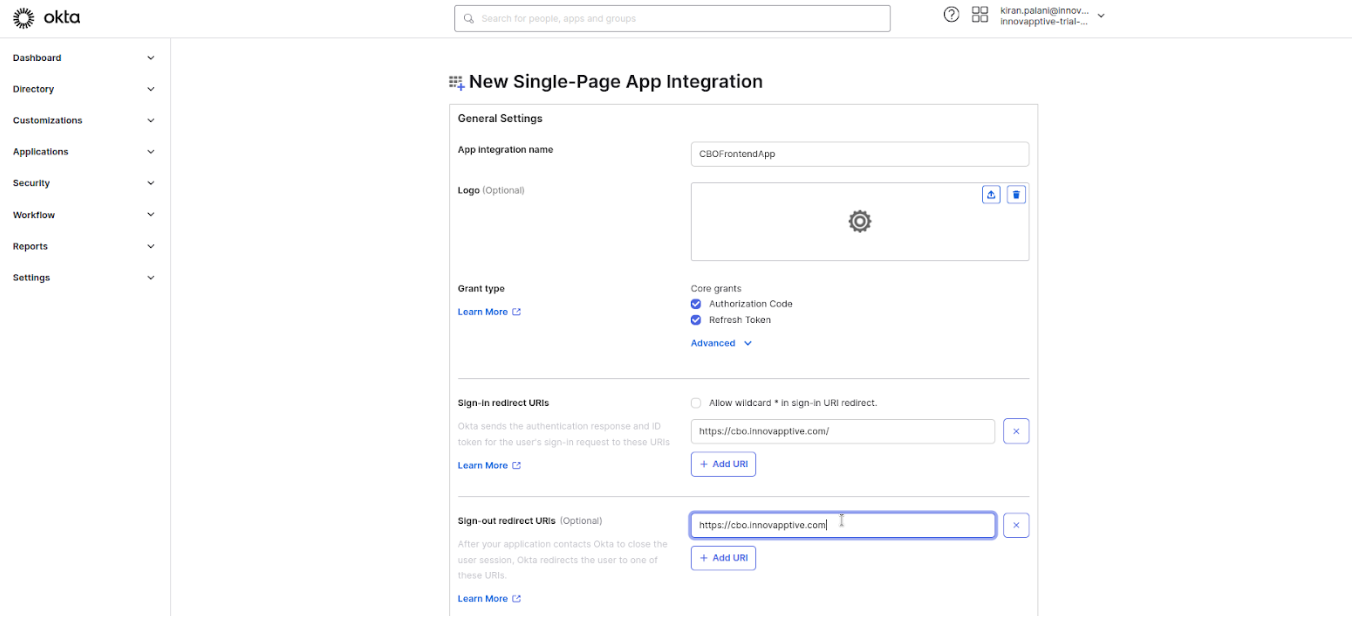
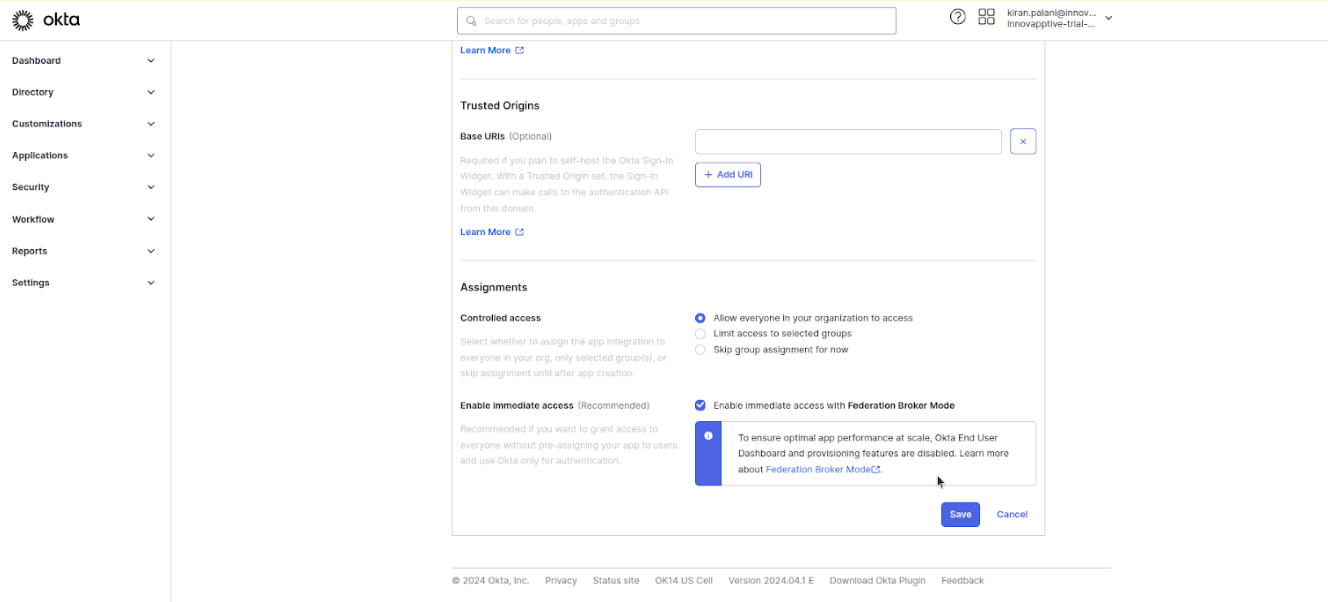
- Select the Assignments (controlled access) based on the tenant requirements.
-
Click Save.
-
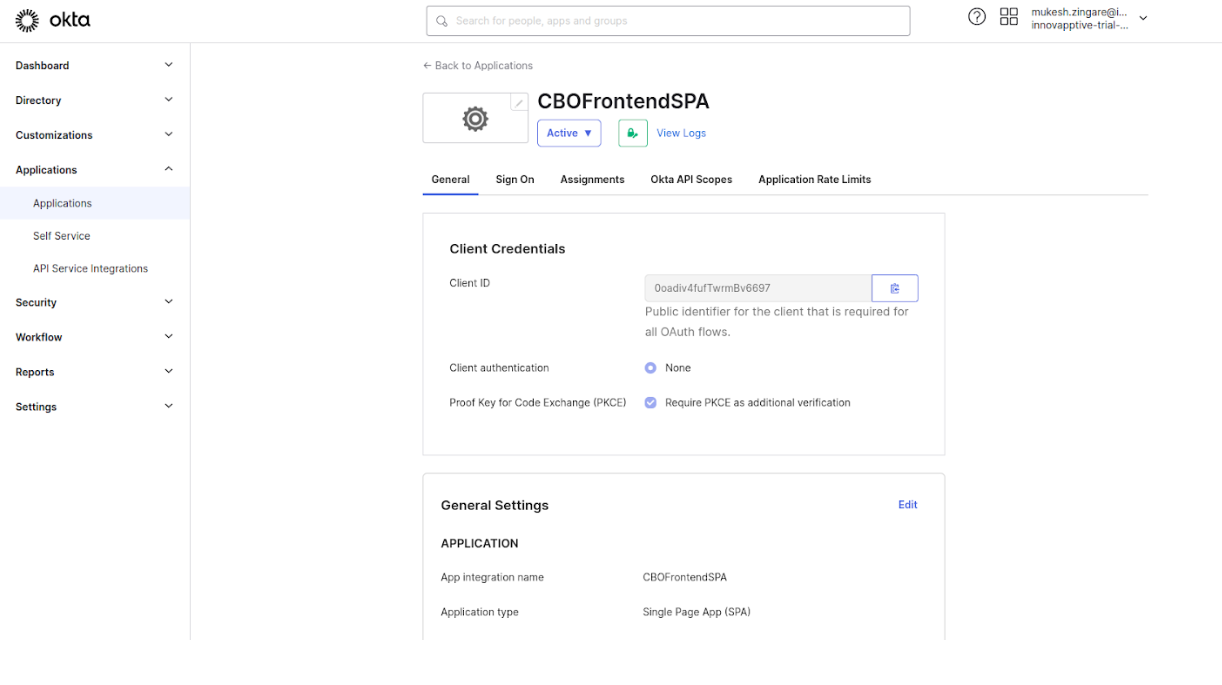
Copy and share the Client ID for tenant onboarding.
Figure 4. Copy Client ID