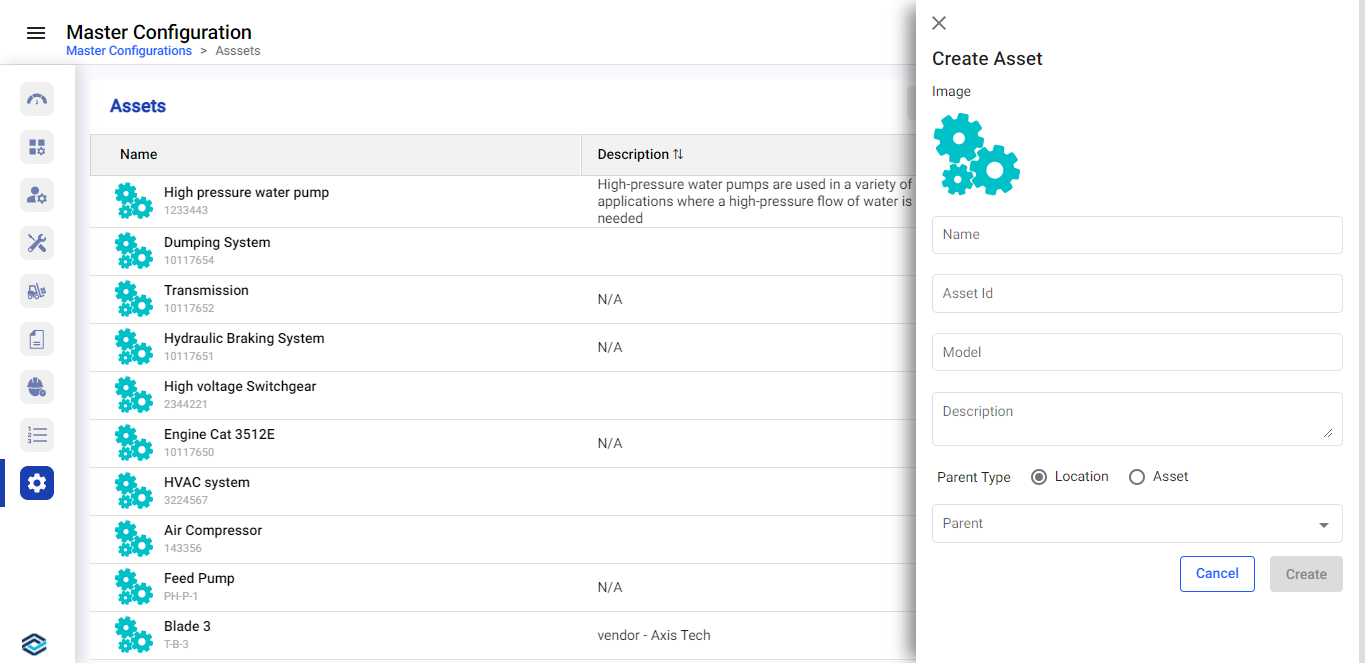
Create Assets
Assets refer to machines, equipment, or infrastructure that require maintenance and monitoring. By creating assets in the system, you can assign maintenance tasks, track maintenance history, and monitor performance. Each asset can be linked to a specific plant and location, ensuring organized asset management.
Note:
You can download already created data from SAP through
synchronization.
To create or add an asset:
-
Click the Master Configuration module on the left-side pane and click
Assets.
Or
Click Sync from SAP to manually sync and export already created data from SAP server.
Or
The data synchronization can automatically occurs based on the configured schedule.Note:There should not be any existing master data to sync the data.Figure 1. Assets Screen 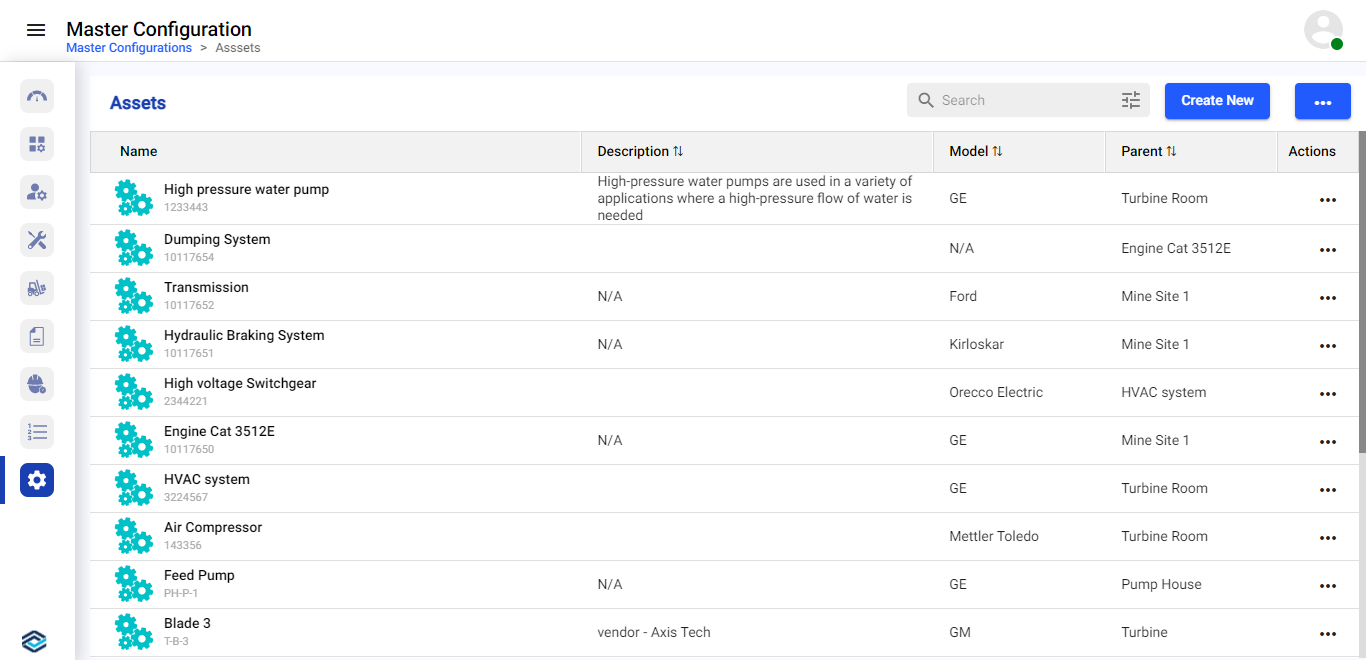
-
Click Create New and select Add Manually.
Figure 2. Add Asset Details