
Create Locations
Locations represent specific areas within a plant where assets and maintenance activities are managed. For example, a plant may have locations such as Production Floor, Warehouse, or Cooling Unit Area. Defining locations allows for better tracking of assets, and maintenance tasks in a structured manner.
To create or add a location:
-
Click the Master Configuration module on the left side pane and click
Locations.
Figure 1. Locations Screen 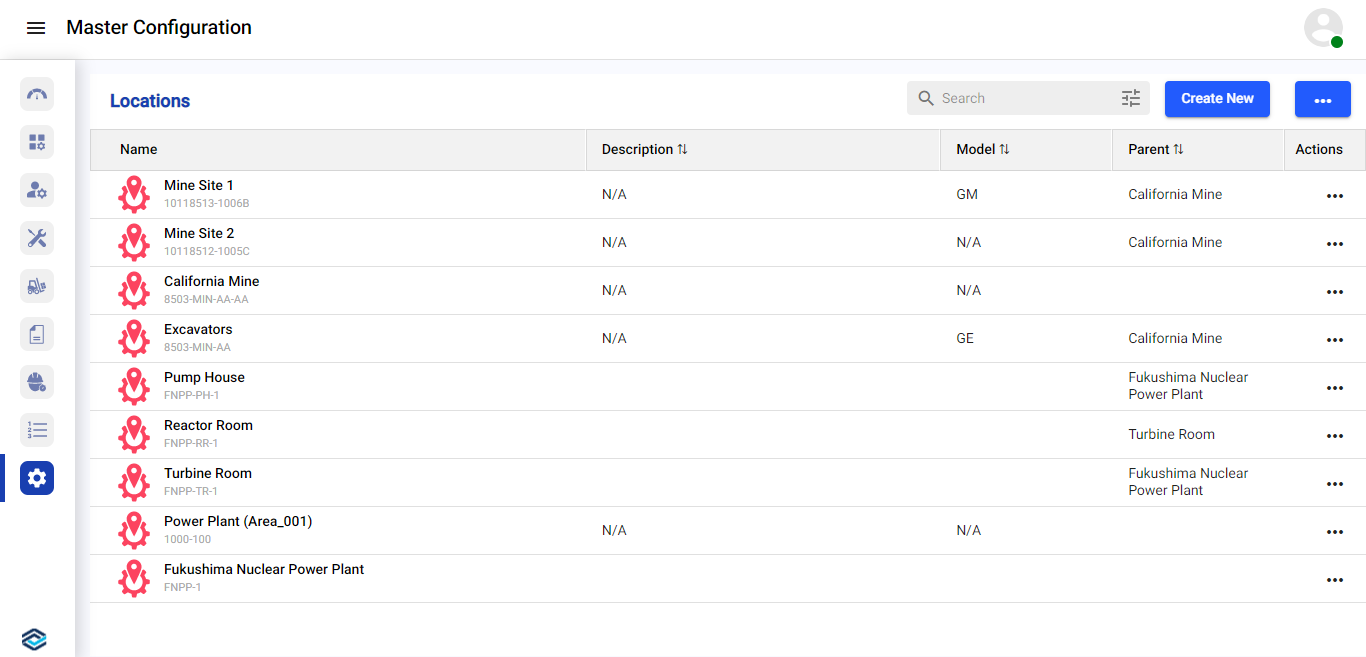
-
Click Create New and select Add Manually.
Or
Click Sync from SAP to manually sync and export already created data from SAP server.
Or
The data synchronization can automatically occurs based on the configured schedule.Note:There should not be any existing master data to sync the data.Figure 2. Add Location Details 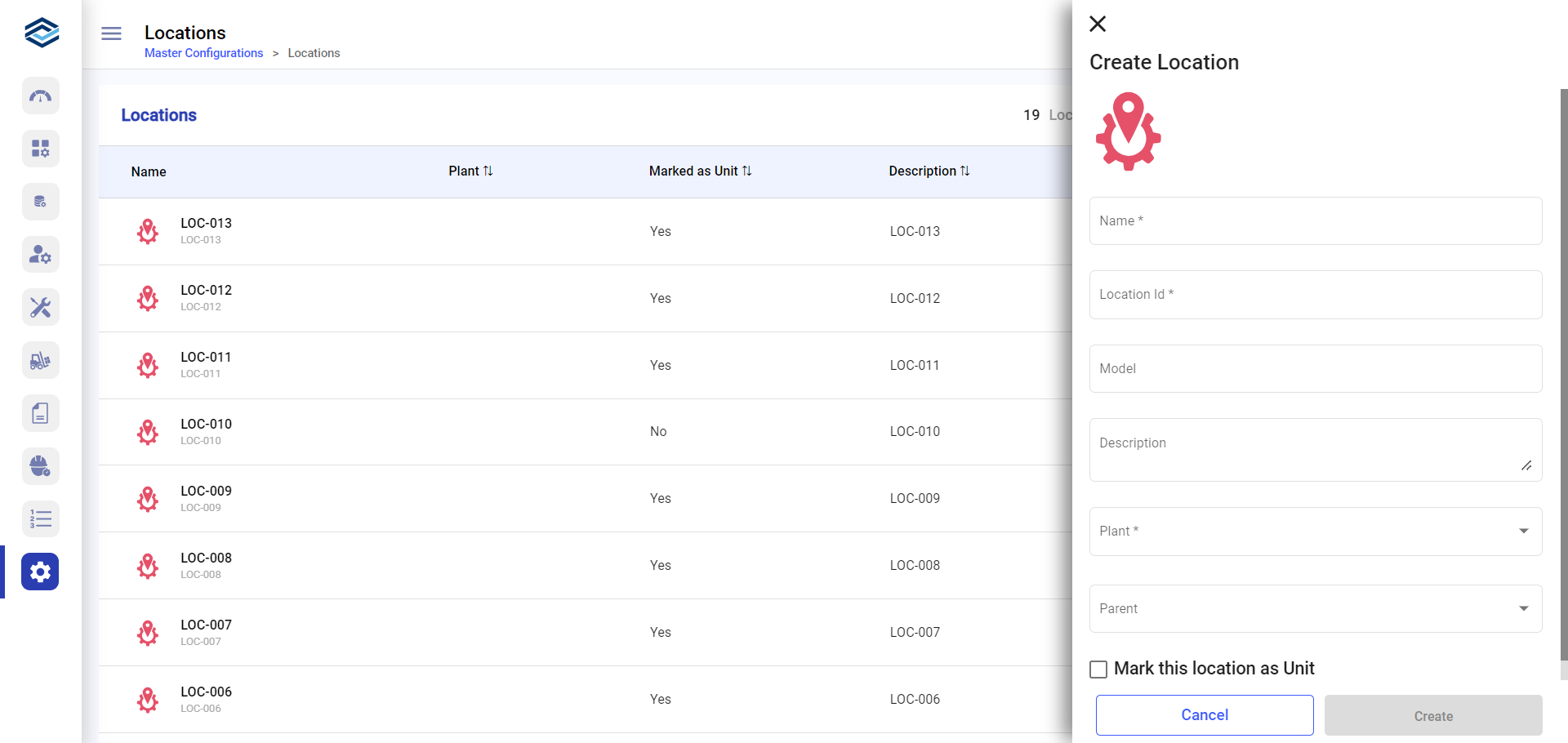
Edit Location ID
Administrators can now update Functional Location (FLOC) display IDs and modify location hierarchy relationships without recreating locations or affecting existing records. Open rounds, findings, and issues automatically reflect updated Location IDs, while submitted records continue to display the original ID captured during execution.
When a location hierarchy changes, existing Round Plans are not automatically modified. Instead, impacted plans display a Hierarchy Changed indicator so supervisors can review and republish plans if required.
Before using this feature, the following feature flags must be enabled in the Integration Manager by your Tenant Administrator:
- enableLocationMasking = true
- enableMasterdatamasking = true
- Click the Master Configuration module on the left-side pane and click Locations.
- Click the More (•••) icon next to the location whose ID you want to change and select Edit ID.
- In the Edit ID dialog, enter the New ID in the Location ID field.
- Click Update.
The Location ID is updated. All open work items immediately reflect the new ID.
- Open work items (status: Open, Assigned, or In Progress) automatically display the updated Location ID.
- Closed records (status: Submitted, Approved, or Rejected) continue to show the ID captured at the time of completion and are not changed.
- Searching by a historical (old) ID still resolves to the correct location. The system displays a banner indicating the ID is historical and shows the current ID alongside it.
- A full ID history is recorded for every change: old ID, new ID, changed by, date and time, and an optional reason.