
Raise a Work-Order-Linked Permit on Mobile
Raise a work-order- or operation-linked permit from Mobile when the action is available to your role, then submit it for review.
Role: Permit Requester. Platform: iMaintenance Mobile.
-
Tap the + action and select Raise Permit.
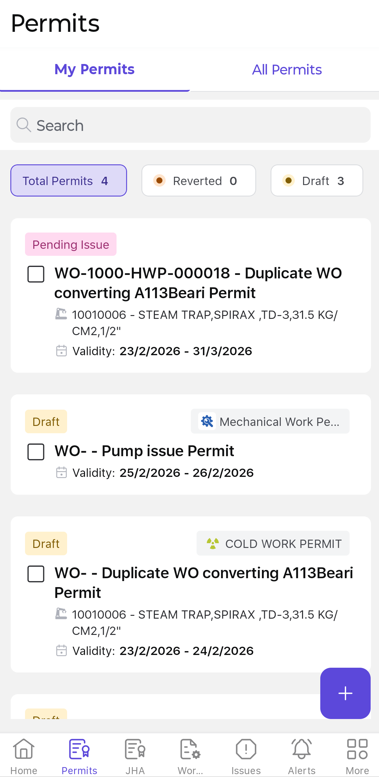
-
Add or annotate the permit plan.
A permit plan is a drawing, layout, or photo of the work area. To Add Permit Plan:
- Tap the Permit Overview icon at the top right of the permit screen.
- tap + Add Attachment.
- Select Take Photo / Video, Choose from Library, or Upload Documents.
- To annotate a permit plan, tap the file to open it.
- Draw, highlight, or add markups using the annotation tools, and save the annotated version.
Figure 1. 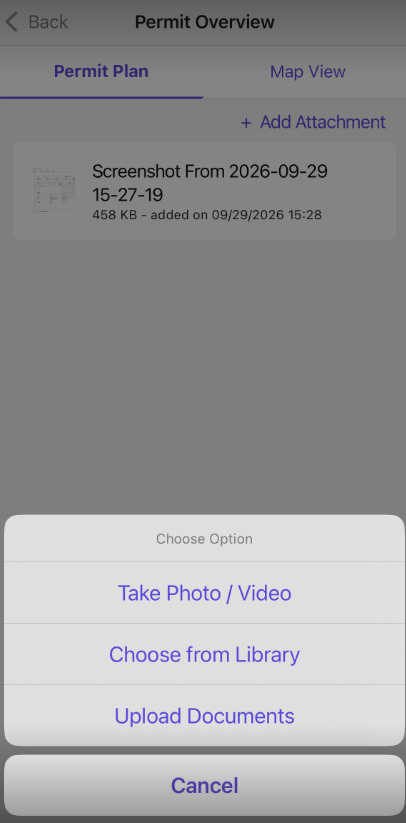
The permit is saved as a draft or submitted to the configured review stage.
Next: The Permit Reviewer owns the next action: review the submitted permit.