Create a Round and Partially Execute It
The Post Round Plan API service allows you to create a round and execute it partially based on the round plan details request.
To create and execute a round partially:
-
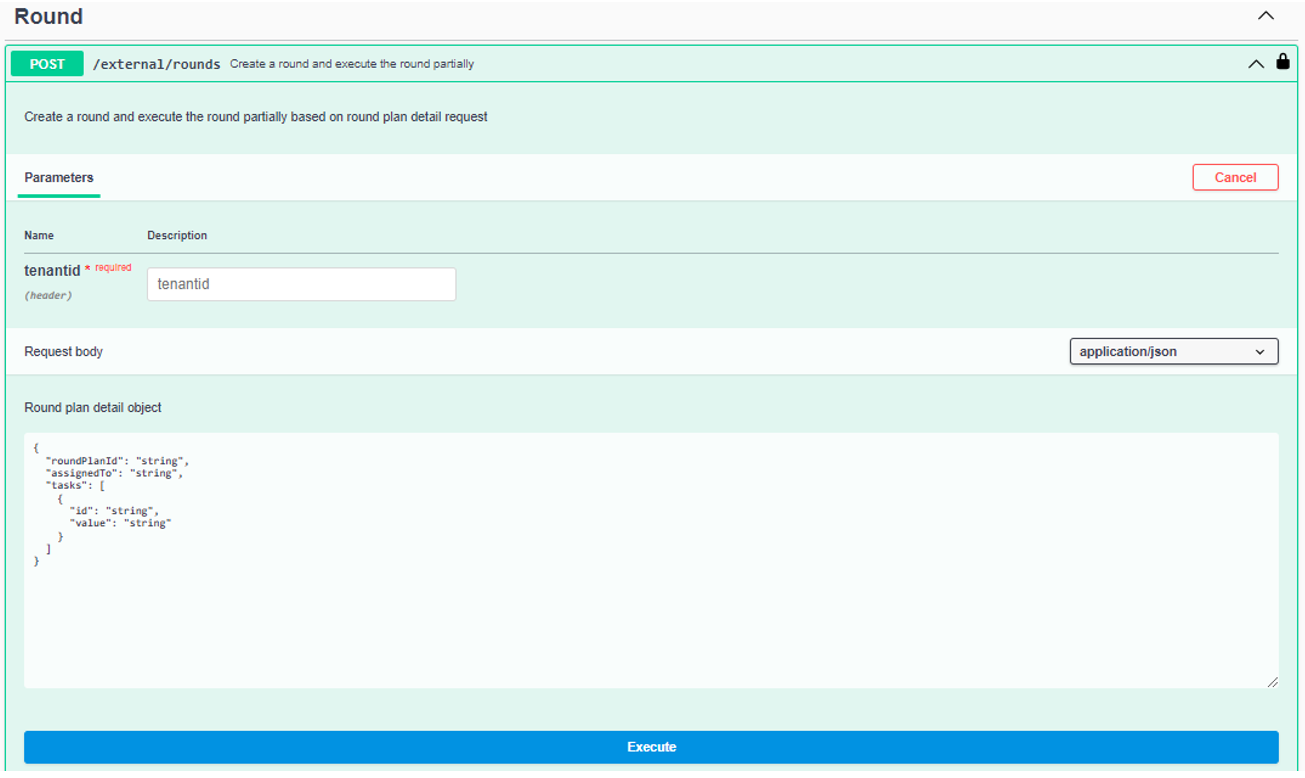
Click Try it out.
-
In the Request Body section, edit the code by adding pre-filled values
as required.
Note:This Dynamic Rounds Generation using APIs process supports only five Response Types. They are Text Answer, Number, Date Range, Date & Time, and Photo. The format of the pre-filled response must be base 64 for images, ISO string for Date & Time, and Date Range response types.For example,
{
  "roundPlanId": "addd59d8-84ae-4221-a2ed-51a4a60a25a0",
  "assignedTo": "abc@iinovapptive.com",
  "tasks": [
    {
      "id": "Q1",
      "value": "Tom Curran"
    },
    {
      "id": "Q2",
      "value": "209.09"
    },
    {
      "id": "Q3",
      "value": "2023-07-31T08:11:31.526Z"
    },
    {
      "id": "Q4",
      "value": "2023-07-31T08:11:31.526Z"
    },
    {
      "id": "Q5",
      "value": "2023-07-31T08:44:24.526Z;2023-07-30T08:44:24.526Z"
    },
    {
      "id": "Q6",
      "value": "<base64-encoded image>"
    }
  ]
}
Add the base 64 string (id: Q6) for the image response type.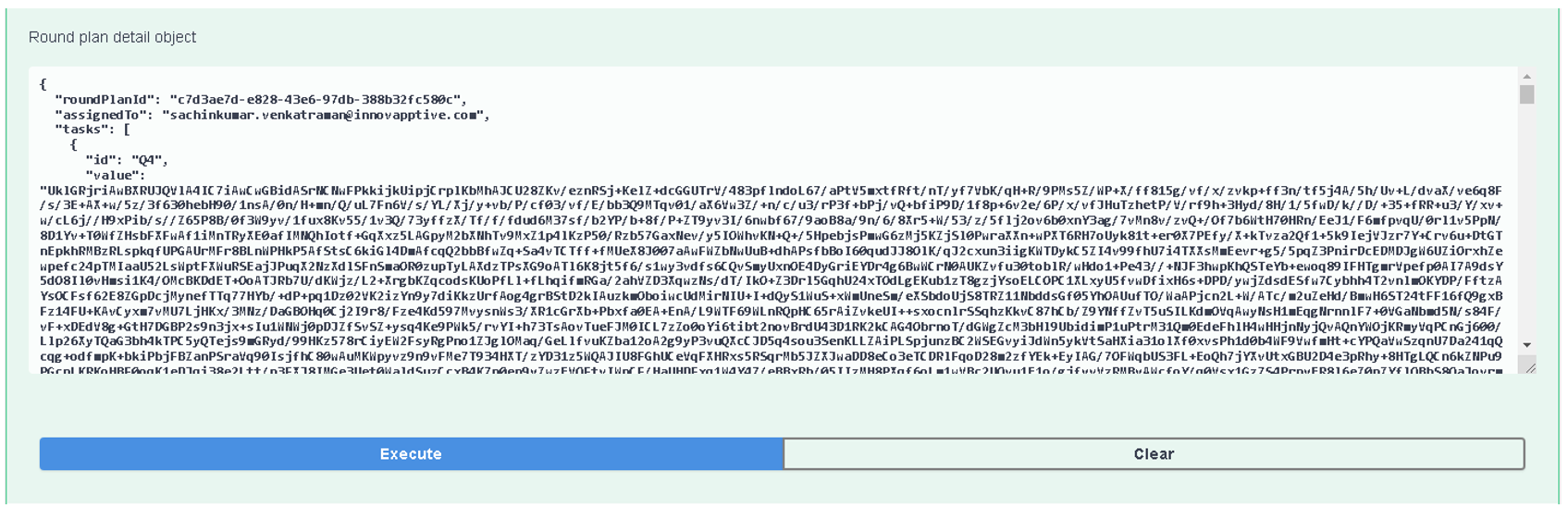 Note:If you provide the email ID of the person who needs to work on the round in the Assign to field, then the round is assigned to the user and automatically appears in the My Rounds screen of the user with the In-progress state in the user's mobile application.
 -
Click Execute.
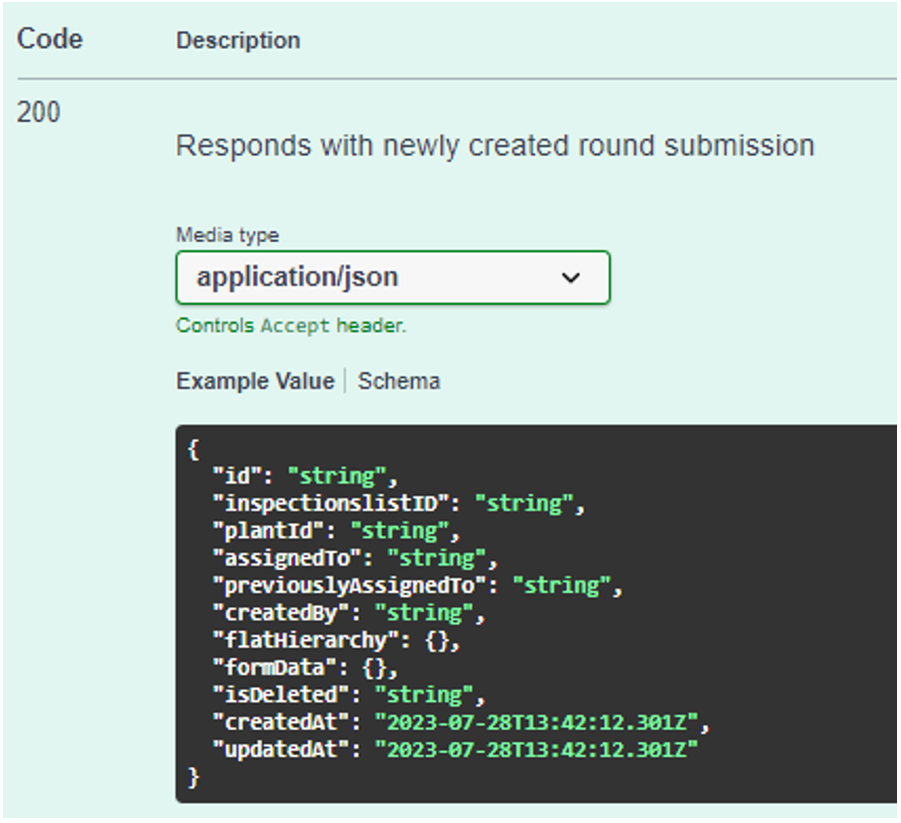
The following response is displayed.