
Download Data for Offline Use
Data in the backend systems is automatically downloaded onto your device when the device is online. You can manually configure the data that you want to download and save time.
For example, The Plant filter in RACE is configured to display Work Orders for plants 1000, 2000, and 3000. but you want to view only the records for 1000, set the Plant filter as 1000 in the Offline Preferences screen.
You can set offline data synchronization preferences for all the modules and download records that you need. Once you complete your work, you can clear the data and sync again.
Note: You can view/set the
filter value other than filters configured in RACE only if:
- Related Collection Name is configured for the Filter Field in RACE.
- You have the required roles / access permissions.
To configure to view the records of your choice:
- Open User Profile and select Offline Preferences.
- Tap on a module to configure and set values for the fields.
-
Tap the Back Arrow
 icon to return to the Offline Preferences
screen.
icon to return to the Offline Preferences
screen.
-
Tap Save Preferences.
Note: To reset the Offline Preferences to global settings tap the Reset button.
Figure 1. Offline Preferences 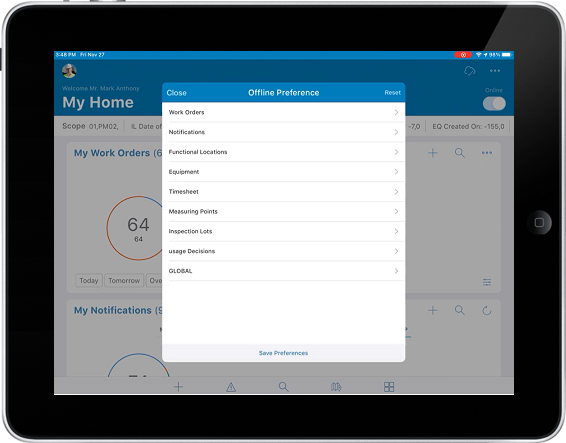
Note: RACE configurator can define user preferences filters in RACE, so that the mWorkOrder users can configure preferences based on their location and minimize the time required for data synchronization.