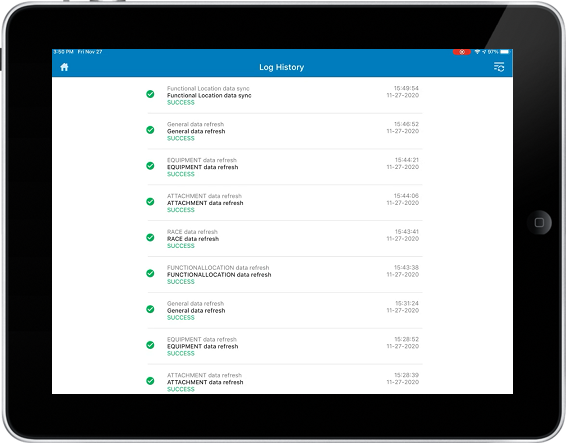
View Log History
Before you switch to offline mode and get started with your work, view the log history to ensure that your device has downloaded the entire data that is required for completing your tasks. Incomplete data download causes errors. Error prone data causes rework and delays causing huge losses for your organization.
- Successful and failed downloads with object number, description, action, date, and time.
- History of data download that you have done in the last 30 days with time stamp.
To access log history.
-
Tap the Data Sync
 icon in the Home screen.
- Tap Log History.
-
Tap the Refresh Status
 icon on the top-right corner.
Figure 1. Log history