
Home (Dashboard)
The Home (Dashboard) screen combines operational control with real-time alerting, enabling supervisors and technicians to manage tasks efficiently and respond quickly to critical events.
Supervisor Dashboard
- Work order distribution
- Technician workloads
- Pending approvals
- View task allocation at a glance
- Track technician progress
- Quickly spot and address operational bottlenecks
The dashboard integrates real-time alerts from multiple systems supporting early detection of critical events such as pressure or temperature anomalies.
For example: If Reactor-7 exceeds 80 psi, an instant alert is displayed—prompting immediate corrective action.
This reduces response times, prevents unplanned downtime, and improves equipment uptime and MTTR (Mean Time to Repair).
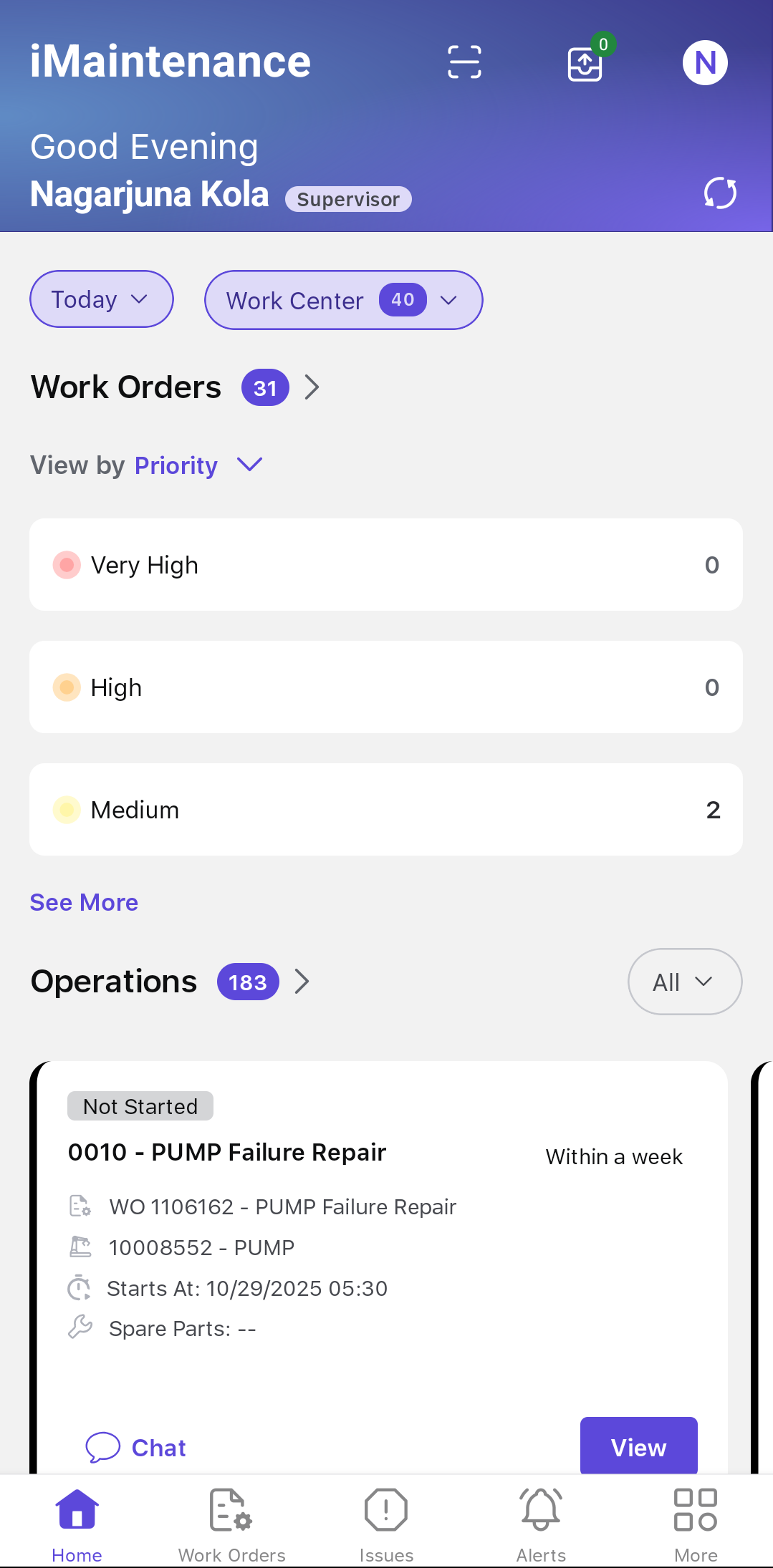
- Header
- Displays the greeting, name, current date, time, and shift details (e.g., 07:00 AM – 03:00 PM).
- The Scan
 icon lets you scan the asset from the Dashboard.
 - The Outbox
 icon lets you view pending
records or the transactions that are done in offline mode. You can
delete entries that have not yet synced with SAP or those that
failed to sync.
icon lets you view pending
records or the transactions that are done in offline mode. You can
delete entries that have not yet synced with SAP or those that
failed to sync. - The Profile
 icon lets you view the
personal profile details.
icon lets you view the
personal profile details. - The Manual Sync
 icon lets
you manually synchronize your device with the SAP backend. Use this
whenever you want to ensure your app is fully up to date.
icon lets
you manually synchronize your device with the SAP backend. Use this
whenever you want to ensure your app is fully up to date. - You can apply filters to view data for:
- Today (Default)
- Tomorrow
- This Week
- Custom (specific date or date range)
- Work Orders
- Select a category from the View by drop-down to view
interactive widgets that help you quickly identify and prioritize
pending tasks:
- Priority: Displays work orders grouped by priority levels — Very High, High, Medium, and Low.
- Status: Displays work orders grouped by their current status — Created, Released, In Progress, Completed, and Closed.
- Type: Displays work orders grouped by their type — Preventive WO, Corrective WO, Breakdown WO, and Emergency WO.
- Tap any category to open a filtered list of the corresponding work orders.
- Select a category from the View by drop-down to view
interactive widgets that help you quickly identify and prioritize
pending tasks:
- Overdue Work Orders
- This section displays three interactive widgets Priority, Status, and Type that are categorized into different groups along with the count.
- Issues
- This section displays following three interactive widgets:
- Priority: Displays issue grouped by priority levels — Very High, High, Medium, and Low.
- Status: Displays issues grouped by their current status — Open, Released, In Progress, Completed, and Rejected.
- Type: Displays issues grouped by their type — Corrective and Breakdown.
- Tap any category to open a filtered list of the corresponding issues.
- This section displays following three interactive widgets:
- Scheduled Work Orders at Risk
- Highlights work orders that are scheduled but at risk due to incomplete component kitting (status = Kitting not done).
- Each card displays:
- Work Order ID and Title
- Priority
- Equipment ID and Name
- Assigned Technician
- Start Time
- Pending Spare Parts
- Chat and Action buttons
- Action options include:
- Reschedule: Modify start and end dates
- Reassign: Change the assigned technician
- You can apply filters (Today, Tomorrow, 3 Days) and browse via a horizontal carousel (4 cards by default).
- Pending Actions
- Displays widgets for three types of pending items:
- Technical Completion: Work orders with status = Completed.
- Technician Assignment: Work orders without an assigned operation.
- Timesheet Approval: Timesheets with status = Submitted & Unapproved.
- Tapping a widget navigates the user to a filtered list view based on the selection.
- Displays widgets for three types of pending items:
- Live Status Overview
- Shows real-time technician activity with the following columns:
- Planned Utilization: The total planned work for the shift across all technicians.
- Shift Progress: The total completed planned work for the shift.
- Technician Name: The technician name with planned hours.
- Shift Progress: Displays today’s operations progress (completed/total).
- Operation: The operation or job the technician is currently working on, with a clickable link to open the full work order details.
- Operation Status: The status of the operation (In Progress, On Hold, etc.).
- Work Order: The work order the technician is currently working on.
- Actions: Tap the Chat icon to start a conversation with the technician.
- Show All: Tap to view the real-time status of all technicians.
- Shows real-time technician activity with the following columns:
- Issues Reported by Me
- Displays issue counts categorized as:
- Open
- Released
- In Progress
- Completed
- Rejected
- Tap any category to view the corresponding filtered issue list.
- Displays issue counts categorized as:
- Quick Actions
- Provides shortcuts for the following frequently used actions:
- Report an Issue
- Create Work Order
- View Equipment List
- View Functional Locations List
- Provides shortcuts for the following frequently used actions:
Technician Dashboard
After logging in, you'll see the Home screen—your main dashboard for managing workload, tracking progress, and accessing key actions throughout your shift.
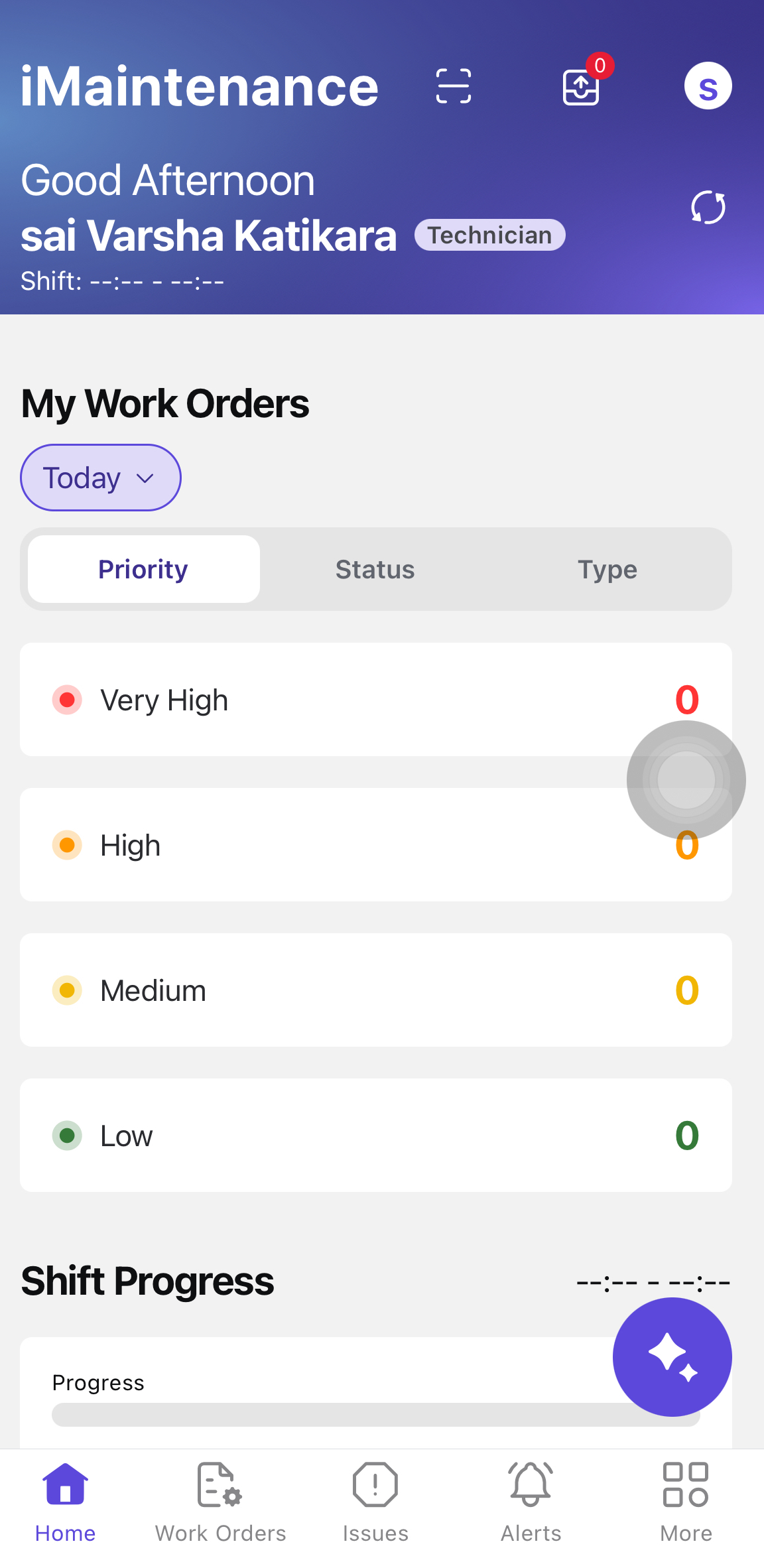
Productivity Hack: Tap section headers (e.g., Work Orders, Issues) to view filtered lists instantly.
- Header
- Displays the greeting, name, current date, time, and shift details (e.g., 07:00 AM – 03:00 PM).
- The Scan
icon lets you scan the asset from the Dashboard.
- The Outbox icon lets
you view pending records or the transactions that are done in
offline mode.
- The Profile icon lets you view the
personal profile details.
- The Manual Sync icon lets you manually
synchronize your device with the SAP backend. Use this whenever you
want to ensure your app is fully up to date.
- You can apply filters to view data for:
- Today (Default)
- Tomorrow
- This Week
- Custom (specific date or date range)
- My Work Orders
- Select a category from the View by drop-down to display
interactive widgets that help you quickly identify and prioritize
pending tasks:
- Priority: Displays work orders grouped by priority levels — Very High, High, Medium, and Low.
- Status: Displays work orders grouped by their current status — Created, Released, In Progress, Completed, and Closed.
- Type: Displays work orders grouped by their type — Preventive WO, Corrective WO, Breakdown WO, and Emergency WO.
- Tap any category to open a filtered list of the corresponding work orders.
- Select a category from the View by drop-down to display
interactive widgets that help you quickly identify and prioritize
pending tasks:
- Issues
- This section displays the following three interactive widgets:
- Priority: Displays issue grouped by priority levels — Very High, High, Medium, and Low.
- Status: Displays issues grouped by their current status — Open, Released, In Progress, Completed, and Rejected.
- Type: Displays issues grouped by their type — Corrective and Breakdown.
- Tap any category to open a filtered list of the corresponding issues.
- This section displays the following three interactive widgets:
- Shift Progress
- Shows a visual progress bar indicating the percentage of operations completed for the selected time period (based on the applied filter).
- Live Status Overview
- Shows a real-time technician activity with the following columns:
- Planned Utilization: The total planned work for the shift across all technicians.
- Shift Progress: The total completed planned work for the shift.
- Technician Name: The technician name with planned hours.
- Shift Progress: Today’s operations progress (completed/total).
- Operation: The operation or job the technician is currently working on, with a clickable link to open the full work order details.
- Operation Status: The status of the operation (In Progress, On Hold, etc.).
- Work Order: The work order the technician is currently working on
- Actions: Tap the Chat icon to start a conversation with the technician.
- Show All: Tap to view the real-time status of all technicians.
- Shows a real-time technician activity with the following columns:
- My Operations
- Lists high-priority operations assigned to you, showing:
- Priority levels
- Permit and spare part readiness
- AI-based assistance
- Tap AI-Assistance to launch SIA (Smart In-App Assistant) and view step summaries.
- Tap Start to begin the task and trigger the auto-timer (if permits and parts are already collected).
Note:This section appears only if high-priority tasks are assigned. - Lists high-priority operations assigned to you, showing:
- Preventive Maintenance Tasks
- Displays PM work orders, if assigned, with due status (e.g., Due in 2 hours or Overdue).
- Tap Start to launch the operation and begin auto-timer (if enabled). If the timer isn’t enabled, manually update the task status to In Progress.
Note:This section is shown only when PM tasks are assigned. - Issues Reported by Me
- Lists all issues you’ve reported, grouped as:
- Accepted
- Rejected
- Pending Review
- Tap any category to open the Issues list with relevant filters applied.
Note:Header filters (Today, Tomorrow, This Week) do not apply here. - Lists all issues you’ve reported, grouped as:
- Quick Actions
- Provides shortcuts for the following frequently used actions:
- Report an Issue
- Create a Work Order
- View Equipment List
- View Functional Locations List
- Fill Timesheets
- Provides shortcuts for the following frequently used actions: