
Execute a Work Order
Once a work order is assigned to you, complete all required tasks accurately and on time. Executing a work order involves inspecting the equipment, gathering spare parts or permits, performing the repair or maintenance, logging your progress, and finally marking the task as complete. Proper execution keeps equipment running smoothly and helps reduce unplanned downtime.
Get Step-by-Step Help with AI Assist
If you're unsure how to fix something, AI Assist is there to help. It looks at the work order details and provides suggestions based on similar past issues.
For example, If a pump shows abnormal vibration, AI Assist might suggest: “Check valve X for blockage” and guide you through each step of the fix.
Even if you’re new on the job, you can complete tasks with more confidence and accuracy.
Why Timely Execution Matters
- Improves Equipment Reliability – Fixing problems on time reduces future breakdowns
- Supports Accurate Records – Logging your work helps supervisors verify tasks and track performance
- Boosts First-Time Fix Rates – AI support helps diagnose issues faster and get it right the first time
To execute a work order:
- Navigate to the Work Orders screen.
- Open the assigned work order.
-
In the Work Order Details tab, tap Start
Job.
Figure 1. Start Job 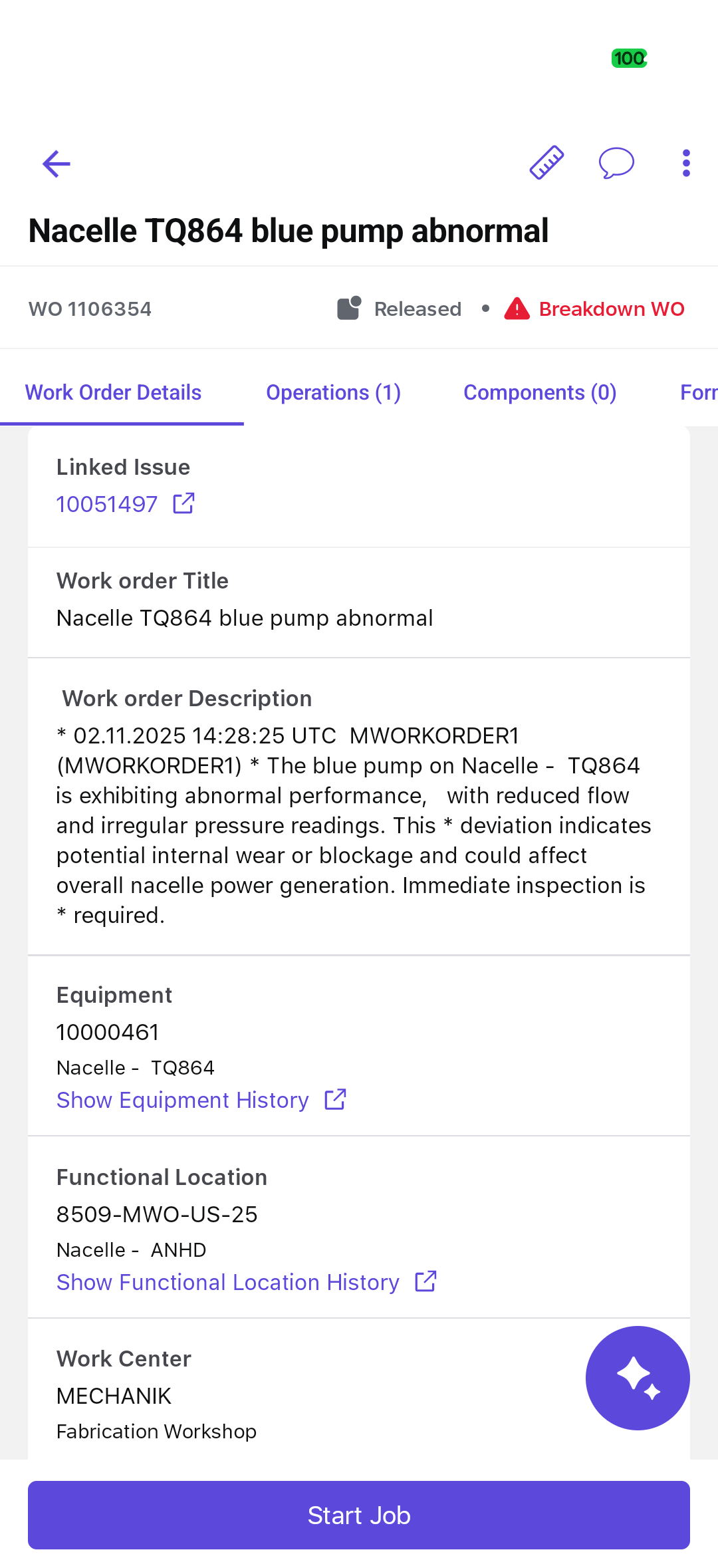
-
Complete the following work order tasks in sequence:
Available Actions During Execution:
- Measuring Point
 icon - View and add the measuring point details.
 - More
 icon - Edit the work order, raise a breakdown work order,
raise a follow-up issue, duplicate work order, or create a sub-work
order.
icon - Edit the work order, raise a breakdown work order,
raise a follow-up issue, duplicate work order, or create a sub-work
order. - Chat
 icon - Message team members, share files, and use @mentions
in real-time
icon - Message team members, share files, and use @mentions
in real-time
Navigation Tabs:- Work Order Details – View work order summary
- Operations – View assigned operations
- Components – View components list
- Forms – View and access work order and operation-specific forms
- Attachments – View work order- and operation-level attachments (organized in separate sections)
- Measuring Point