
Add Attachments
Attach supporting files—photos, videos, PDFs, or voice recordings—to provide clear context on the maintenance or repair task. These files show the actual issue, document your work, and help supervisors review and close Work Orders faster.
Instead of writing "oil leak found," snap a photo of the leaking area and add a quick note explaining the location. Your supervisor can immediately assess the severity and dispatch the right team with the right parts—no back-and-forth needed.
This helps,
- Reduce miscommunication
- Improve first-time fix rates
- Speed up supervisor approvals
- Strengthen documentation for audits and compliance
- Lower MTTR (Mean Time to Repair)
To add Attachments:
- Navigate to the Work Orders screen.
- Open the assigned work order.
-
Tap the Attachments tab.
Figure 1. Add Attachments 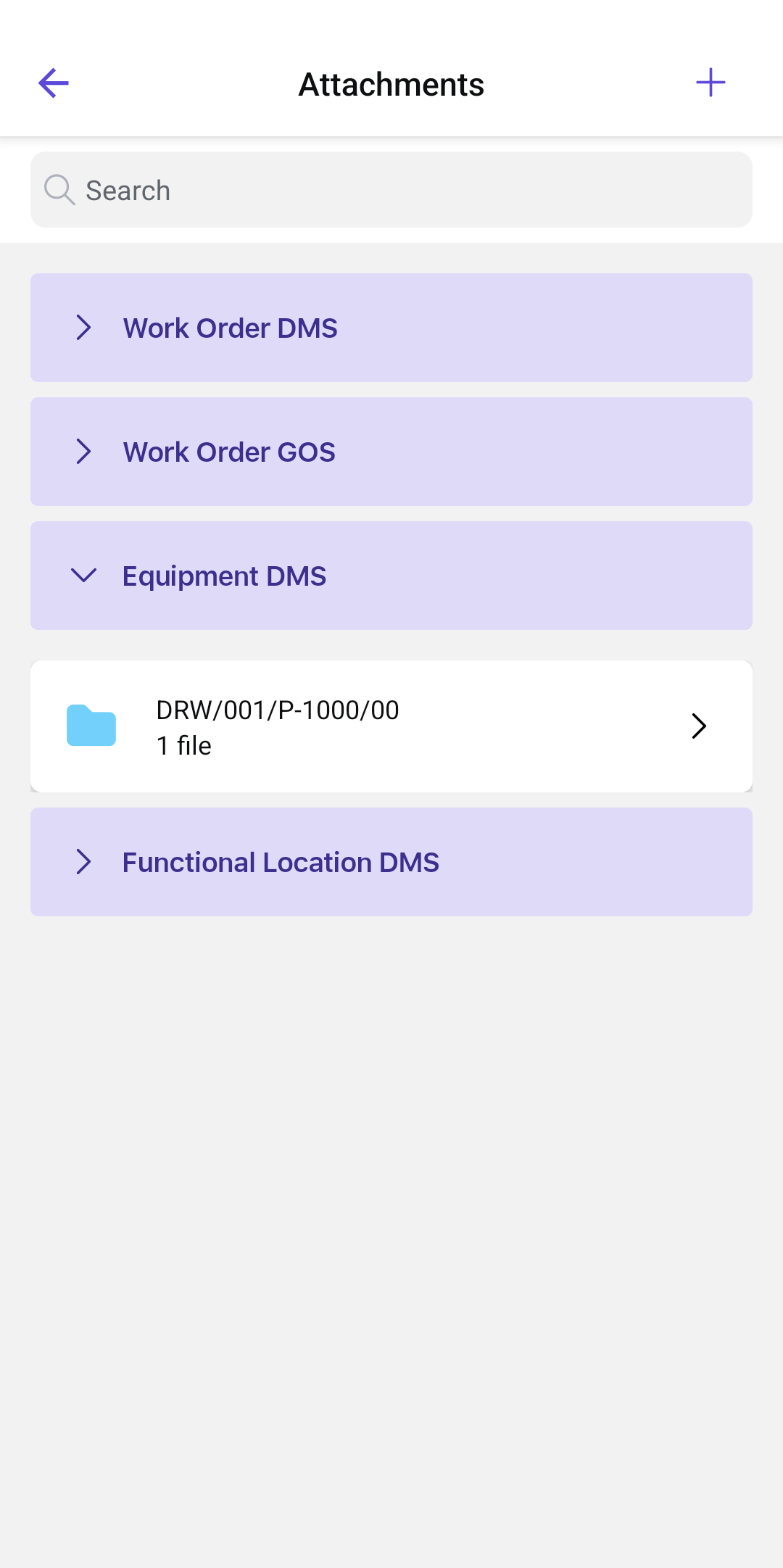
-
Tap the Add Attachment
 icon on the top right corner.
-
Select one of the following options from the pop-up:
- Take Photo/Video: Capture a new photo or video.
- Choose from Library: Select a photo or video from your device.
- Record Voice Note: Tap the red button to record, then tap Done.
- Upload Documents: Select a document from your device.
Note:Zoom in for details, zoom out for context, and reset anytime on PDFs and images. -
Select the file destination (GOS, DMS, or SharePoint).
Note:The Work Order GOS section automatically expands whenever the images are added.
- Tap Save.