
Configure Consignment Stock Processing
This configuration allows you to view the consignment stock only if the material is consignment based.
To configure consignment stock:
- Click Extensions on the left panel.
- Click the Filter icon and select the Module as Goods Issue and the Screen as Reservation Item.
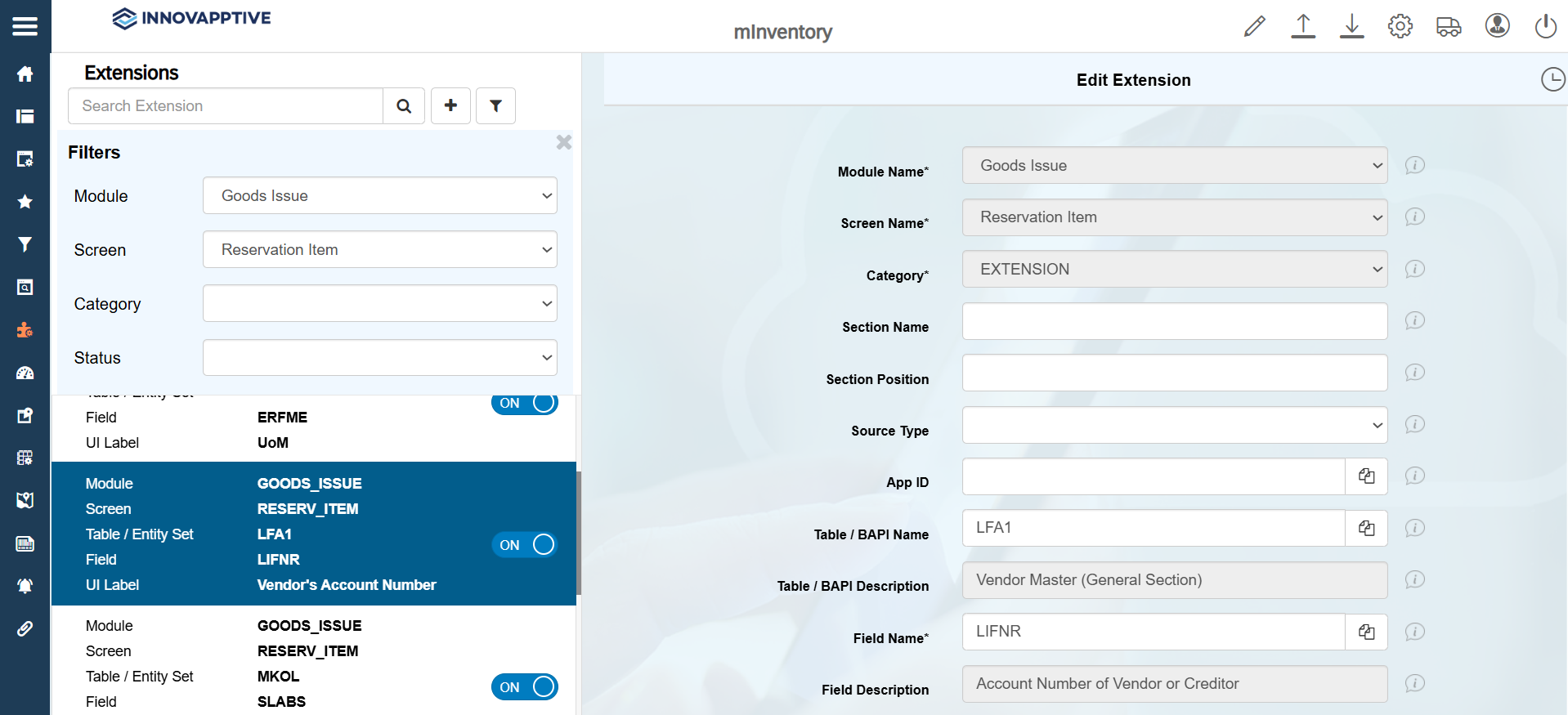
- Select the record with the UI Label name = Vendor’s Account Number.
-
In the Edit Extension section, update the following information:
Field Description Module Name Goods Issue Screen Name Reservation Item Category EXTENSION Source Type Table Table / BAPI Name LFA1 Table / BAPI Description Vendor Master (General Section) Field Name LIFNR Field Description Account Number of Vendor or Creditor Post BAPI Name BAPI_GOODSMVT_CREATE UI Label Vendor’s Account Number Field Type ID – Input Dropdown Active ON Overview ON Overview UI Position 9 Detail ON Detail UI Position Infinity Dropdown Table LFA1 Dropdown Field LIFNR Parent Table /INVMIM/RESERVATION_ITEM_S Validation Required ON Conditional Logic - Click the Manual Validation tab.
- In the UI Validation field, enter the
following string and click Save.
- 1:(HI) LIFNR IF CONSIND EQ (V);2:(EN) SLABS EQ (V) IF LIFNR EQ (V);3:(EN) SOBKZ EQ (V) IF LIFNR EQ (V);4:(EN) SOBKZ EQ (V)K IF LIFNR NE (V)
-
Click Save.
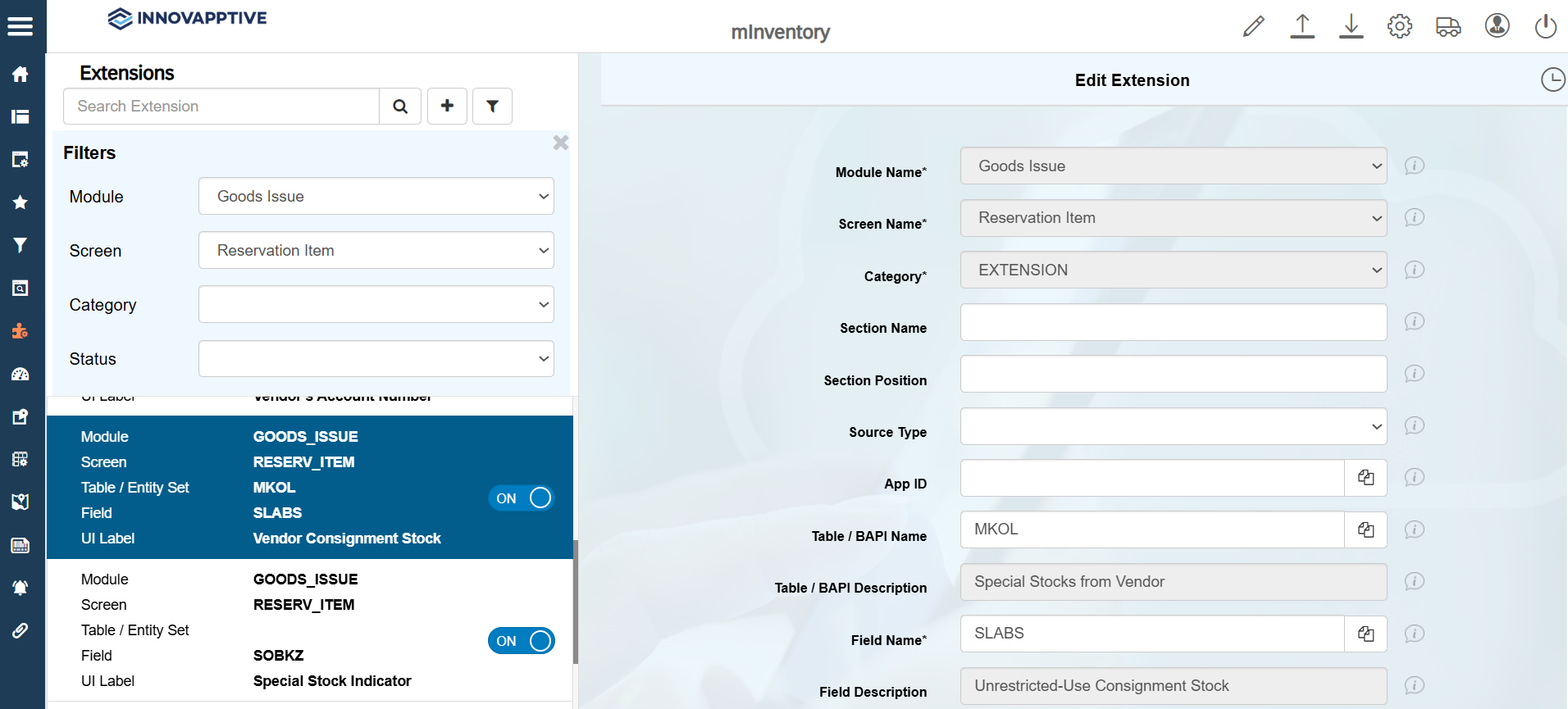
- Select the record with the UI Label name = Vendor Consignment Stock.
-
In the Edit Extension section, update the following information:
Field Description Module Name Goods Issue Screen Name Reservation Item Category EXTENSION Table / BAPI Name MKOL Table / BAPI Description Special Stocks from Vendor Field Name SLABS Field Description Unrestricted-Use Consignment Stock Post BAPI Name BAPI_GOODSMVT_CREATE UI Label Vendor Consignment Stock Field Type SLF – Stock Label Field Active ON Overview ON Overview UI Position 8 Detail ON Detail UI Position Infinity Parent Table /INVMIM/RESERVATION_ITEM_S Parent Key WERKS, LGORT, MATNR Validation Required ON Conditional Logic - Click the Manual Validation tab.
- In the UI Validation field, enter the
following string and click Save.
- 1:(HI) SLABS IF CONSIND EQ (V)
-
Click Save.
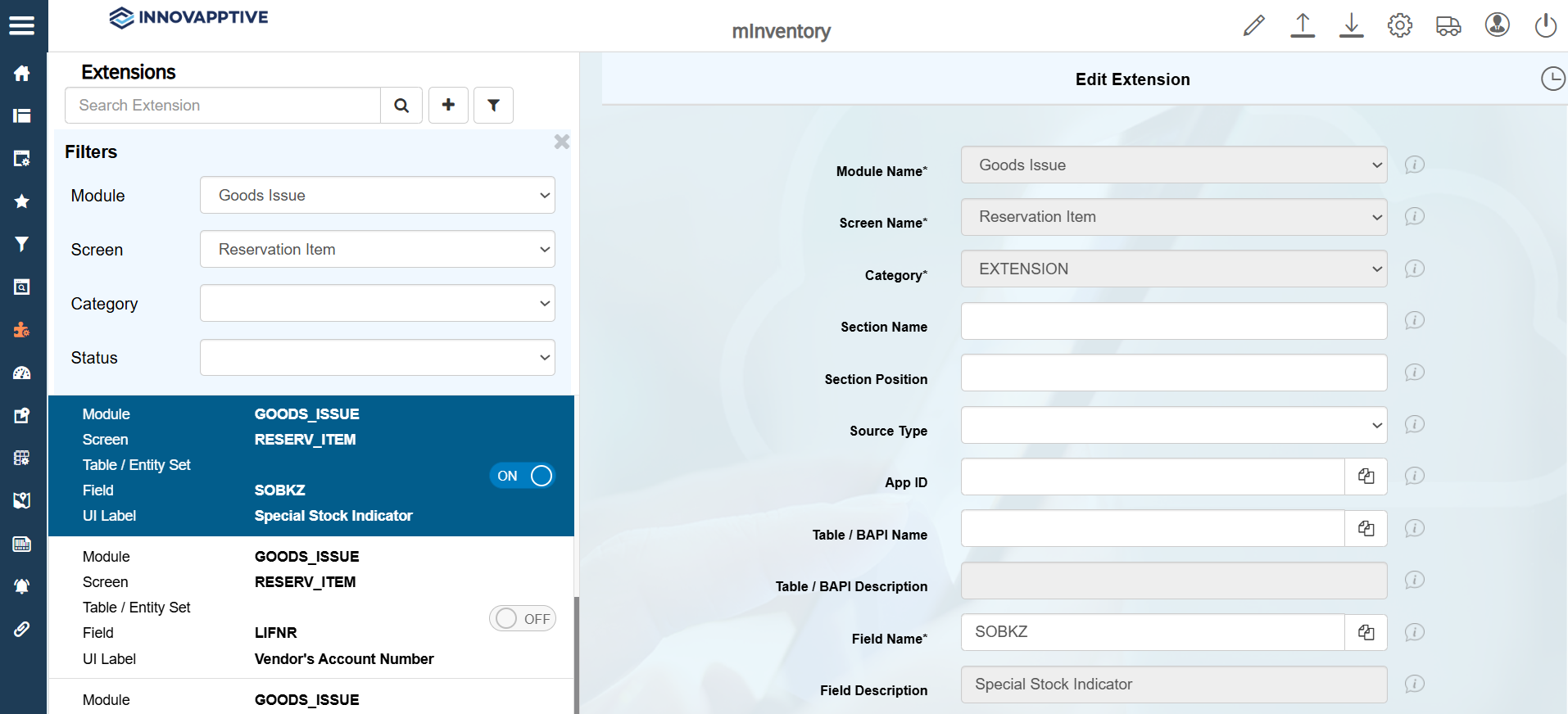
- Select the record with the UI Label name = Special Stock Indicator.
-
In the Edit Extension section, update the following information:
Field Description Module Name Goods Issue Screen Name Reservation Item Category EXTENSION Field Name SOBKZ Field Description Special Stock Indicator Post BAPI Name BAPI_GOODSMVT_CREATE UI Label Special Stock Indicator Field Type LF – Label Field Active ON Overview ON Overview UI Position 8 Detail ON Detail UI Position Infinity Parent Table /INVMIM/RESERVATION_ITEM_S Parent Key WERKS, LGORT, MATNR Validation Required ON Conditional Logic - Click the Manual Validation tab.
- In the UI Validation field, enter the
following string and click Save.
- 1:(HI) SLABS IF CONSIND EQ (V)
-
Click Save.
Note:Similarly, configure these fields in the Goods Issue - Orders module.