
Create Isolation Template
Configure and define the isolation (ICC) template with sections, fields, and PDF settings based on specific business use cases and plant requirements.
Role: iPermits Administrator or Template Author. Platform: iCWP Web.
Create Isolation Template:
-
Click Next.
Figure 1. Isolation Template Details 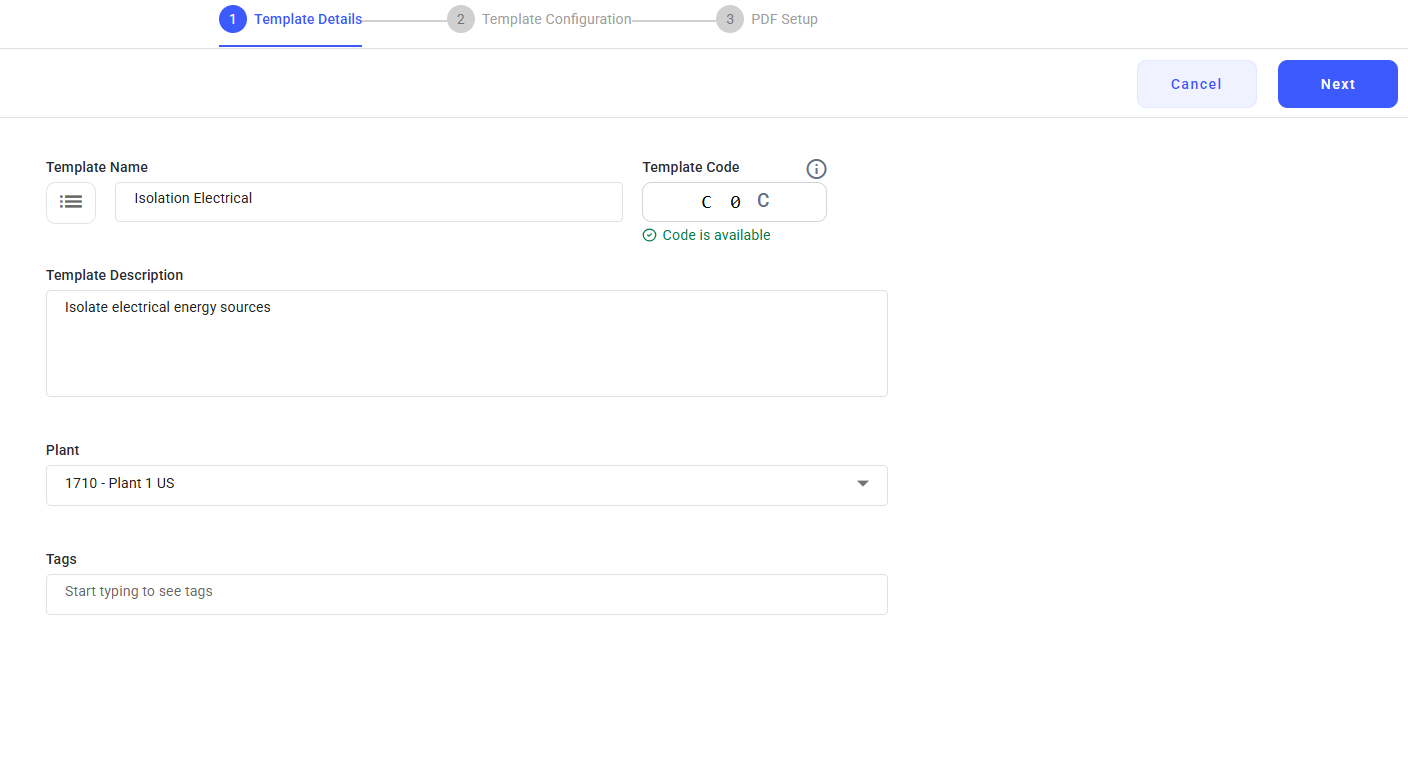
-
In the Template Configuration screen:
- Review the default sections. The system automatically adds the Basic
Details and Isolation Plan Details sections as out-of-the-box
content.Note:Default sections with fields are auto-populated to help you get started. You can modify them or add new sections as required.
- Add the required Sections and Subsections based on the isolation template requirements.
- Add fields (questions) within each section as required.
- Select appropriate response types (Text, Number, Multiple Choice, Pick List, etc.).
- Click Preview to see how the isolation template appears in both web and mobile applications.
- Click Next.
Figure 2. Isolation Template Configuration 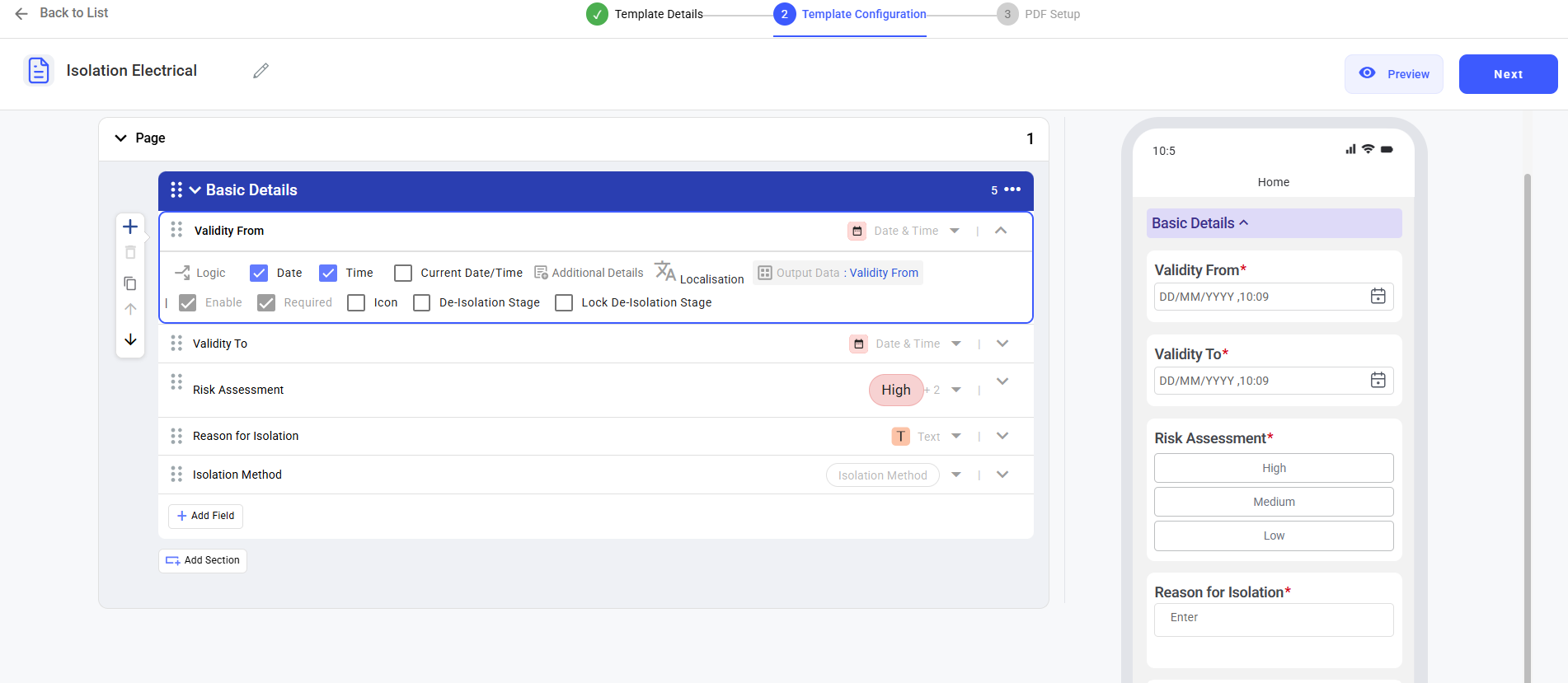
- Review the default sections. The system automatically adds the Basic
Details and Isolation Plan Details sections as out-of-the-box
content.
-
Click Publish.
Figure 3. PDF Setup 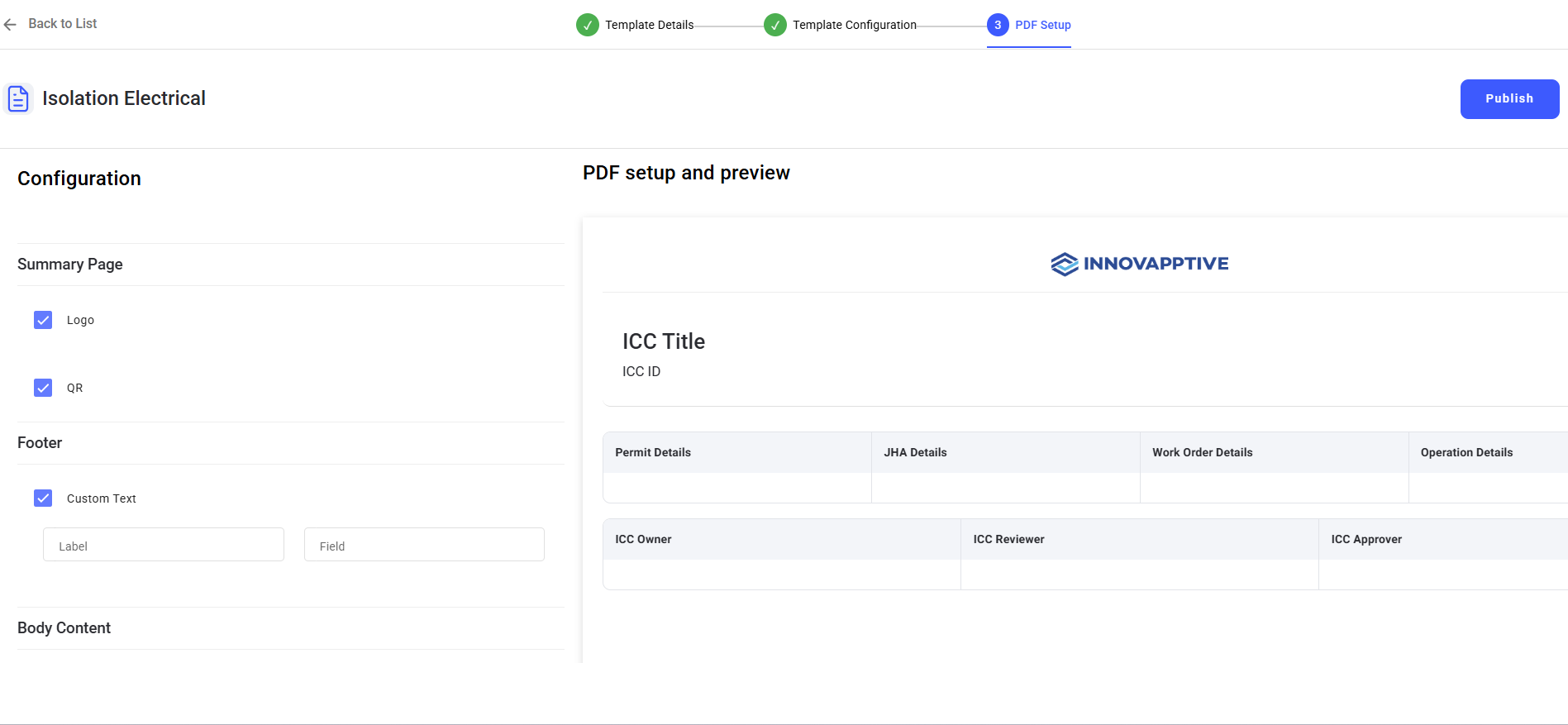
The Isolation template is saved or published according to the selected action.