Configure KPI Search Results Screen
This configuration allows you to view the required fields in the KPI search results screen
To configure KPI search results screen:
- Click Searches on the left panel.
- Click the Filter icon and select the Module as Kitting dashboard.
- From the results, select the record with Field name = KPP01.
-
In the Edit Search Field section, update the following
information:
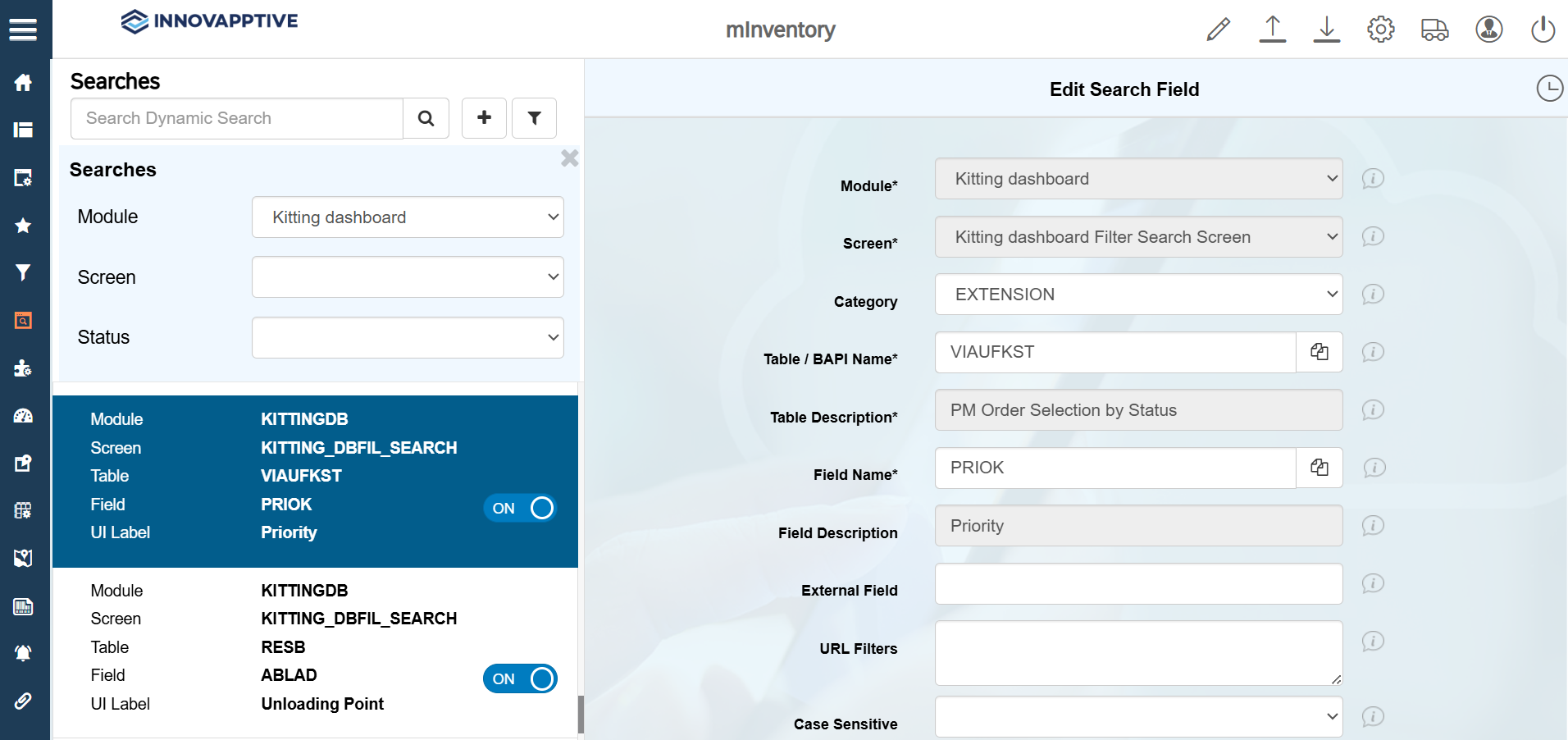
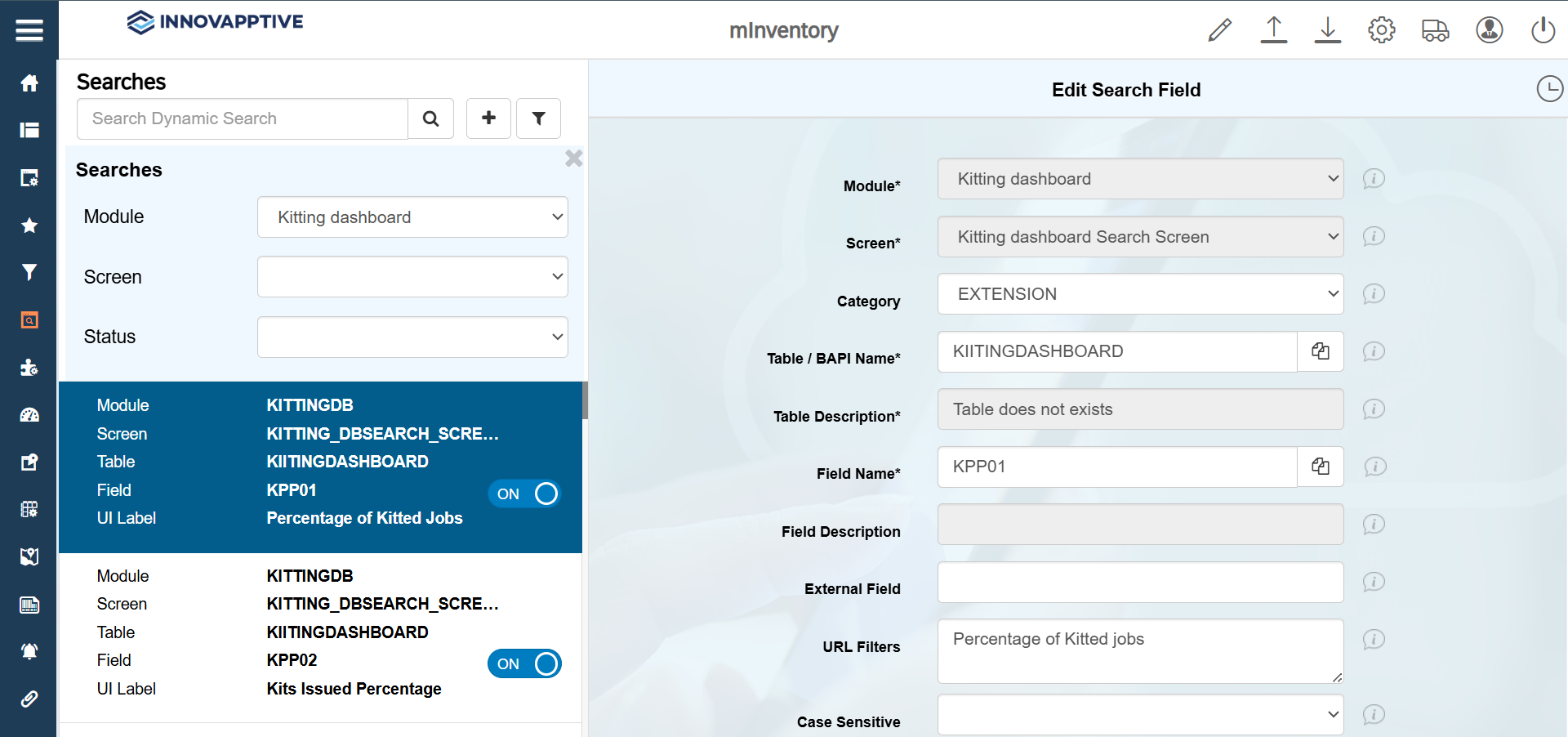
Field Description Module Kitting dashboard Screen Kitting dashboard Search Screen Category EXTENSION Table / BAPI Name KIITINGDASHBOARD Table Description Table does not exist Field Name KPP01 UI Label Percentage of Kitted Jobs UI Field type DBPI – Config PI Chart UI Position 1 Default Value { "GRAPH": [ { "FIELDLABEL": "Opened", "FIELDNAME": "OPEN", "COLORCODE": "#4682B4", "UIPOSITION": "1" }, { "FIELDLABEL": "Closed", "FIELDNAME": "KITTED", "COLORCODE": "#008000", "UIPOSITION": "2" }, { "FIELDLABEL": "Partially Kitted", "FIELDNAME": "PRKITTED", "COLORCODE": "#B163FF", "UIPOSITION": "3" } ], "REPORT": [ { "FIELDLABEL": "Material", "FIELDNAME": "MATNR", "SELECTED": "true" }, { "FIELDLABEL": "Operation", "FIELDNAME": "VORNR", "SELECTED": "true" } ]}Active ON -
Click Save.
-
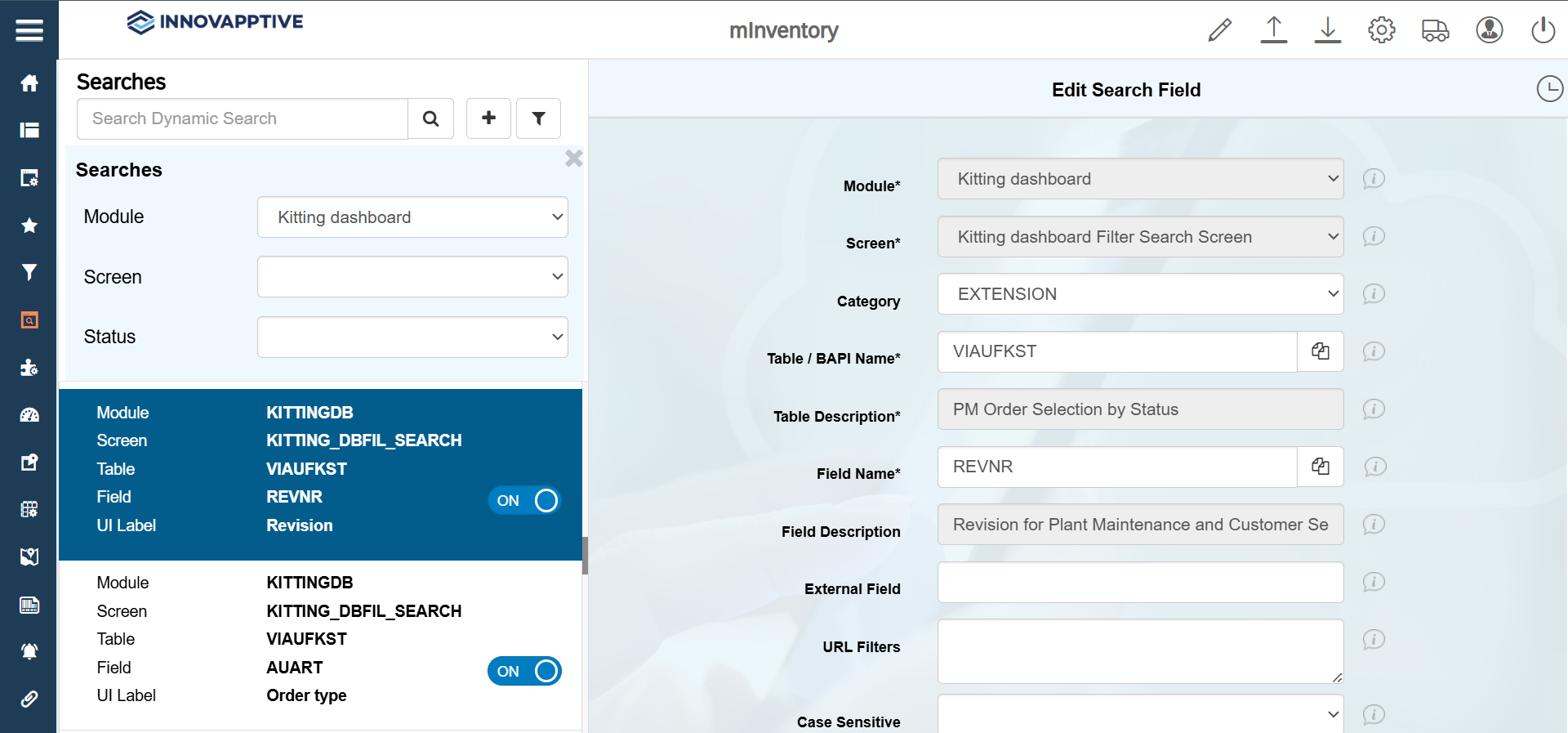
Select the record with Field name = REVNR and make the changes
as shown in the image below.
-
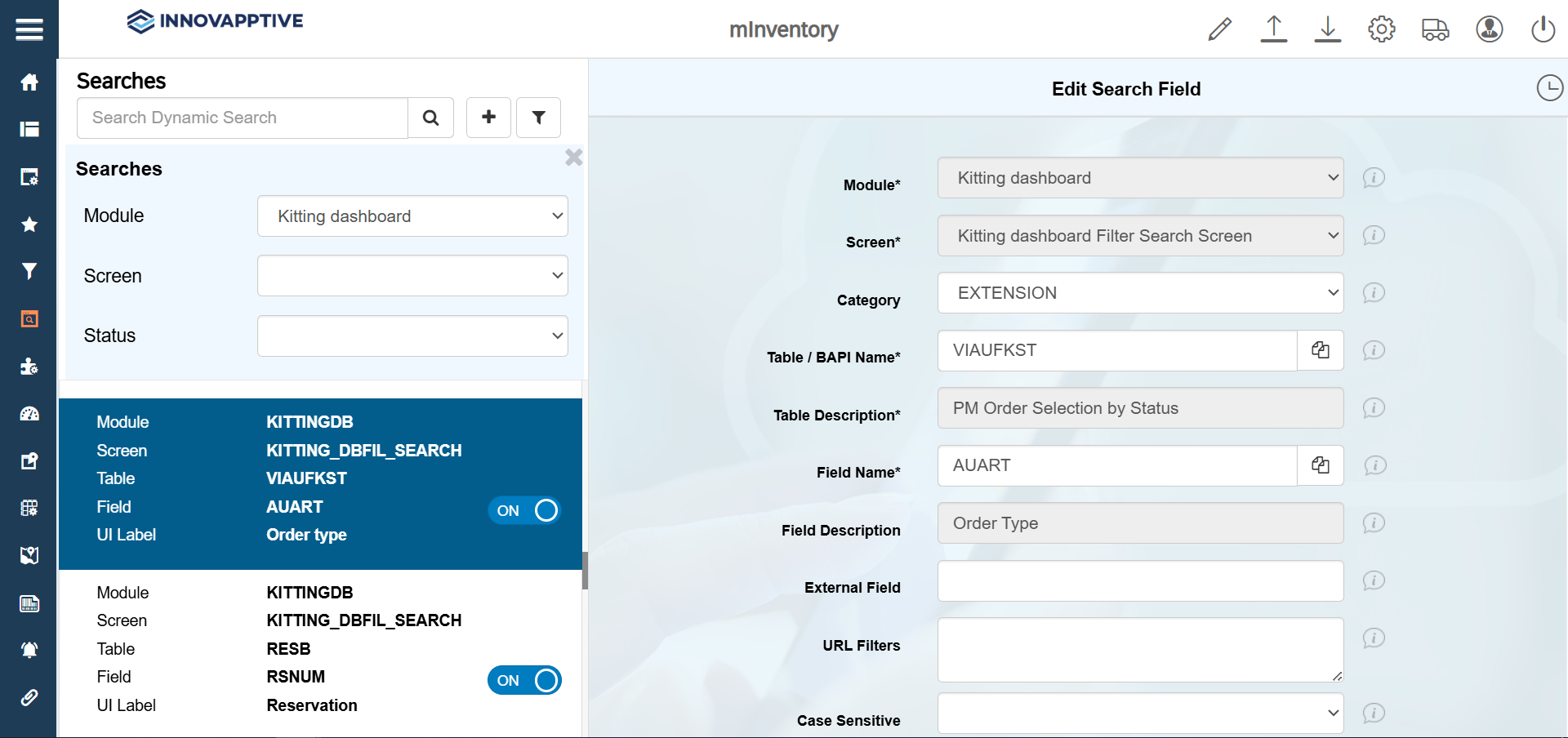
Select the record with Field name = AUART and make the changes as
shown in the image below.
-
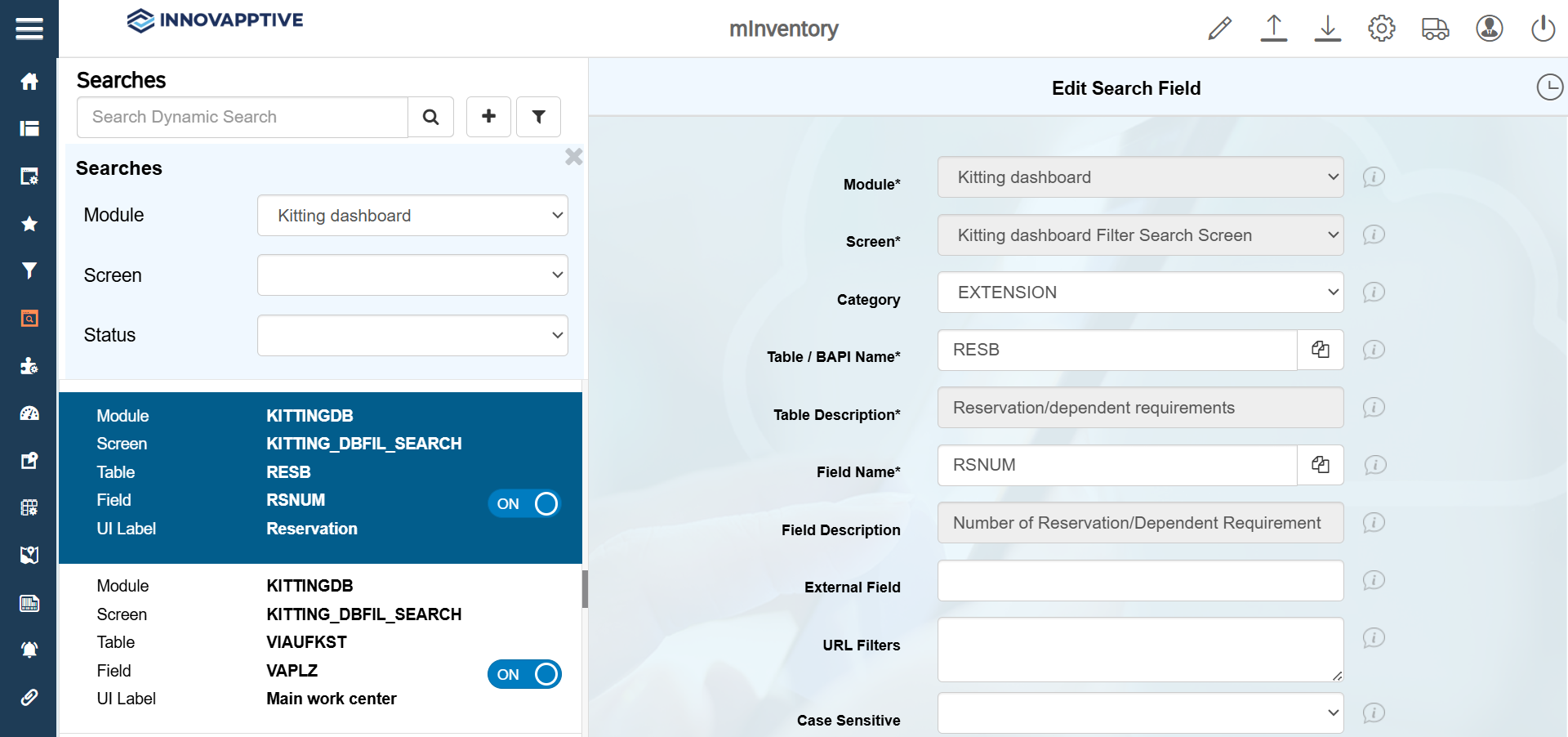
Select the record with Field name = RSNUM and make the changes as
shown in the image below.
-
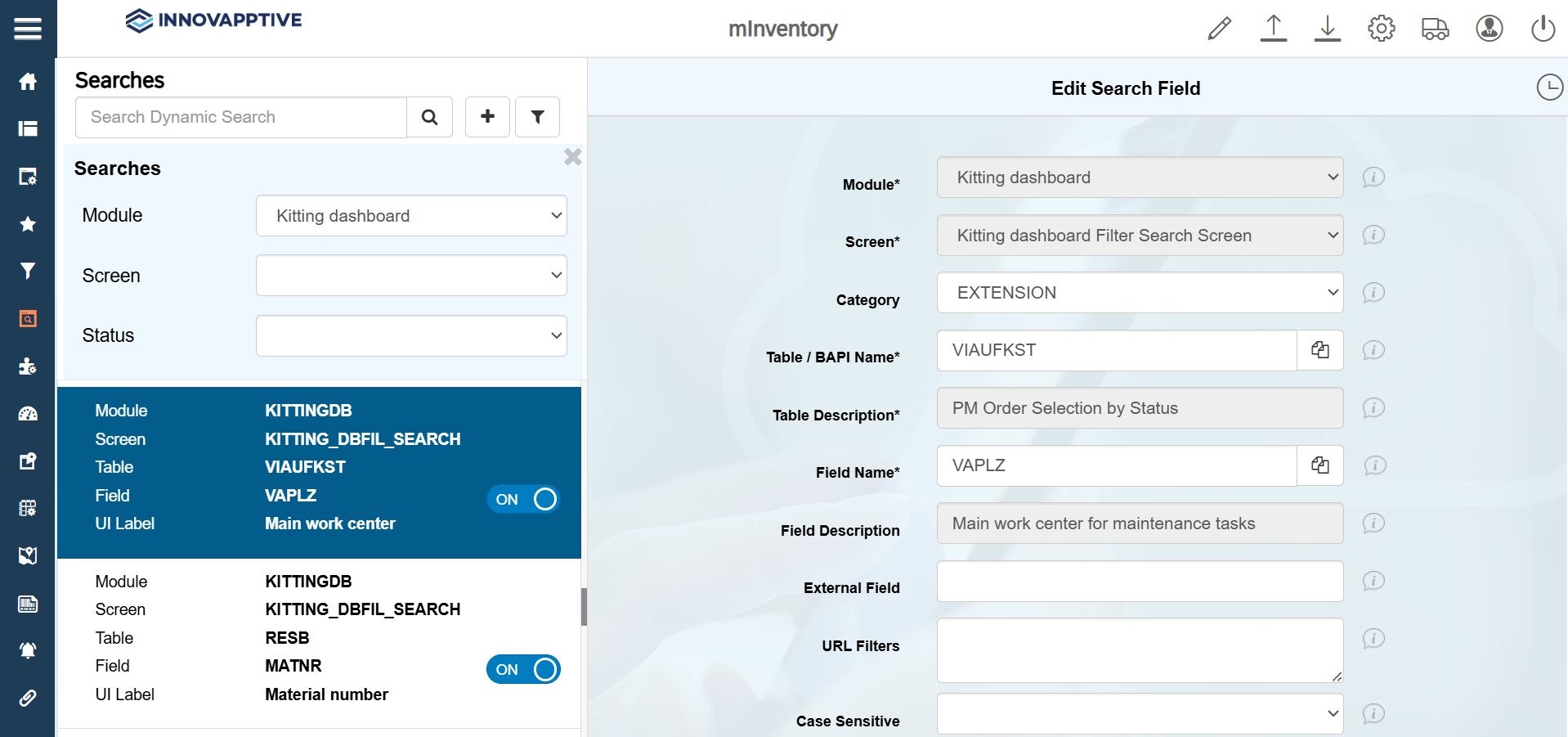
Select the record with Field name = VAPLZ and make the changes as
shown in the image below.
-
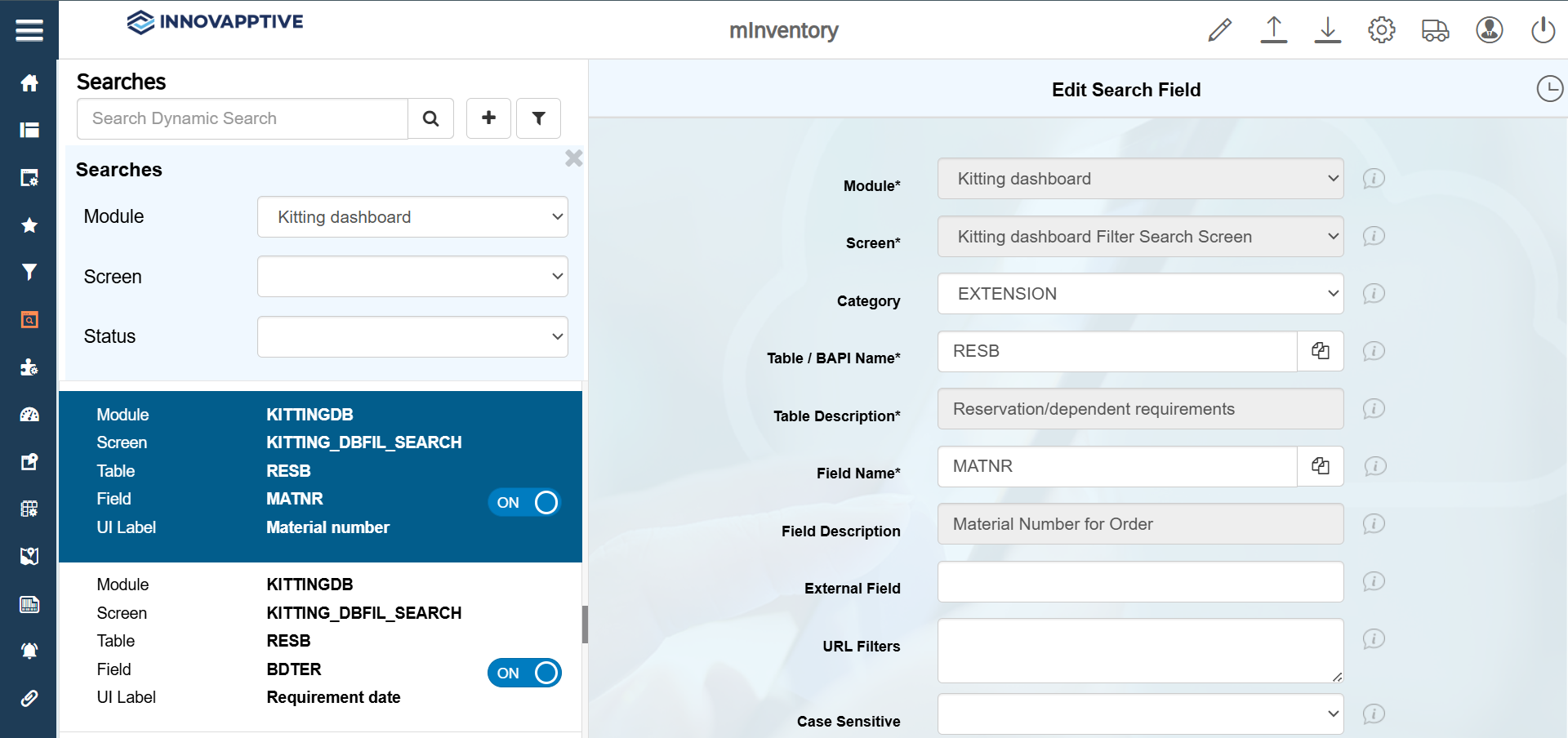
Select the record with Field name = MATNR and make the changes as
shown in the image below.
-
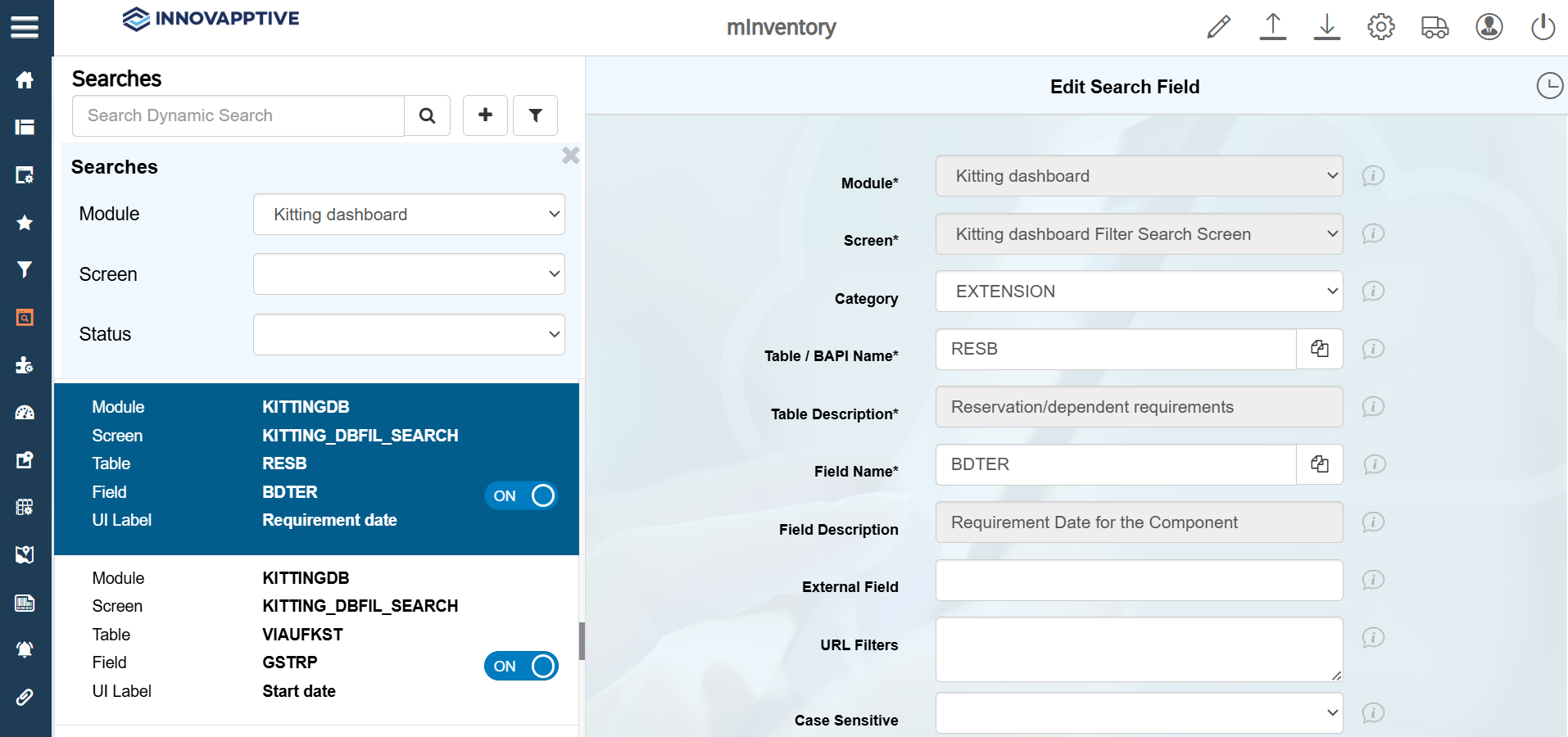
Select the record with Field name = BDTER and make the changes as
shown in the image below.
-
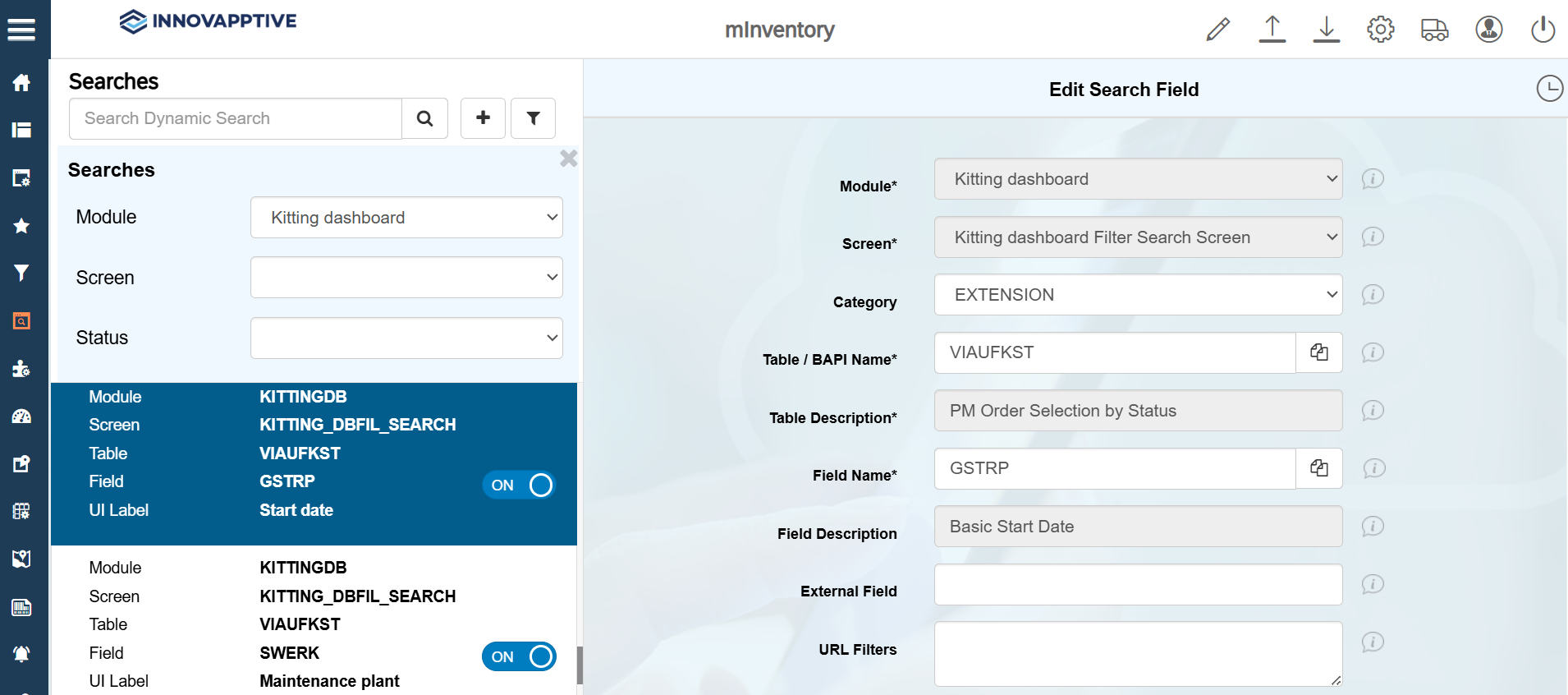
Select the record with Field name = GSTRP and make the changes as
shown in the image below.
-
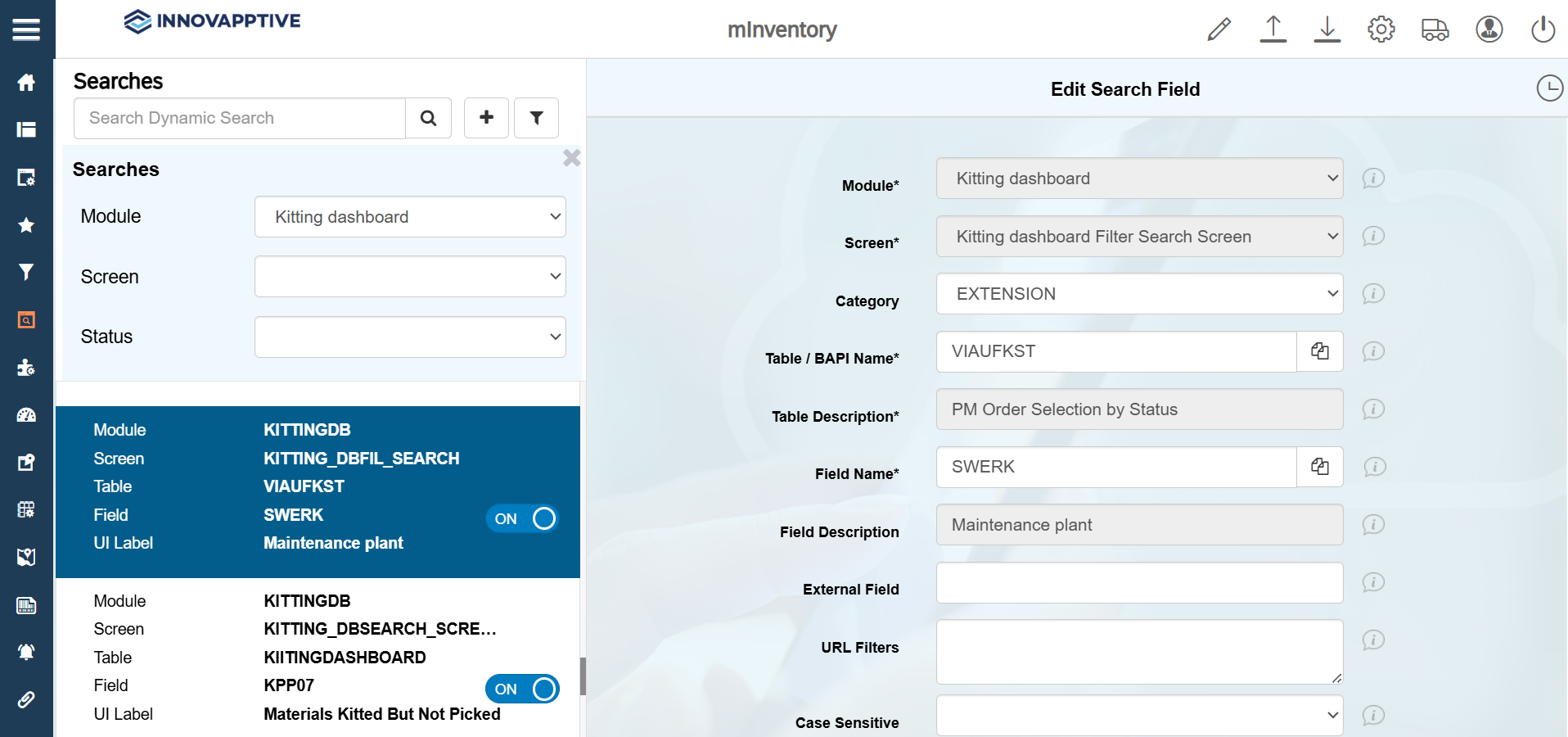
Select the record with Field name = SWERK and make the changes as
shown in the image below.
-
Select the record with Field name = PRIOK and make the changes as
shown in the image below.