Configure Material Document Module Display
This configuration enables you to add the navigation button in the success screen of Goods Receiving, Goods Issue, Kitting, and Transfer Posting modules, which allows you to navigate to the Material Document module directly from the success screen.
To configure material document display:
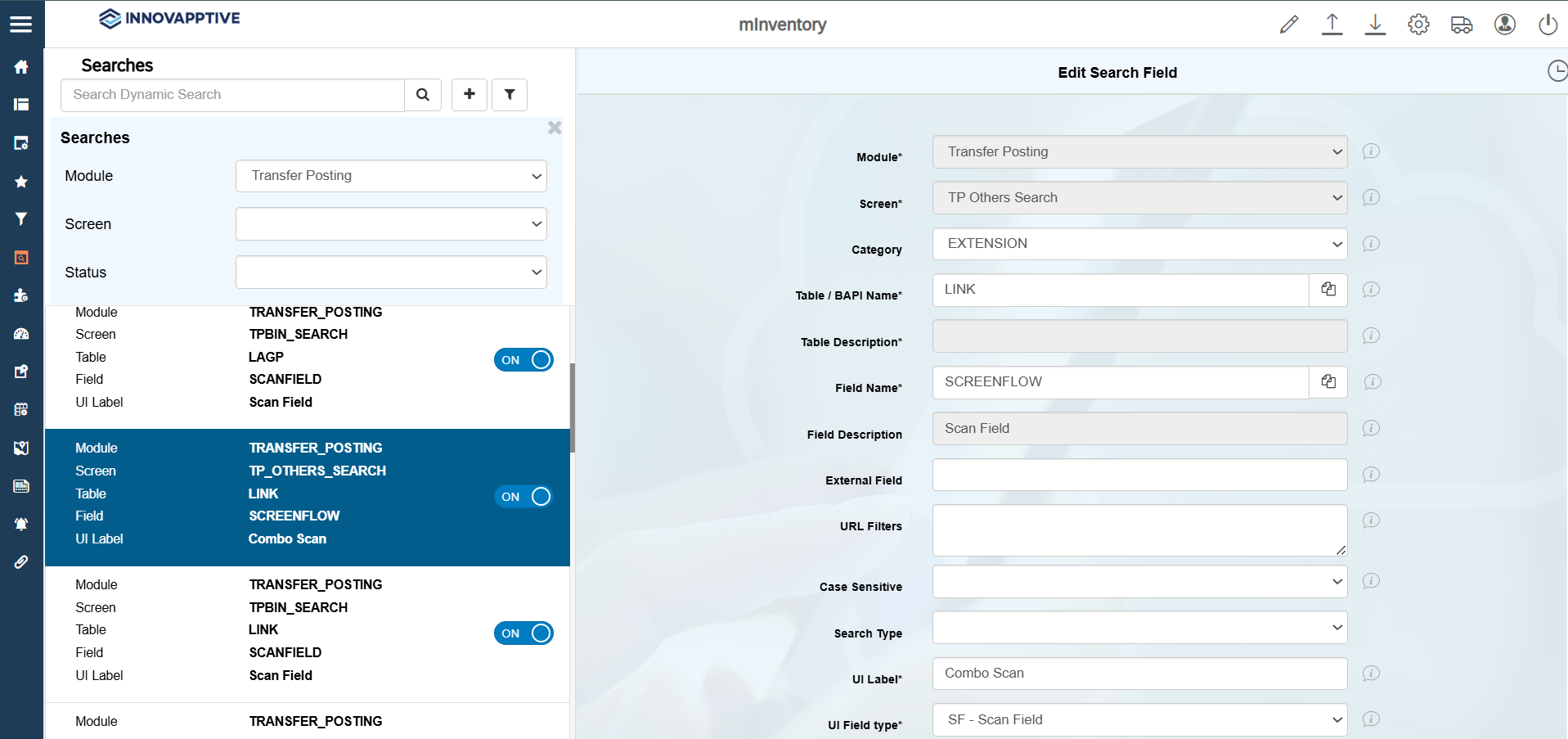
- Click Searches on the left panel.
- Click the Filter icon and select the required module.
- From the results, select the record with Field name = SCREENFLOW.
-
In the Edit Search Field section, update the following
information:
Field Description Module Required module Screen Required screen (e.g., TP Others Search) Table / BAPI Name LINK Field Name SCREENFLOW UI Label Combo Scan UI Field type SF – Scan Field UI Position 1 Default Value { "SCREENFLOW": { "SEARCHSCREEN": { "OPTIONAL": "" }, "ITEMSCREEN": { "OPTIONAL": "" }, "SUCCESSSCREEN": { "SHOWSUBNAVIGATION": true, "NAVIGATIONS": { "APP045": true, "APP200":true } } }}Active ON - Click Save.
-
Add the Scoping ID APP200. For more information, see Create Scoping ID.