
Home Screen of mInventory
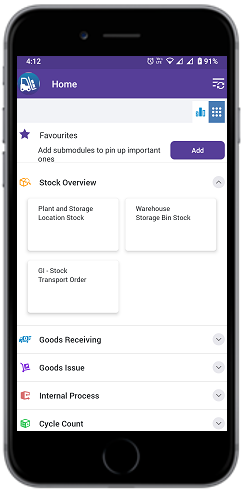
The Home screen of mInventory shows the modules that you have access to and the buttons and icons that let you process a series of operations.
The Home screen of mInventory is organized into modules. You can view only those modules that you have access to. Tap the module to work on tasks in that module. You can also configure the Home screen to show the sub modules as main modules, so that you can process the transactions directly from the Home screen.
The primary modules in mInventory are:
- Stock Overview
- Goods Receiving
- Goods Issue
- Inbound & Outbound Processes
- Cycle Counting
- Transfer Posting
- Consignment Audit
- Services Confirmation
- Extended Warehouse Management
- Remote Logistics Management
- Bin Creation
- Label Printing
- Loading
- Picking
- Material Document Reprint
- Material Document Display
Buttons and Icons on Home Screen
The following table lists the buttons/options that let you process a series of operations.
| Icon | Name | Description |
|---|---|---|
 |
Logout | Displayed on the top-left corner of the screen. Tap it to log out of
the application. Note: If there is any item in the Offline Outbox, the
mInventory application displays an alert message when the user taps
the Logout button. |
 |
Data Sync Menu | Displayed on the top-right side of the screen, adjacent to the
Settings button. You can refresh and check the last updates
for the application. You can also access the Offline
Outbox from this menu to view all the Offline
transactions. Note: This option is disabled
while offline sync is in progress. |
 |
Default Settings | This button, available adjacent to the Data Sync Menu button, directs you to the Default Settings screen. |
 |
Dashboard Analytics | Provides graphical illustration of key metrics indicators for Goods Receiving module. |
 |
Tiles | Modules in the application are displayed as a list. |
 |
Profile | Tap to view the profile with details like photo and name. Also, access the Default Settings screen. |