The Home (Dashboard) screen shows work order distribution, technician workload, and pending approvals in one place.
Supervisor Dashboard
Use the Supervisor Dashboard to monitor and manage maintenance work. It
brings together:
Work order distribution
Technician workloads
Pending approvals
From the dashboard, you can:
View task allocation at a glance
Track technician progress
Quickly spot and address operational bottlenecks
The dashboard integrates alerts from multiple systems supporting early
detection of critical events such as pressure or temperature anomalies.
For example: if Reactor-7 exceeds 80 psi, an alert is displayed.
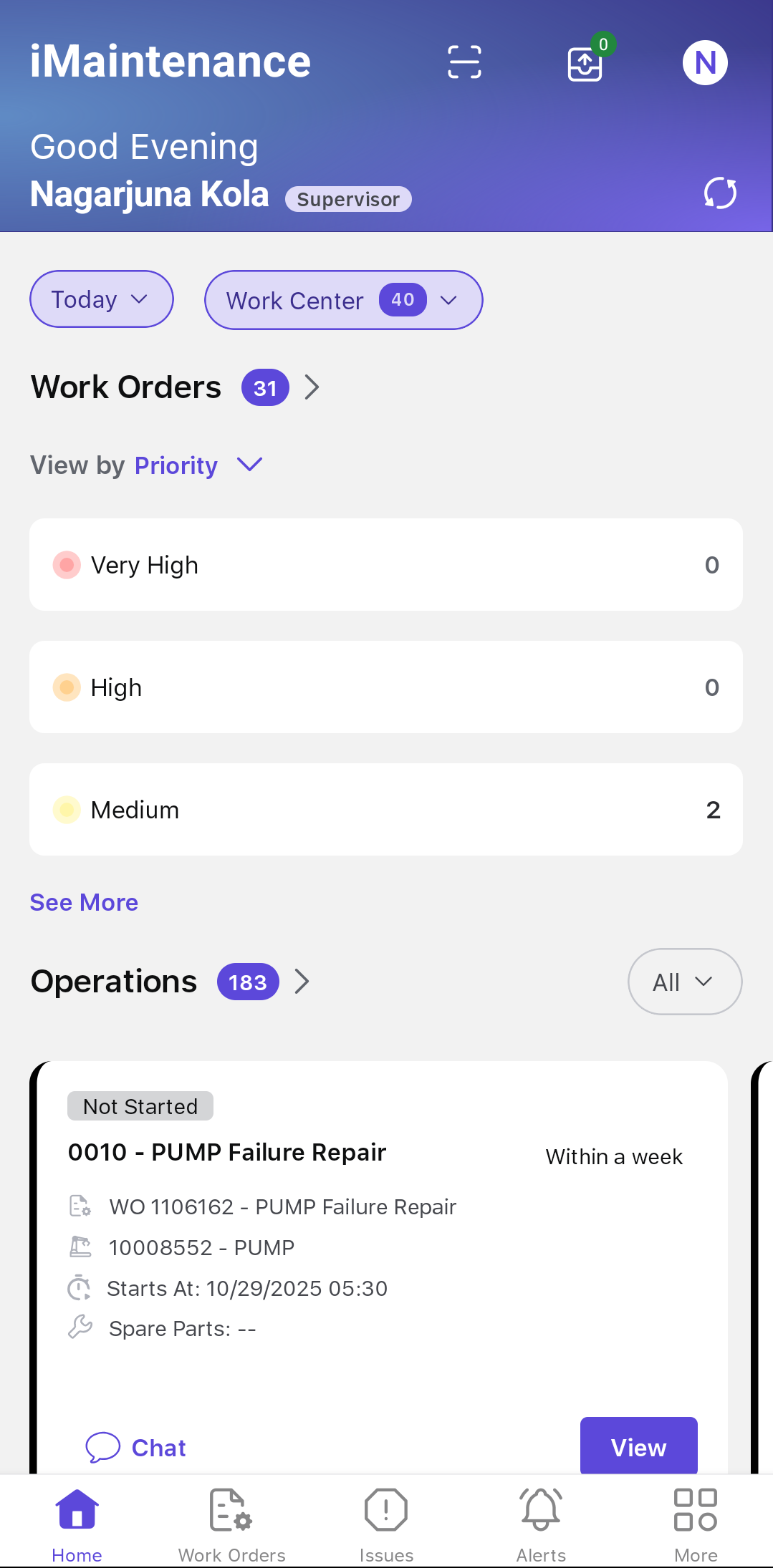
The Supervisor Dashboard is divided into the following key sections:Figure 1. Supervisor Dashboard
Tip:
Tap any dashboard section header (e.g.,
Work Orders, Overdue Work Orders, or Issues) to view a
complete or filtered list of items for that section.
Header
Displays the greeting, name, current date, time, and shift details
(e.g., 07:00 AM – 03:00 PM).
The Scan
icon lets you scan the asset from the Dashboard.
The Outbox icon lets you view pending
records or the transactions that are done in offline mode. You can
delete entries that have not yet synced with SAP or those that
failed to sync.
The Profile icon lets you view the
personal profile details.
The Manual Sync icon lets
you manually synchronize your device with the SAP backend. Use this
whenever you want to ensure your app is fully up to date.
You can apply filters to view data for:
Today (Default)
Tomorrow
This Week
Custom (specific date or date range)
Work Orders
Select a category from the View by drop-down to view
interactive widgets that help you quickly identify and prioritize
pending tasks:
Priority: Displays work orders
grouped by priority levels — Very
High, High,
Medium, and
Low.
Status: Displays work orders grouped
by their current status — Created,
Released, In
Progress, Completed,
and Closed.
Type: Displays work orders grouped by
their type — Preventive WO,
Corrective WO,
Breakdown WO, and
Emergency WO.
Tap any category to open a filtered list of the corresponding work
orders.
Overdue Work Orders
This section displays three interactive widgets —
Priority, Status,
and Type — each grouping overdue work orders
with a count for every group.
Issues
This section displays following three interactive widgets:
Priority: Displays issues grouped by
priority levels — Very High,
High,
Medium, and
Low.
Status: Displays issues grouped by
their current status — Open,
Released, In
Progress, Completed,
and Rejected.
Type: Displays issues grouped by
their type — Corrective and
Breakdown.
Tap any category to open a filtered list of the corresponding
issues.
Scheduled Work Orders at Risk
Highlights work orders that are scheduled but at risk due to
incomplete component kitting (status = Kitting not
done).
Each card displays:
Work Order ID and Title
Priority
Equipment ID and Name
Assigned Technician
Start Time
Pending Spare Parts
Chat and Action buttons
Action options include:
Reschedule: Modify start and end dates
Reassign: Change the assigned technician
You can apply filters (Today, Tomorrow, 3 Days) and browse via a
horizontal carousel (4 cards by default).
Pending Actions
Displays widgets for three types of pending items:
Technical Completion: Work orders with status =
Completed.
Technician Assignment: Work orders without an
assigned operation.
Timesheet Approval: Timesheets with status =
Submitted & Unapproved.
Tap a widget to open a filtered list of the items it
counts.
Need Attention
View all blocked operations in the order they were blocked.
Each blocked operation is displayed as an interactive card, allowing you
to quickly access operation details, launch the work order chat, or
unblock the operation.
Live Status Overview
Shows technician activity with the following columns:
Planned Utilization: The total planned work for the
shift across all technicians.
Shift Progress: The total completed planned work for the shift,
alongside today’s operations progress
(completed/total).
Technician Name: The technician name with planned
hours.
Operation: The operation or job the technician is
currently working on, with a clickable link to open the full
work order details.
Operation Status: The status of the operation (In
Progress, On Hold, etc.).
Work Order: The work order the technician is
currently working on.
Actions: Tap the Chat icon to start a conversation
with the technician.
Show All: Tap to view the status of all
technicians.
Issues Reported by Me
Displays issue counts categorized as:
Open
Released
In Progress
Completed
Rejected
Tap any category to view the corresponding filtered issue list.
Quick Actions
Provides shortcuts for the following frequently used actions:
Report an Issue
Create Work Order
View Equipment List
View Functional Locations List
Note:
The visibility and layout of dashboard widgets are RACE
configurable and may vary based on your organization’s configuration.

 icon lets you scan the asset from the Dashboard.
 icon lets you view pending
records or the transactions that are done in offline mode. You can
delete entries that have not yet synced with SAP or those that
failed to sync.
icon lets you view pending
records or the transactions that are done in offline mode. You can
delete entries that have not yet synced with SAP or those that
failed to sync. icon lets you view the
personal profile details.
icon lets you view the
personal profile details. icon lets
you manually synchronize your device with the SAP backend. Use this
whenever you want to ensure your app is fully up to date.
icon lets
you manually synchronize your device with the SAP backend. Use this
whenever you want to ensure your app is fully up to date.