Once you receive the completed work order from a technician, review the completed operations, used components, recorded time, and attached notes or images before you change the work order to its final status. Close the work order when no discrepancies are found. The actions and status names available to you depend on your organization’s SAP and iMaintenance configuration.
Use this review when a work order has completed field execution but has not reached the final configured completion status and still requires supervisor or SAP completion actions.
Open the completed or submitted work order.
For completed work: On the Supervisor Dashboard, select Status from View by and open the Completed list. Open the work order.
For work awaiting technical completion: Open the applicable pending-action or status list on the Supervisor Dashboard. Open the work order awaiting technical completion.
Review the execution record:
Review the operations the technician completed.
Review the confirmations the technician recorded.
Review the submitted timesheets. Resolve any rejected or pending timesheet entries.
Confirm that required forms, measurements, attachments, and component records are complete.
Review the Wrench Loss section, when available, to confirm the total lost time
and individual time losses recorded for the Work Order before closing.
Review follow-up issues and confirm that additional work is planned or
linked correctly.
Confirm that the required permits have been surrendered or closed.
Review the details, such as logs, comments, and supporting
attachments.
Resolve any pending or rejected records.
Add review comments, or request corrections if anything is missing.
The work order is ready for the configured technical-completion or closure action, or it is returned for correction with the missing information identified.
For work awaiting technical completion:
Select the technical-completion or closure action that is available to you.
Which action you see depends on your configuration.
The work order advances to the configured technical-completion or closure status, or remains pending with the unresolved requirement identified.
For completed work, when all the required records are complete:
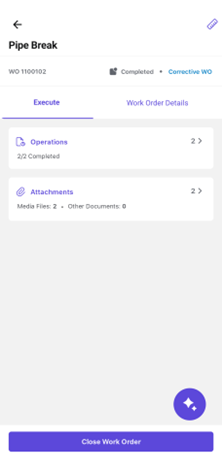
Tap Close Work Order.
Figure 1. Close Work Order
In the Close Work Order screen, add any notes or attachments.
Tap Close.
A message confirms successful closure, the work-order status changes to Closed, and the record is available for subsequent reference.