
Approve, Revert, or Reject a JHA on Mobile
After field acknowledgement, approve the JHA, return it for correction, or reject it when the supported conditions apply.
Role: JHA Owner. Platform: Mobile.
To approve a JHA:
-
Based on the selected action:
- If you tap Approve, add Signature and Comments, then tap Submit.
- If you tap Revert, provide valid Comments for reverting the JHA and tap Submit.
- If you tap Reject, provide valid Comments for rejecting the JHA and tap Submit.
Figure 1. Approve JHA 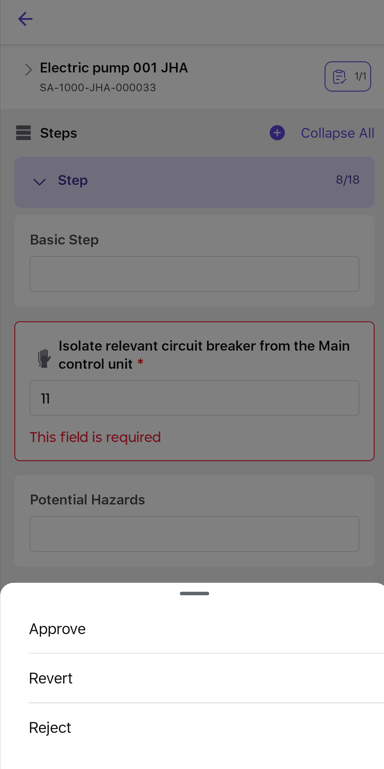
The JHA is approved, reverted for correction, or rejected according to the selected action.
Next: When the approved JHA is linked to a permit, the Permit Authorizer can now authorize the permit.