
Establish a Connection with SAP for Master Data Integration
Connect mRounds to SAP and synchronize master data from SAP.
This connection synchronizes master data from SAP into mRounds.
To create a connection for SAP server:
- Click the Integrations Manager module on the left side pane.
-
Click the Add button in the Connections section on the left side.
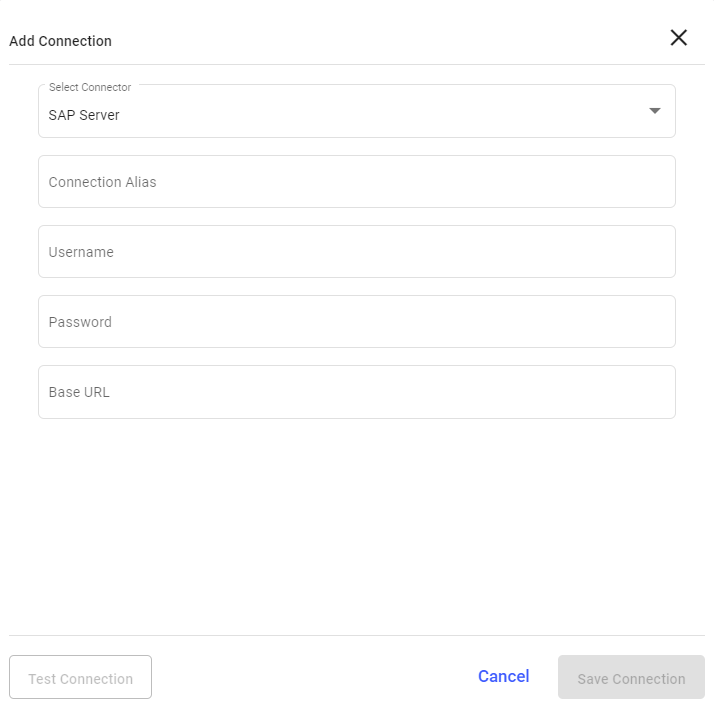
Figure 1. Add SAP Connection
-
In the Add Connection window, do the following:
- Select SAP Sever from the Select Connector drop-down.
- Enter the connection alias name in the Connection Alias field.
- Select the value from the Authorization drop-down such as, Basic,
Certificate, and API Key.Note:Fill the remaining fields that are displayed based on the selected value in the Authorization drop-down.
- Click Test Connection to test the connection.
- Click Save Connection if the connection is successful.Note:The connection will be successful only if there is no existing master data in the application.
The Connection is created successfully and you can see it in the Connections section.
In this section, you can,- Click the More icon next to the connection and select View Details to see the connection details.
- Click the More icon next to the connection and select Edit Connection to edit the connection details.
- Click the More icon next to the connection and select Delete Connection to delete the connection.
Configure Master Data Synchronization with SAP
Add an inbound Master Data integration point that synchronizes SAP data on a schedule.
To add the Master Data integration point:
- Click the Integrations Manager module on the left side pane.
- Select the SAP Server in the Connections section.
-
Click Add Integration on the right side.
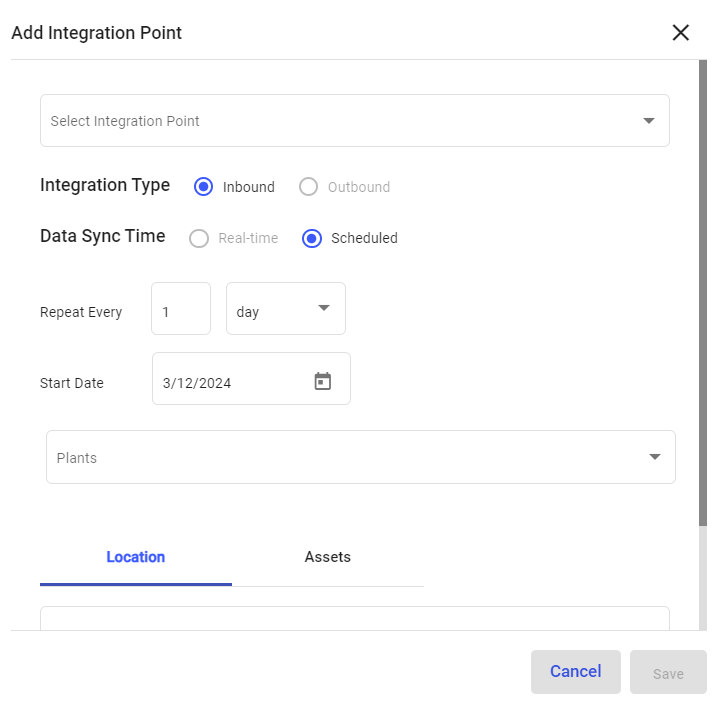
Figure 2. Add Integration Point
-
In the Add Integration Point window, do the following:
- Select the integration point (Master Data) from the Select Integration Point drop-down.
- Select Integration Type as Inbound.
- Select Data Synchronization as Scheduled.
- Select Repeat Every <number> <day, week, month or year>.
- Select Start Date.
- Select plant from the Plants drop-down where the location or asset residing.
- In the Location or Assets tab, enter the collection in the URL field.
- In the Column Configuration section, map the CBO data columns to SAP data columns.
- Click Save.
The Integration Point is created and you can view it in the Integrations section.
The master data synchronization in the application occurs based on the configured schedule. You can also sync the data manually.
