
Establish a Connection with Maximo for Master Data Integration
Connect mRounds to Maximo to synchronize Locations and Assets, and configure Maximo work order events when required.
- Automated Master Data Sync: Keeps mRounds Locations and Assets aligned with Maximo without manual intervention
- Full Load and Incremental Updates: Performs a complete data load on first sync; subsequent runs retrieve only changed records, making ongoing syncs fast and resource-efficient.
- Location Hierarchy Preservation: Imports parent-child location relationships so round plans and assignments reflect the actual physical plant structure.
- Graceful Asset Retirement: Deactivates assets in mRounds when Maximo marks them inactive, preserving historical round data while excluding retired assets from new scheduling.
The Maximo integration has three separate flows:
- Master data synchronization from Maximo to mRounds: this topic.
- Work Orders from mRounds to Maximo: Configure Outbound Work Orders to Maximo.
- Work order change events from Maximo to mRounds (advanced backend setup): Configure Maximo Work Order Events for mRounds.
To create a connection for Maximo:
-
In the Add Connection window, do the following:
- Select IBM Maximo Connector from the Select Connector drop-down.
- Enter a descriptive name in the Connection Alias field.
- Select the Authorization type: API Key, Basic (MAXAUTH), or OAuth Token.
- For API Key, enter the Maximo API key in the Key field. This key is issued by Maximo for the integration user. It is not the mRounds API key described in Generate API Keys for mRounds.
- Enter the Maximo URL in the Base URL field, for example
https://<maximo-host>. - Click Test Connection to verify the connection.
- Click Save Connection if the connection is successful.
Figure 1. Add Maximo Connection 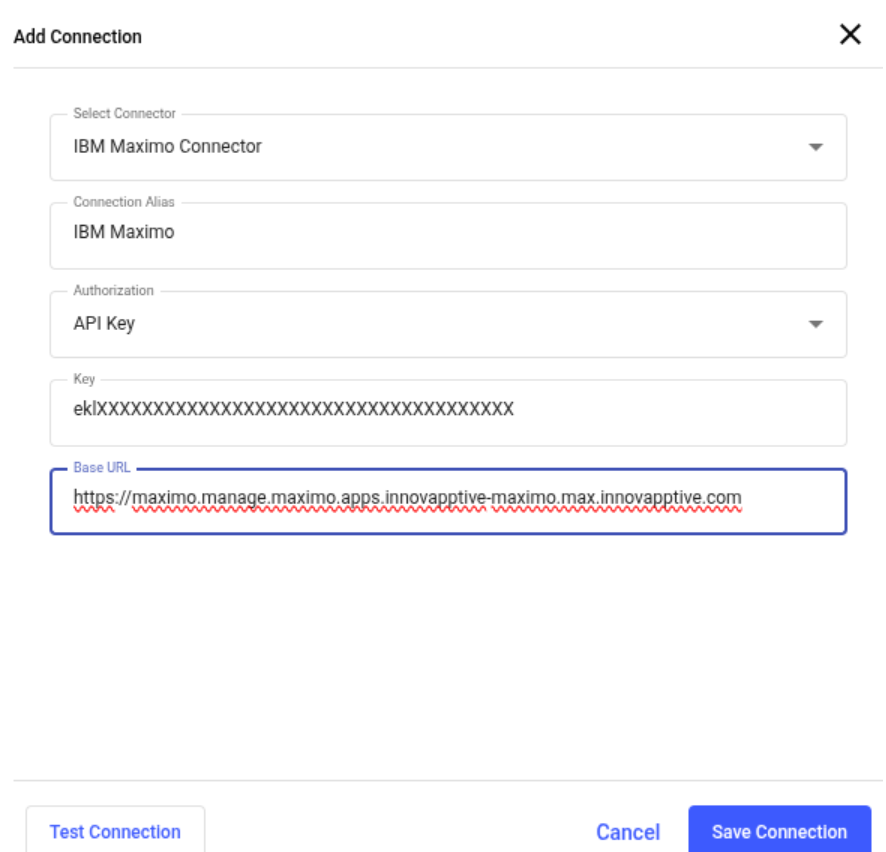
The connection is created successfully and displayed in the Connections section. In this section, you can:- Click the More icon next to the connection:
-
-
Select View Details to see the connection details.
-
Select Edit Connection to update the connection details, and then click Update Connection.
-
Select Delete Connection to remove the connection.
-
-
Figure 2. API Key fields, as shown in the Edit Connection dialog (key and host masked) 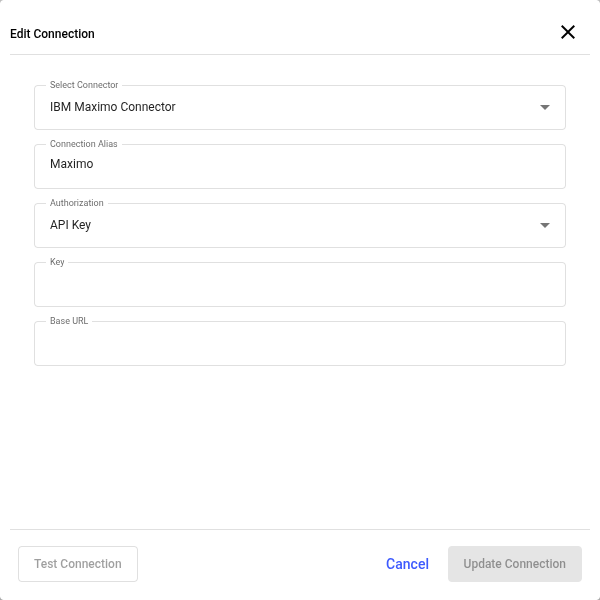
Configure Master Data Synchronization with Maximo
Once the Maximo connection is established, configure an integration point to define the sync schedule, plant mapping, and field mappings for Locations and Assets.
To add a Master Data integration point for Maximo:
-
Click Add Integration on the right side.
Figure 3. Add Integration Point 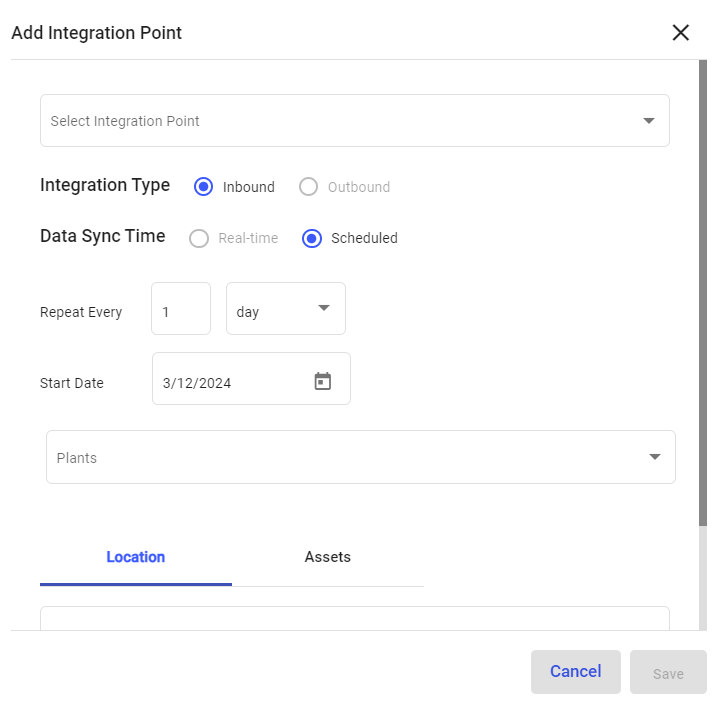
-
In the Add Integration Point window, do the following:
- Select the integration point (Master Data) from the Select Integration Point drop-down.
- Select Integration Type as Inbound.
- Select Data Synchronization as Scheduled.
- Select Repeat Every <number> <day, week, month or year>.
- Select Start Date.
- Select plant from the Plants drop-down where the location or asset residing.
- In the Location or Assets tab, enter the collection in the URL field.
- In the Column Configuration section, map the mRounds data columns to the Maximo data columns.
- Click Save.
Figure 4. Location Column Configuration 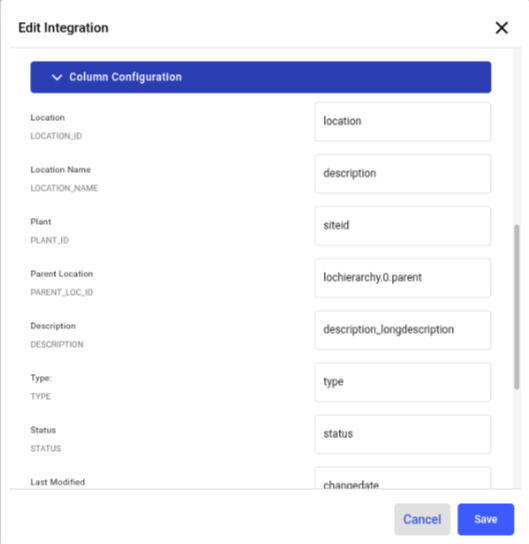
The Integration Point is created and you can view it in the Integrations section.
The master data synchronization in the application occurs based on the configured schedule. You can also sync the data manually.