Configure Outbound Work Orders to Maximo
Map mRounds Issue fields and plant-specific values to create Work Orders in Maximo.
A Maximo connection exists. See Establish a Connection with Maximo for Master Data Integration.
The Issue template of the plant has the categories, priorities, and statuses to map.
The Work Order integration creates Work Orders in Maximo from mRounds Issues through the Maximo API. This flow does not use the Kafka work order events in Configure Maximo Work Order Events for mRounds.
- In the Add Integration Point window, select Work Order from the Select Integration Point drop-down.
The list also offers Master Data and ERP Notification. Master Data cannot be selected again if a Master Data integration already exists for the connection.
Figure 1. Work Order in the Select Integration Point list 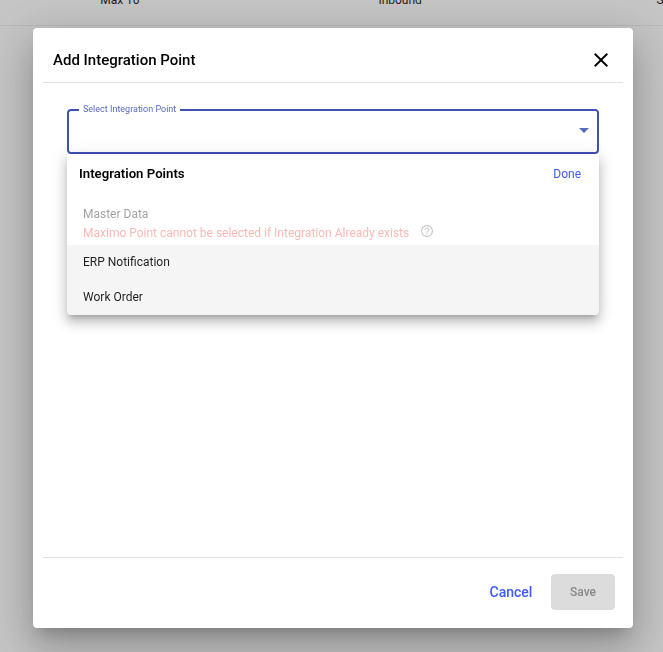
- Select Integration Type as Outbound and Data Sync Time as Real-time.
Figure 2. Example Work Order integration settings (demo plant; your plant and values differ) 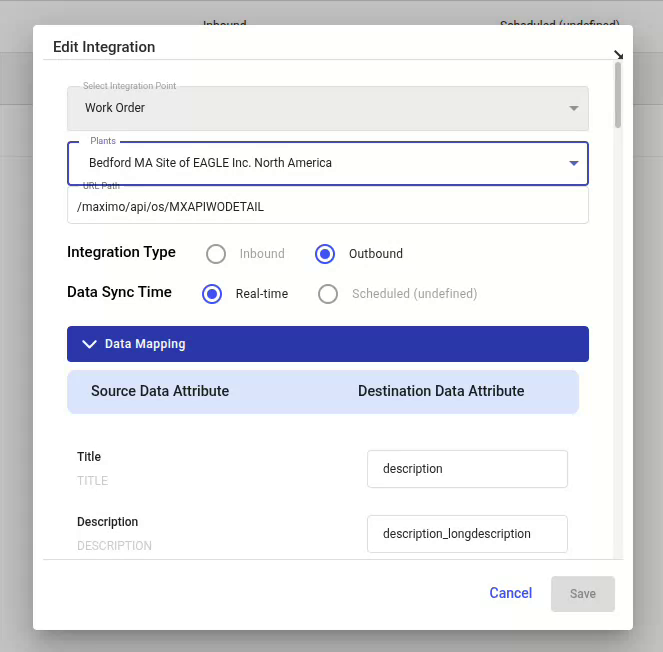
- Under Data Mapping, enter the Maximo attribute for each mRounds Issue field.
Source Data Attribute (mRounds Issue) Destination Data Attribute (Maximo) Title description Description description_longdescription Task (leave blank) Round (leave blank) Attachments doclinks Category worktype Priority wopriority Plant siteid Location location Asset assetnum Assign to (leave blank) Start Date and Time schedstart Due Date and Time schedfinish Status status The labels under each field (for example
WERKSunder Plant) are the source identifiers shown in the application.Figure 3. Example field mapping, part 1. Use the mapping table above. 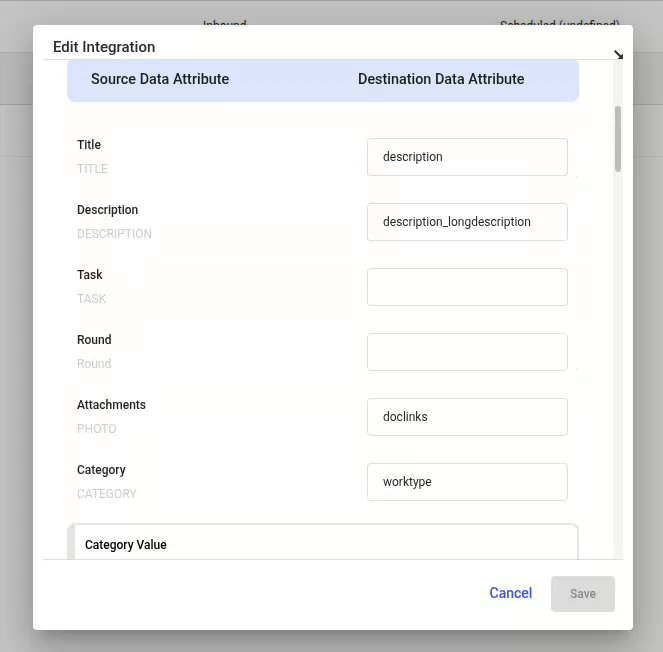
Figure 4. Example field mapping, part 2. Use the mapping table above. 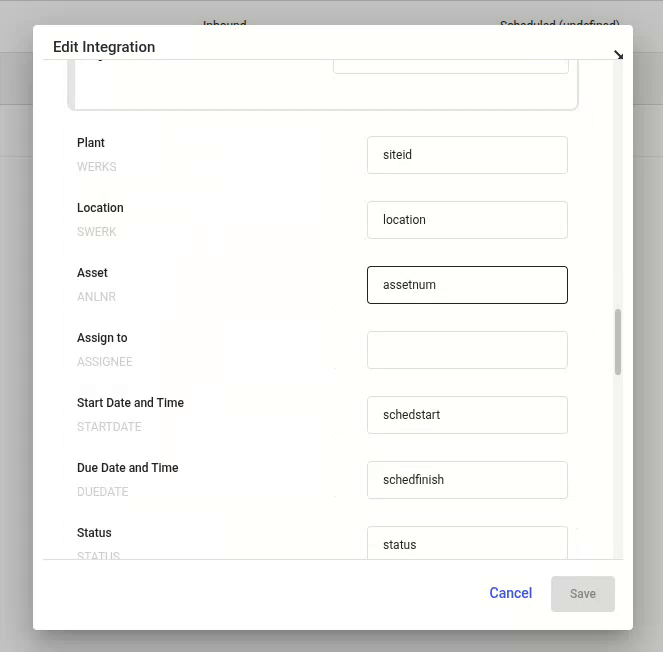
- Map the category, priority, and status values of the plant to the Maximo values.
The values listed come from the Issue template of the selected plant. Enter the Maximo code for each value. Examples:
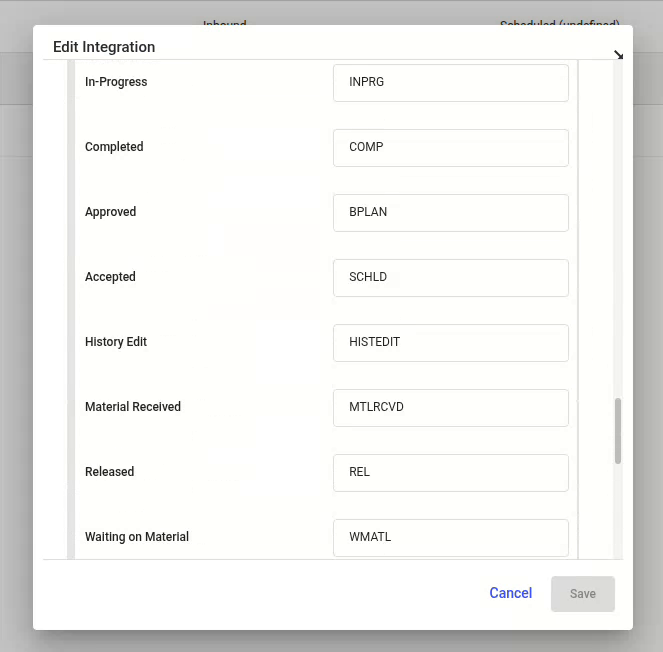
Mapping mRounds value (example) Maximo value (example) Category Preventive Maintenance PM Priority Urgent / High / Medium / Low 1 / 2 / 3 / 4 Status In-Progress INPRG Status Completed COMP Figure 5. Example category value mapping 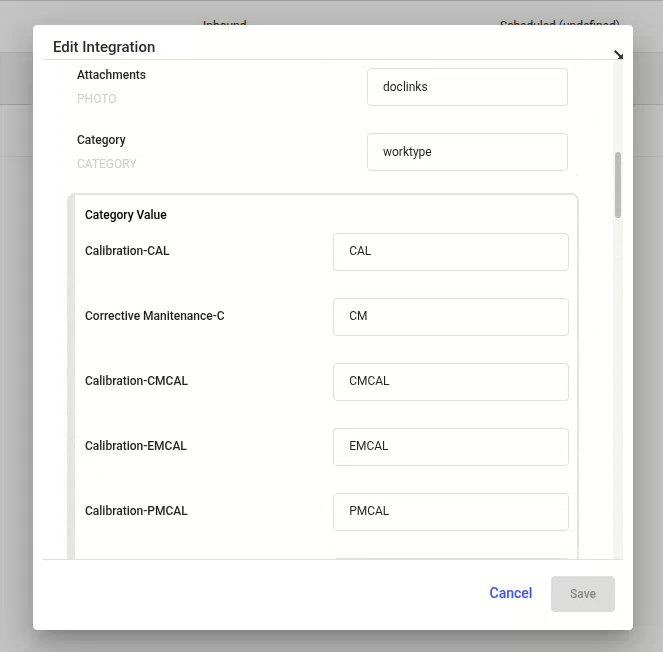
Figure 6. Example priority value mapping 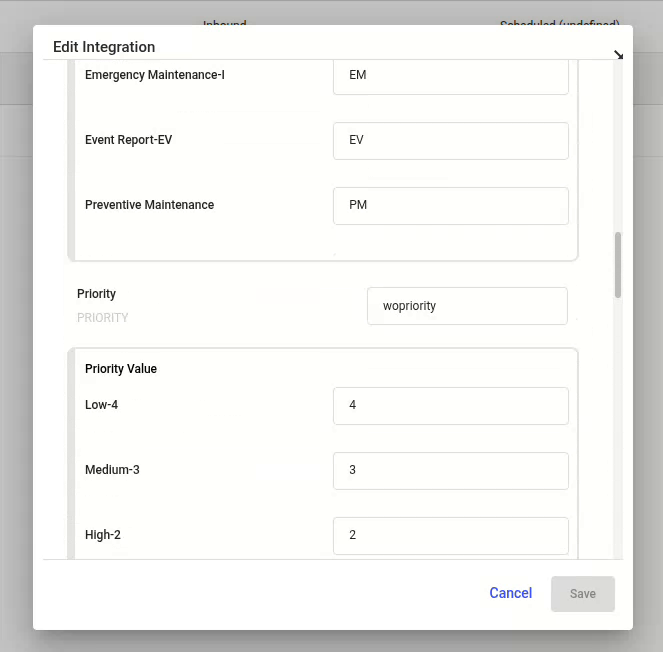
Figure 7. Example status value mapping