
Confirm Unplanned Services Availed from Vendors
Find the service purchase order, add the unplanned services from one of the service tabs, and confirm the order with your digital signature.
-
In the Home screen, tap Services Confirmation.
Figure 1. Search Service Purchase Order 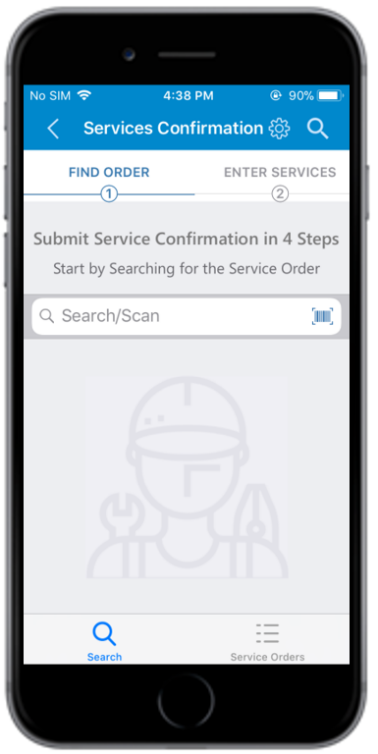
-
In the Find Order tab, retrieve the Service Purchase Order using any of
the following methods:
- Enter the Service Purchase Order number in the Search/Scan field and tap Search. Tap the retrieved Service Purchase Order.
- Tap the Scan icon to scan the barcode.
- Tap the Service Order button at the bottom of the screen to view
the list of Service Purchase Orders. In this screen,
- The Outstanding PO value is displayed on the header.
- Open records are listed at the bottom half of the screen. Tap the Service Purchase Order to view the details.
Figure 2. Enter Services tab 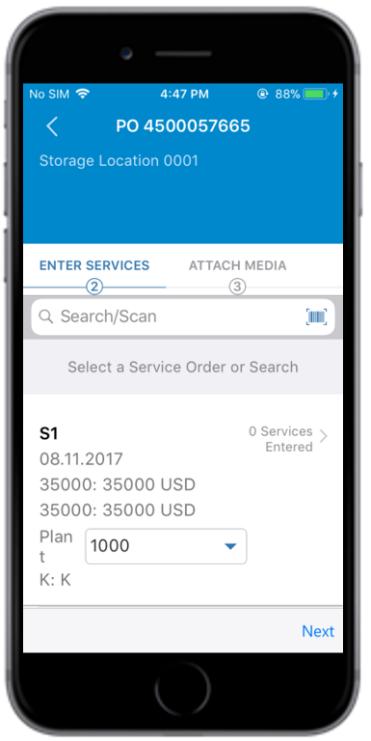
-
In the Enter Services tab, tap the service order.
Figure 3. Unplanned Service - Contract tab 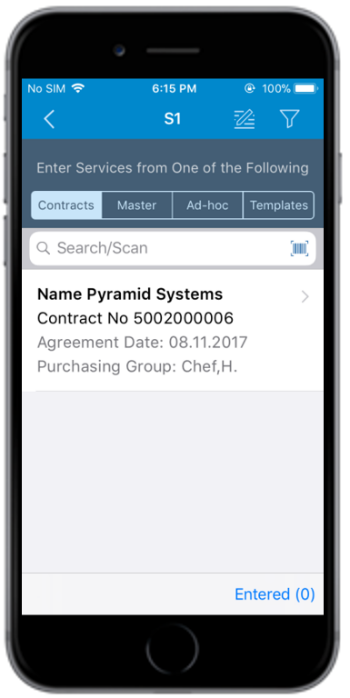
-
Add a service by updating the details in any of the tabs:
To add a service using Contract tab:
- In the Contracts tab, tap on the contract applicable to the service
order.
Figure 4. Unplanned Service - Contract tab
- Tap the item.
Figure 5. Contract List Item 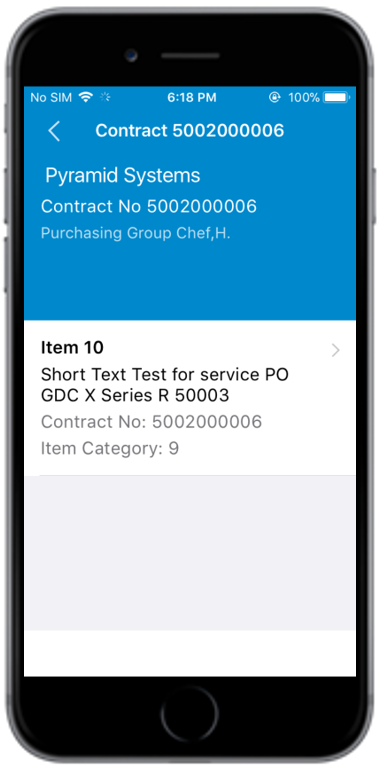
- Enter details such as Gross Price and
Quantity. Swipe the line item to the right and tap Add to Template to add the
item to the Templates tab.
Figure 6. Contract Service Line Items 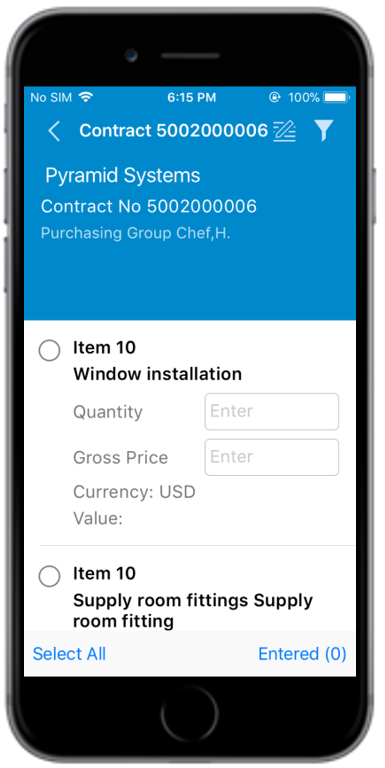
To add a service using Master tab:
- In the Master tab, select the service line item. Swipe the line item to the right and tap Add to Template to add the
service to the Templates tab.
Figure 7. Unplanned Service - Master tab 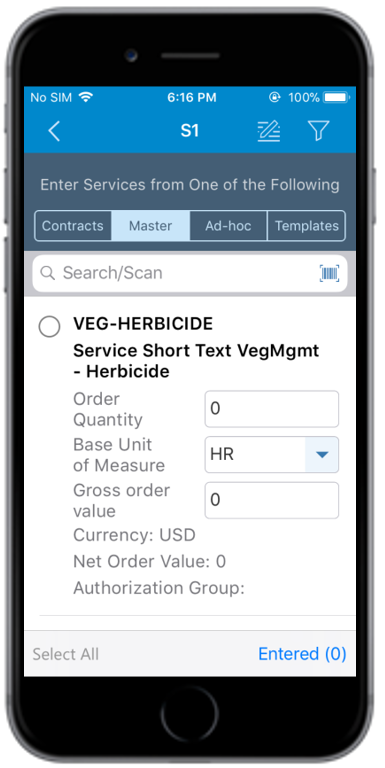
- Enter details such as Order Quantity, Base Unit of Measure and Gross Order Value.
To add a service using Ad-hoc tab:
- In the Ad-hoc tab, select the service line item(s).
Figure 8. Unplanned Service - Adhoc tab 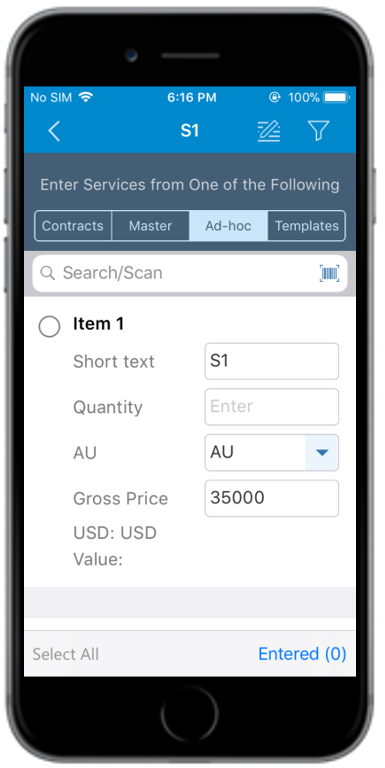
- Enter details such as Quantity and Gross Price. Tap Add Another Ad-hoc Service to add an item.
To add a service using Templates tab:
- In the Templates tab, select the service line item(s).
Figure 9. Unplanned Service - Templates tab 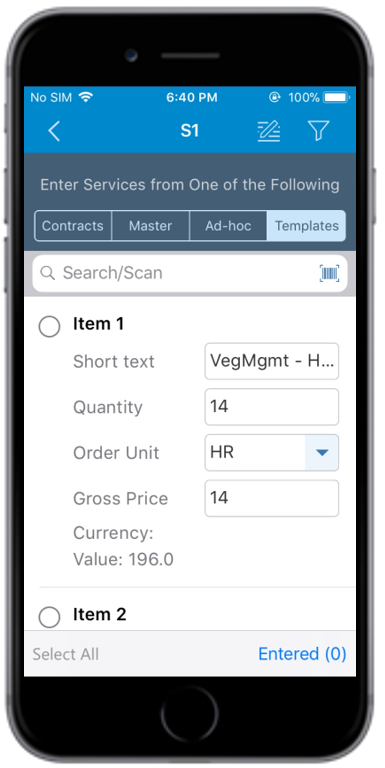
- Enter details such as Quantity, Order
Unit and Gross Price.
- Swipe the item to the right and tap the Duplicate Line. The template is posted.
- Swipe the item to the left and tap the Delete Template to delete the template.
Figure 10. Unplanned Service - Template - Duplicate Item 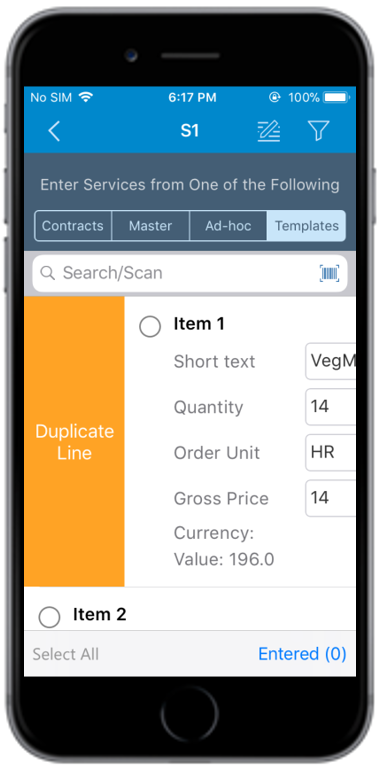
- In the Contracts tab, tap on the contract applicable to the service
order.
-
Tap the Back
 icon.
icon.
- Tap Entered (X) to review and edit the line items. X represents the number of line items selected.
- Tap Return To PO.