
Search and Filter Rounds, Issues, and Actions
Use search and filters when you need to find a specific round, Issue, or Action without scanning every record in the list.
Search the list. When you know the name or a keyword for a round, Issue, or Action, search the list instead of scrolling through it.
Filter the list. When a Rounds, Issues, or Actions list is too long to scan, filter it on values such as Due Date and Status to show only the records you need.
-
Tap the Filter
 icon at the top right in the Rounds,
Issues, or Actions screen.
icon at the top right in the Rounds,
Issues, or Actions screen.
-
Tap Apply to refine your results.
The filtered results are displayed.
Tap Reset to clear the filter.
Figure 1. Filter My Rounds 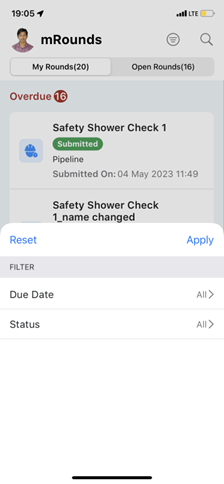
Having trouble finding something or completing an action? See Troubleshoot Common Problems.