Log in to iMaintenance by entering your company domain, Email ID, and
password; on first use, you also create a device passcode and can enable biometric access when it is available on the device.
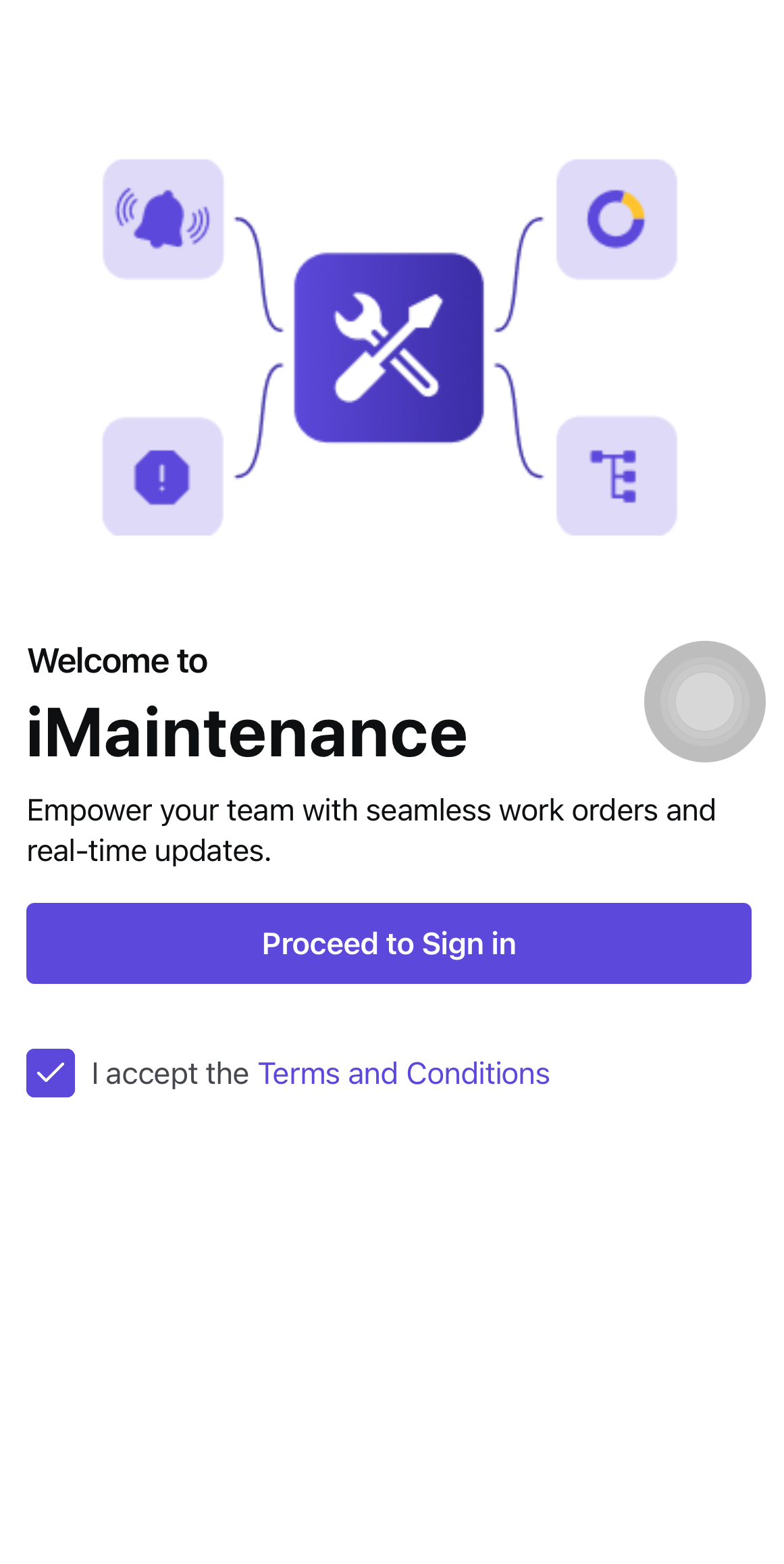
Open the application.
In the Welcome screen, accept Terms and Conditions and
tap Proceed to Sign in.
Figure 1. Welcome Screen
In the Domain screen, enter the company domain and tap
Next.
Figure 2. Domain Screen
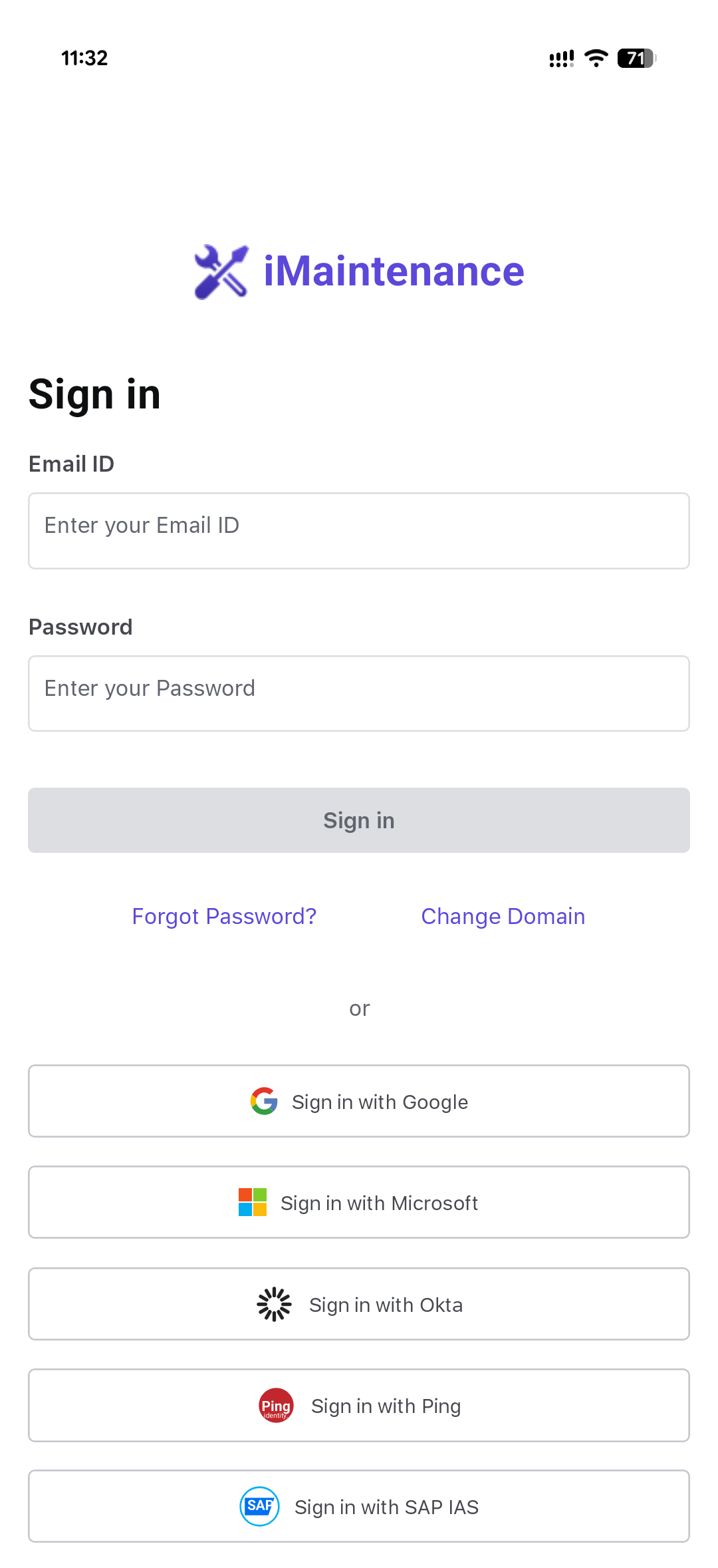
In the Sign in screen, enter Email
ID and Password and tap Sign
in.
Figure 3. Sign In Screen
Create Passcode
The application prompts you to create a passcode on first login for faster sign-in on future visits.
In the Secure your account screen, tap Set up
now.
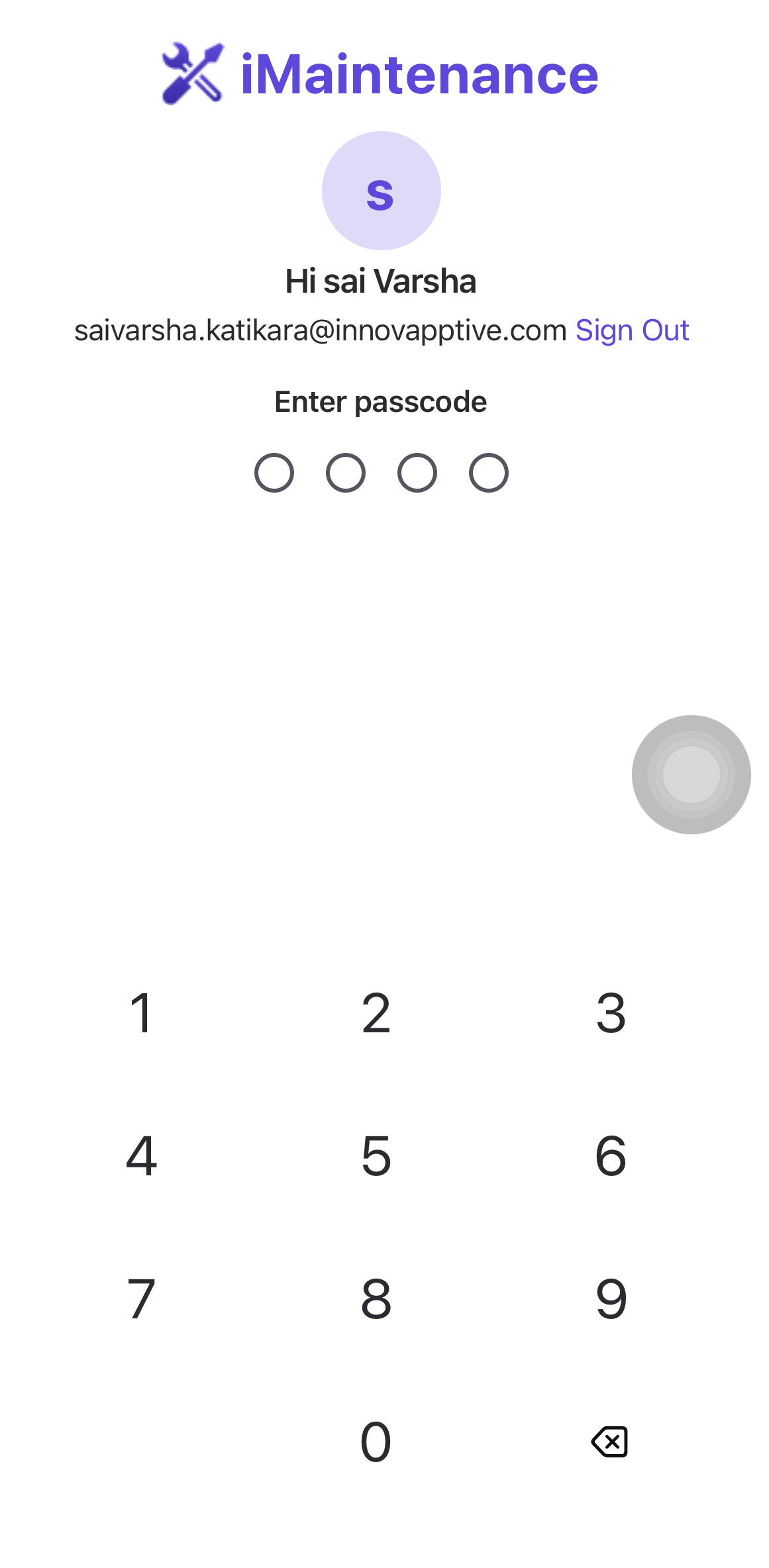
Enter the passcode number in the Create Passcode
screen.
Re-enter the same number in the Confirm Passcode
screen.
Figure 4. Create Passcode Screen
Note:
The passcode is device-specific. If you use a new device, you must
create a passcode for that device again.
If you share the device with other users across shifts, set a new
passcode after each sign-out to keep your session secure. You must
also set a new passcode whenever you reinstall the application.
If you forget the passcode, you must reinstall the application and
create the passcode again.
The passcode is created and can be used for subsequent access on the device.
Enable Biometric Access
Enable biometric access to log in to iMaintenance using your device's fingerprint or face recognition, when it is available on the device.
Optional: In the Set Up Biometric Authentication screen, tap Enable
Biometrics.
Optional: If your device supports fingerprint recognition, provide your fingerprint to
enable fingerprint login.
Optional: If your device supports face recognition, scan your face to enable face
login.
Biometric access is enabled for subsequent sign-in on the device.
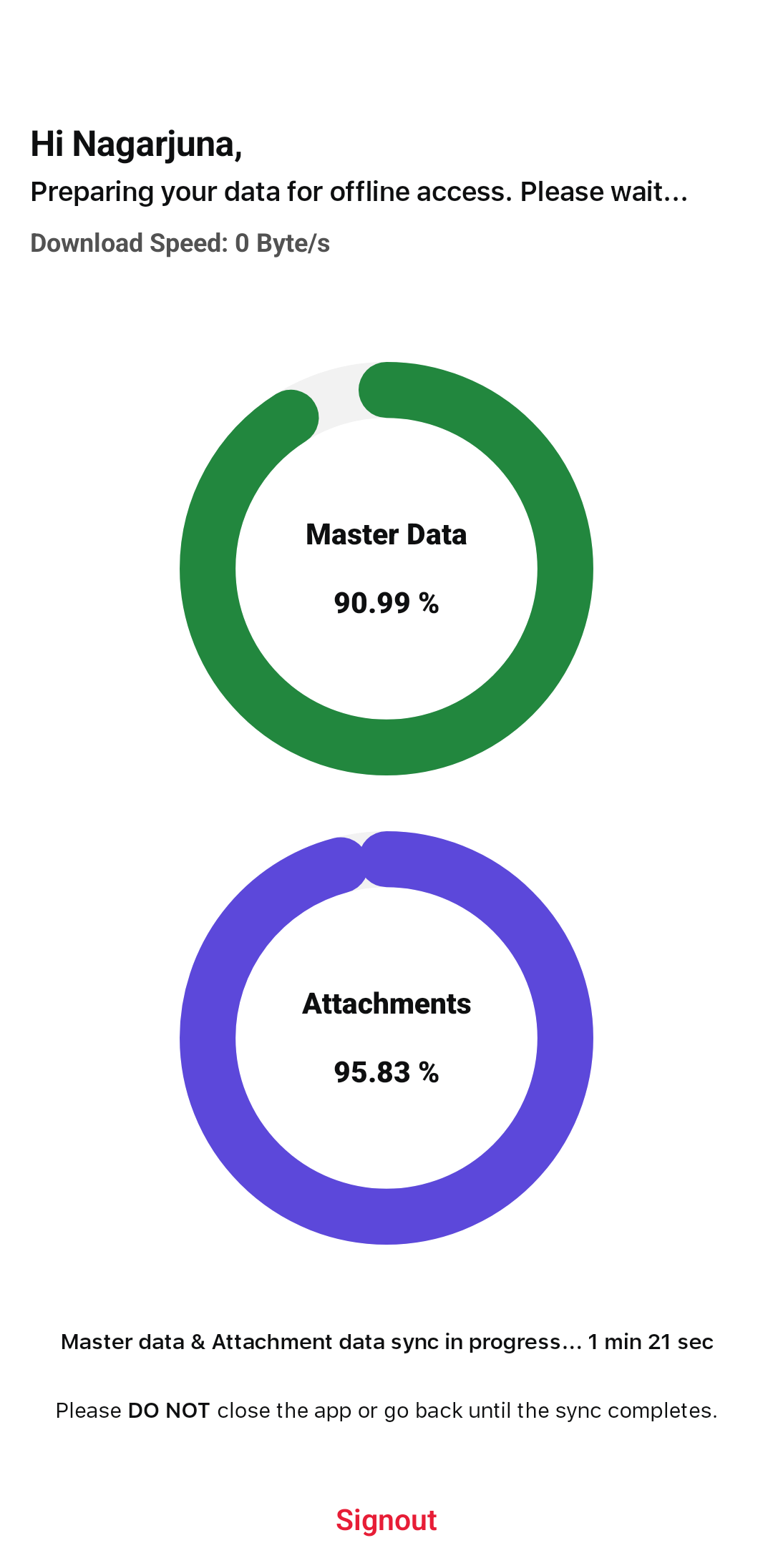
You are signed in and the application starts the configured synchronization process. The application then syncs master data and attachments for offline access
and displays the Home screen.Figure 5. Offline Sync
Note:
You can use username and
password, passcode, fingerprint, or facial scan to log in, depending on
which methods you set up.