Report an equipment or functional-location problem using text, voice, or an image so a supervisor can assess the required action.
To create an issue:
In the Issue List screen, tap the Create icon.
In the Report Issue screen, to make reporting faster and
easier, iMaintenance includes AI-powered suggestions and smart input options.
You can choose any of the following options:
Capture an Image using the Camera icon — the system analyzes
the image and suggests issue details or,
Type the issue details such as equipment, functional
location, and severity directly into the AI text box: enter a prompt
describing the issue (e.g., “oil leak near pump”), and the
app automatically fills in related fields like equipment, functional
location, and severity or,
Use Voice Input by tapping the Mic icon and speaking your
description — SIA transcribes and interprets the input. The app
captures your input, adding context like timestamp and
location.
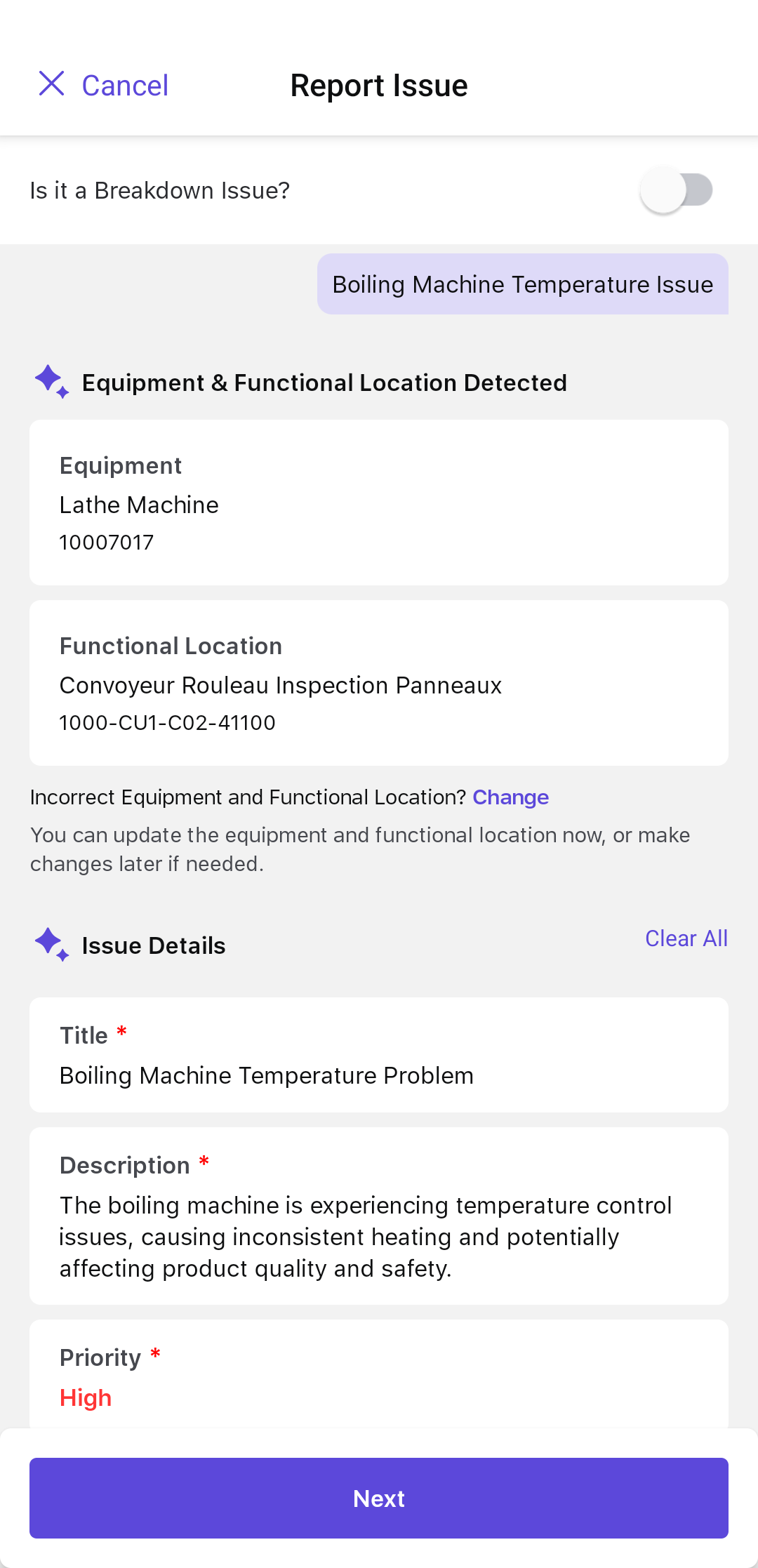
Figure 1. Report Issue
Note:
If it is an emergency issue, switch on the
Is it a Breakdown Issue? toggle at the
top.
Tap the Enter icon next to the text
box.
Select the Equipment and the Functional
Location, then tap Next.
Note:
To change the Equipment and Functional Location
details, tap Change.
Review the issue details that are generated for you.
AI analyzes the provided details, retrieves the past asset information, and
suggests relevant details based on historical data.
Figure 2. Generated Issue Details
Table 1. Issue detail fields
Field
What it holds
Equipment
The machine or asset requiring maintenance or
repair.
Functional Location
The area where the equipment is located.
Title
Title or a brief description of the issue.
Description
A detailed explanation of the issue.
User Status
Tap to change the status of the issue — for example
INIT, APPR, RJEC, CLSD, and
others.
Maintenance Plant
Populates based on the selected Equipment or Functional
Location.
Planning Plant and Planning Group
Populate automatically based on the rules.
Code Group
Displays the issue category (for example,
Reactor). Values load dynamically based on the
selected Equipment (EQ), Functional Location (FL), or Issue
Type.
Code
Shows the reason within the category (for example,
Reactor Corrosion).
Reported By
Populates automatically with the logged-in user's full
name.
Revision
Select the relevant revision value. Apply with Date
Changes automatically updates the Required Start
Date and End Date; Apply without Date
Changes keeps the original dates unchanged.
Priority
The urgency of the issue.
If you need to change the Equipment or the Functional Location,
tap Change.
Review the Priority, and change it if
needed.
Note:
Risk assessment data is displayed only when the
Priority field is configured with the Risk Assessment Matrix response type.
Otherwise, it displays a dropdown populated with SAP priority values
filtered by order type.
Tap Priority.
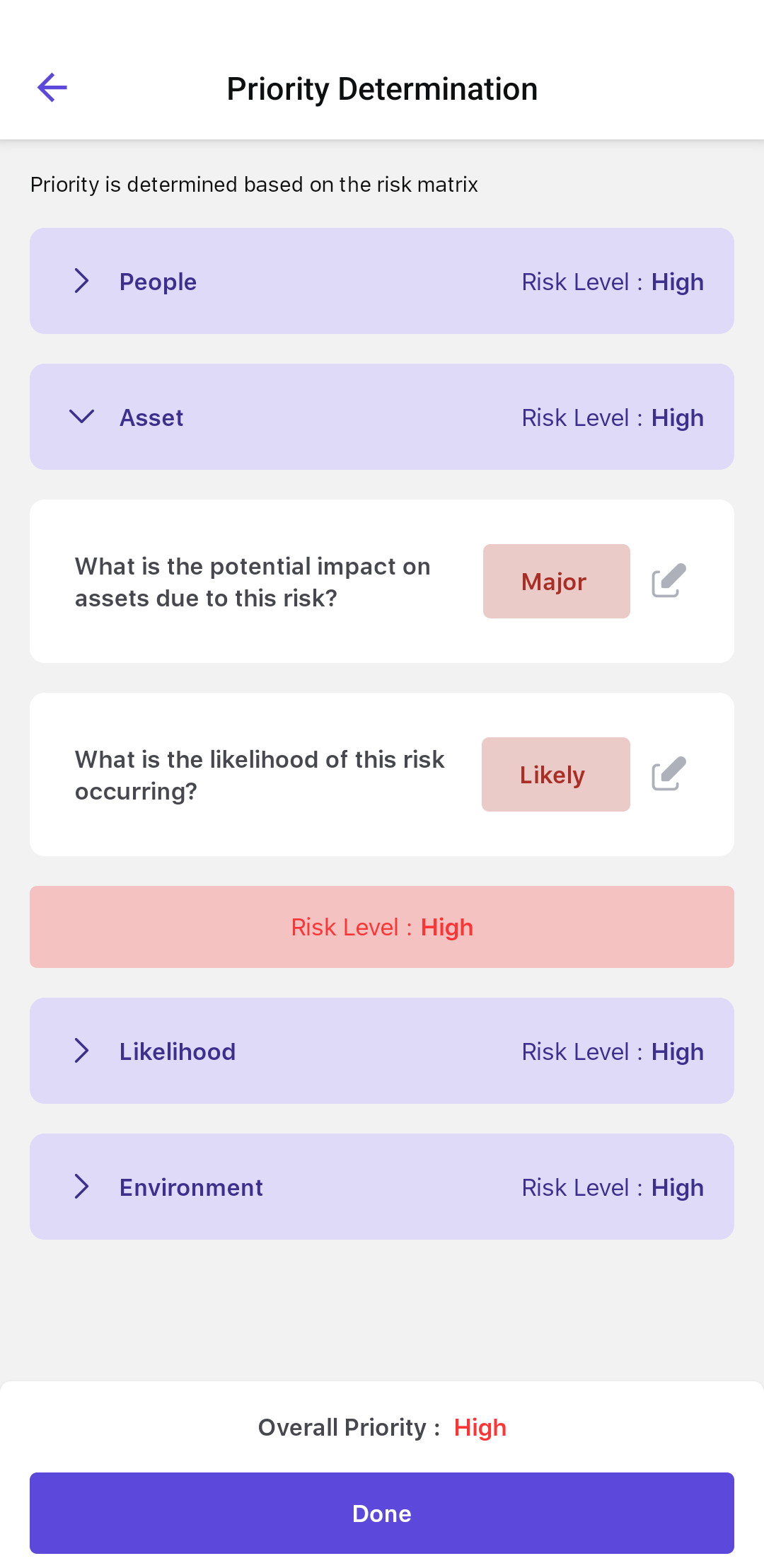
In the Priority Determination (risk assessment)
screen, select the probability of occurrence of the scenario under each
category.
People: the impact of the incident on people.
Assets: the impact of the incident on the asset.
Likelihood: probable occurrence of the scenario.
Environmental: the impact of the incident on the
environment.
The SIA calculates the Overall Priority — Low,
Medium, or High — from the risk level identified across these
categories.
Note:
Tap the References link below the
Priority to view the information the AI used to determine the
priority.
Tap Done.
Figure 3. Priority Details
Note:
You can also select the Priority value manually from the drop-down
instead of relying on the Risk Assessment Matrix for automated
determination.
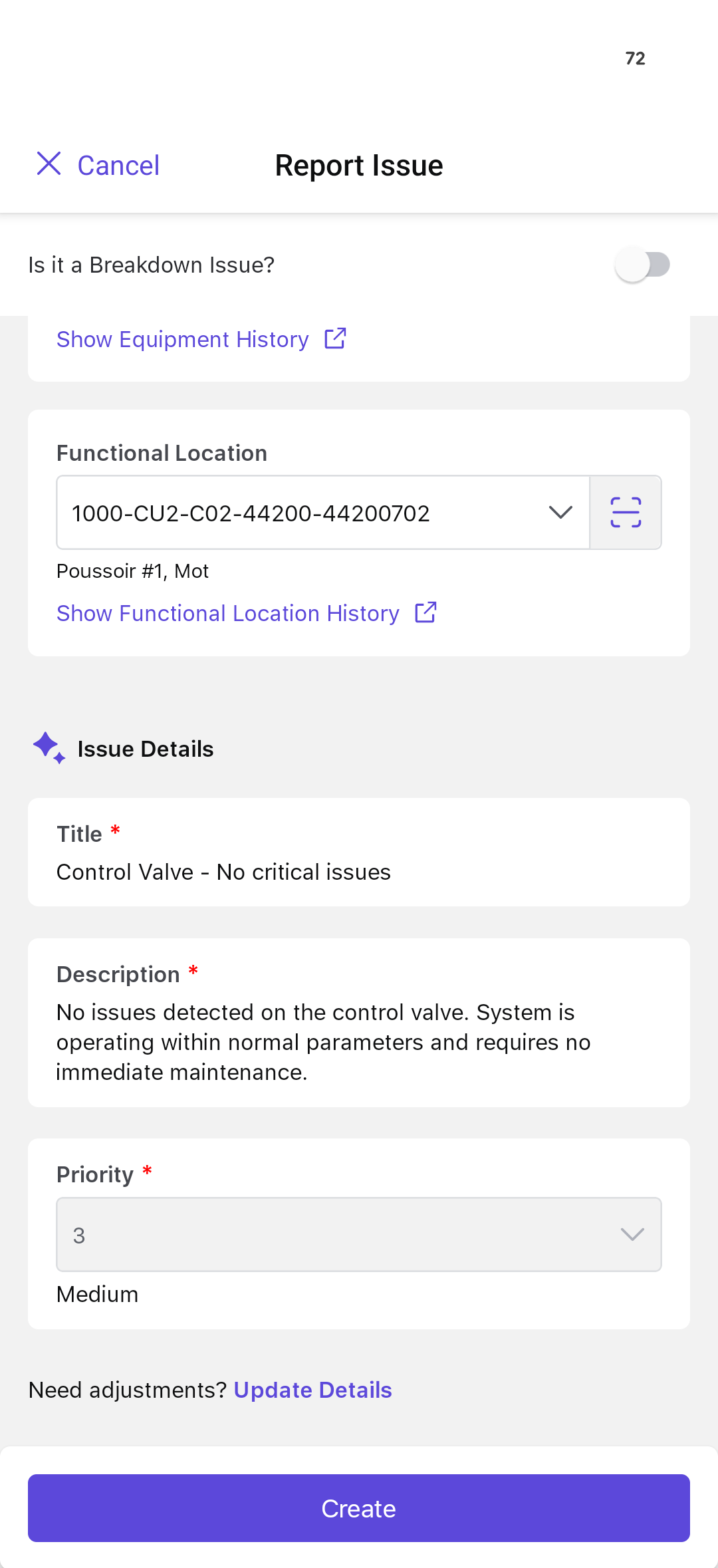
Tap Create.
Figure 4. Final Issue Details
If there are existing issues associated with the same equipment, a pop-up
appears with the following options:
View Issues: Select this to see existing issues.
Create Anyway: Select this to create a new issue.
Cancel: Select this to stop creating an issue.
Note:
This pop-up helps avoid duplicate reports, such as two technicians each
reporting the same oil leak.
The issue summary is displayed after selecting the Create Anyway option. In
this screen, you can:
Tap More > Edit Issue on the top-right corner to edit the
issue details.
Note:
You can edit the issue until
its status changes to Completed or Rejected.
Tap Show Equipment History to view the equipment history
details.
Tap Show Functional Location History to view the functional
location history details.
Add the following details:
Attachments
Items
Causes
Activities
Tasks
Tap Report to create or report the issue.
A message, Issue <issue title> has been reported successfully, is
displayed.
The issue is saved or reported and becomes available for supervisor review.
What Happens When You Create an Issue
When you report an issue related to an asset:
The supervisor is notified
The issue is reviewed, and if needed, the supervisor may:
Request more information
Inspect the equipment on-site
Based on the assessment, the issue is either:
Converted into a work order for maintenance
Rejected if no action is required
Return to assigned work unless the site process requires immediate escalation.

 icon.
icon.
 icon — the system analyzes
the image and suggests issue details or,
icon — the system analyzes
the image and suggests issue details or, icon and speaking your
description — SIA transcribes and interprets the input. The app
captures your input, adding context like timestamp and
location.
icon and speaking your
description — SIA transcribes and interprets the input. The app
captures your input, adding context like timestamp and
location.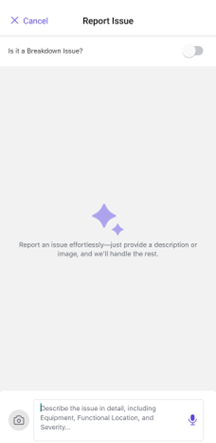
 icon next to the text
box.
icon next to the text
box.