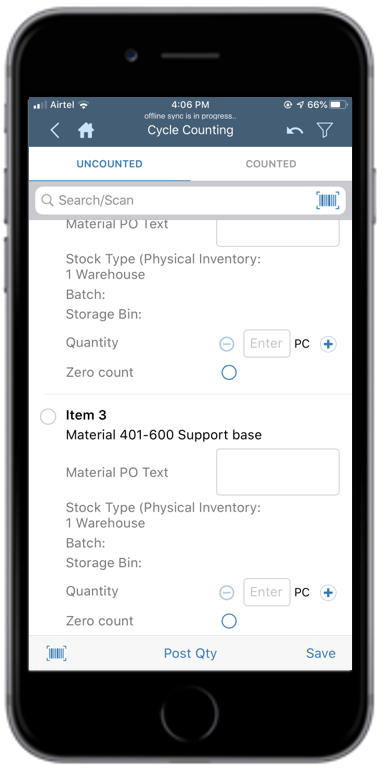
Line items are displayed on the Uncounted and Counted tabs.Figure 1. Inventory Cycle Counting
In the Uncounted tab, select the line item.
Enter the count quantity for the line item.
Tap the or icon
to modify the quantity.
Tap Post Qty.
A pop-up appears asking whether you want to post the count.
Note:
You can do
the following:
Add attachments like images or documents to the inventory record. To
use this feature, enable the app ID: CCMAAT in RACE
Scoping.
Tap Save to store the Count on the device if you are not
connected to the network. This value is posted once you are
connected to the network.
Add Signature before you post the count. To use this feature, enable
the app ID: INVCCS in RACE Scoping.
Counts do not match pop-up message appears if the
Packed quantity entered exceeds the stock quantity in SAP.
However, you can post the count or do a recount.
Tap Yes.
A message appears confirming that the count is successfully posted.
Once the count is posted, the record is moved to the
Counted tab from where you can recount and post the updated count for the
line item.
Next: After you complete counting for all the line items, clear the difference from the Adjustment tab.

 or
or  icon
to modify the quantity.
icon
to modify the quantity.