
Review and Approve Purchase Requisition
To review and approve a purchase requisition:
-
In the Purchase Requisitions screen, select the purchase requisition
from the list.
Figure 1. Select Purchase Requisition 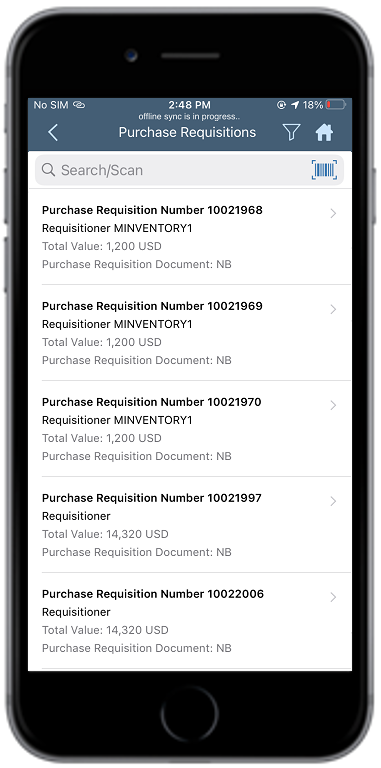
-
Tap Approve.
Figure 2. Approve Purchase Requisition 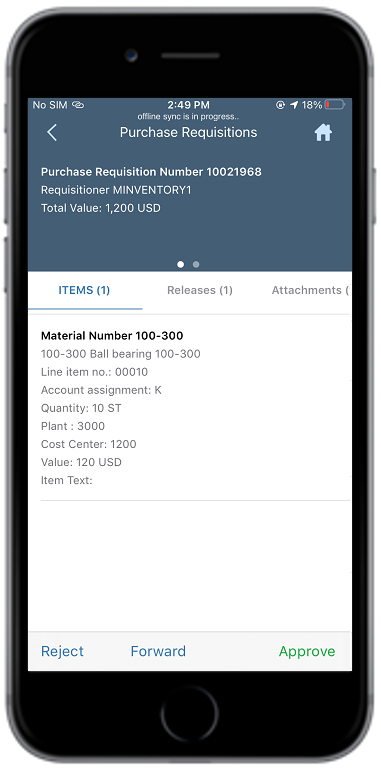
In this screen, you also can,- Tap the Releases tab, to see the release strategy details.
- Tap the Attachments tab, to see the relevant attachments.
- Tap the Notes tab, to see the notes regarding the material.
The purchase requisition is approved.
Next: When the purchase requisition is approved, the purchase order approver receives a notification. See Review and Approve Purchase Order.