Print Material Documents and Labels for Transactions
A standard module for printing Work Order and Material Labels is available within the mobile application. Users can print labels directly using both SAP and Bluetooth printers.
-
Select Material Document.
Select the Star
 icon next to the module to set is as default.
-
Tap on the material document.
Figure 1. Material Documents 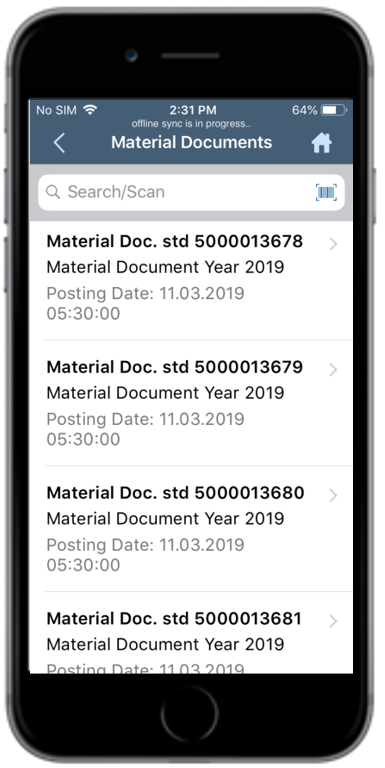
-
In the Material Labels and Material Docs tabs, enter or edit this
information:
- Plant: Auto-populated. Tap to modify the value.
- Number of Copies: Enter the number of copies to print.
- Quantity std: Auto-populated. Tap to modify the value.
Figure 2. Material Document and Labels tabs 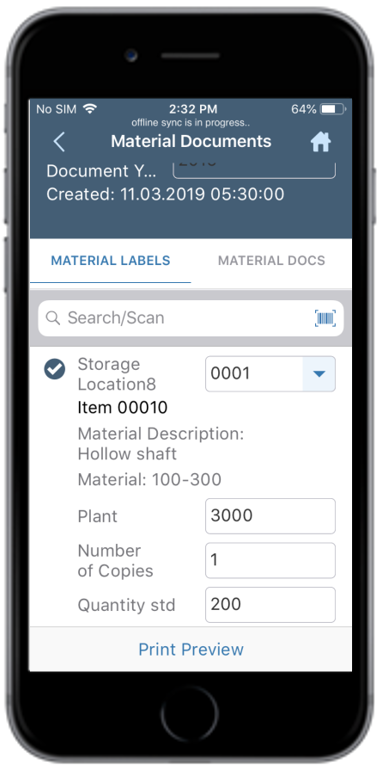
-
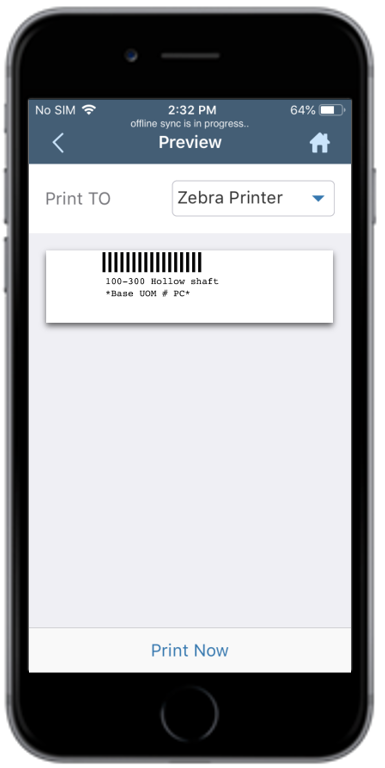
Tap Print Preview.
Figure 3. Material Document Print Preview