
Generate and Handover Shift Handover Report
As an Outgoing Supervisor, create a comprehensive shift handover report with notes, observations, attachments, and any other important information and hand it over to the Incoming Supervisor during shift change.
To generate shift handover report:
-
Expand Shift Handover and click
Reports.
The Reports screen with the list of shift handover reports appears with Draft, Accepted, and Submitted status.
In this screen you can,- View the reports for the last 24 hours, last week, or custom.
- Filter the reports based on Plants, Unit, or Report Type.
- Search the reports using the Search field.
- Filter the reports based on Submitted By, Accepted By, Submitted On, or Accepted On.
- Click the More icon next to the Search and select Hanover Report Configuration to configure the details to be displayed in the report.
- Click the More icon next to the Search and select Email Configuration to configure the email. In the Email Configuration window, select Unit and Recipients and click Configure Email. The email with shift handover report automatically sends to the selected recipients.
- Click
 and Edit to edit the
report.
and Edit to edit the
report. - Click and Download PDF to
download the report in PDF format.
- Click and View PDF to view the
report details.
- Click and Email PDF to share the
report via mail.
-
Select a shift from the list.
The screen displays with the following tabs on the left-side:
- Summary
- Logs
- Rounds
- Observations
- Notes
- Operators.
-
In the Summary tab,
- Click Start Handover on top right.
- In the Instructions section, add Shift
Notes, Standing Instructions, and
attachments.Note:Shift notes and standing instructions created at the plant level now automatically propagate to both unit and position levels. This update ensures seamless information flow across all operational areas without requiring duplicate data entry.
- Plant Level Entry: Notes and instructions entered once at the plant level instantly become visible throughout all connected units and positions.
- Unit and Position View: Personnel assigned to specific units or positions will immediately see relevant plant-level communications in their respective dashboards.
- Click Next.
Figure 1. SHR Summary 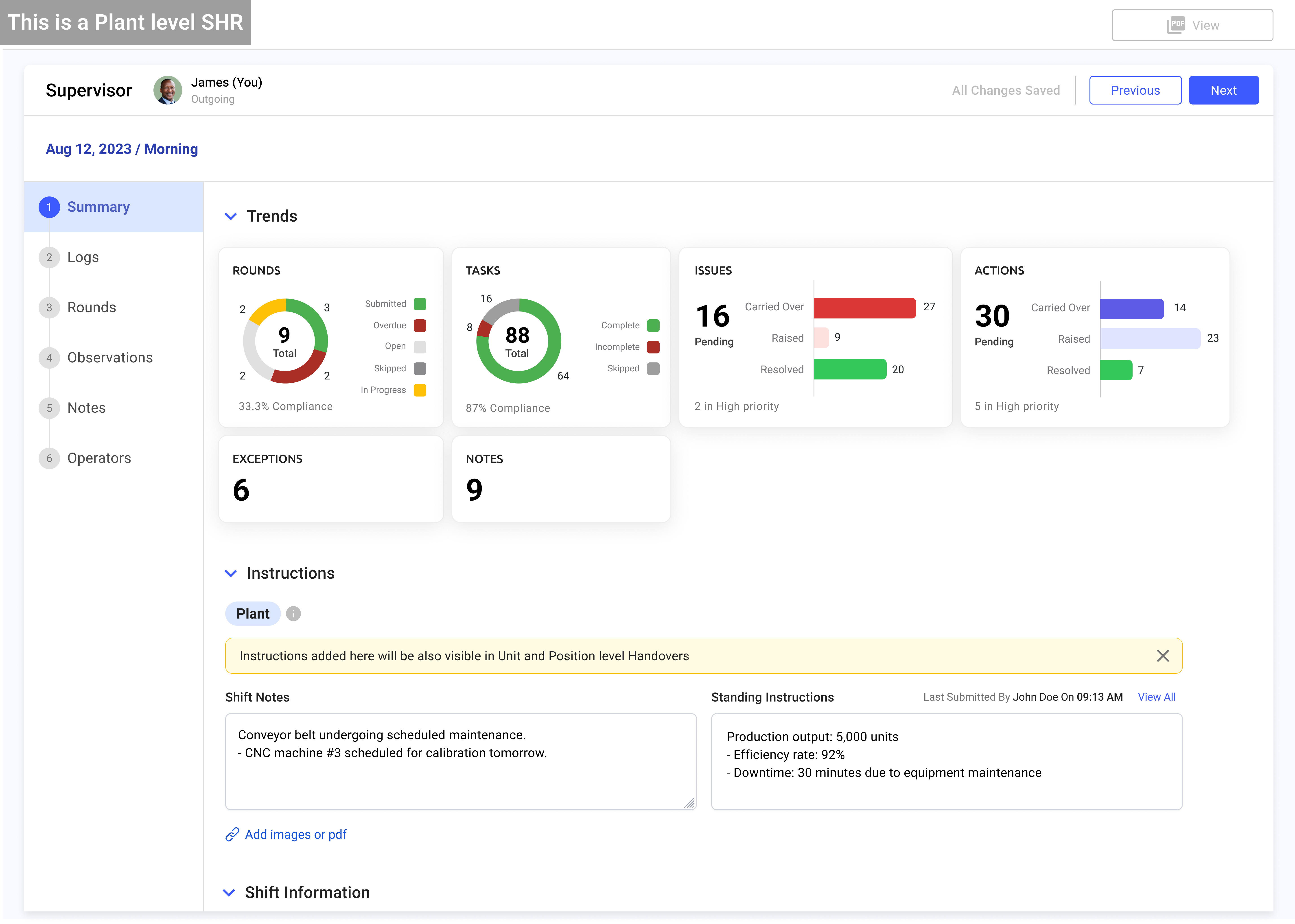
-
In the Logs tab,
- Click Enter My Log on the right-side.
The shift log template is displayed. For more information, see Create Shift Log Template.
- Fill the log details in the template.
- Click Add Custom Log to add custom logs.
- Click Save.
- The log is saved.
Figure 2. SHR Logs 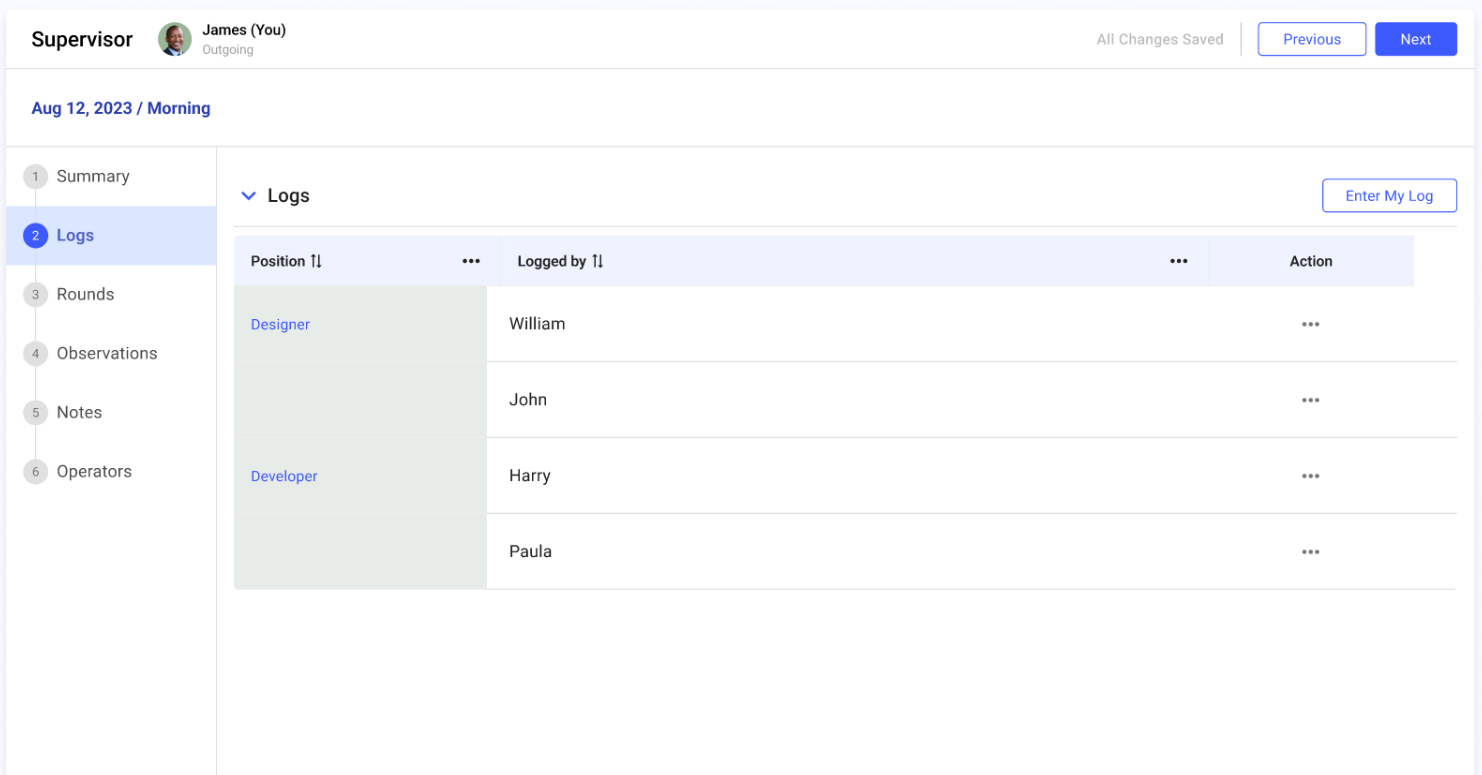
Note:- Click on individual positions to view the logs entered by different operators who belong to that position for the Unit in that shift.
- Click and select Edit next to the log
to edit the log.
- Click and select Delete next to the
log to delete the log.
- Click Enter My Log on the right-side.
-
In the Rounds tab, view the progress of rounds and click
Next on top right.
Figure 3. SHR Rounds 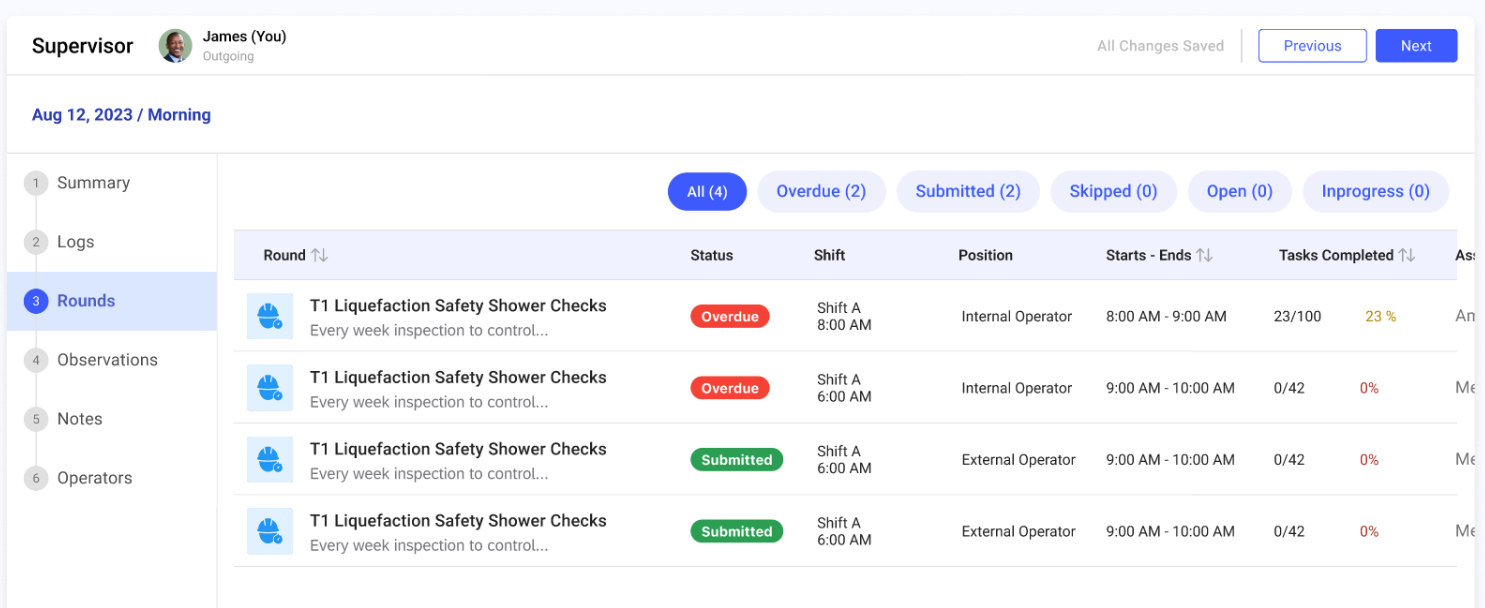
-
In the Observations tab, check unresolved issues,
exceptions, scan overrides, issues, and actions details and click
Next.
Figure 4. SHR Observations 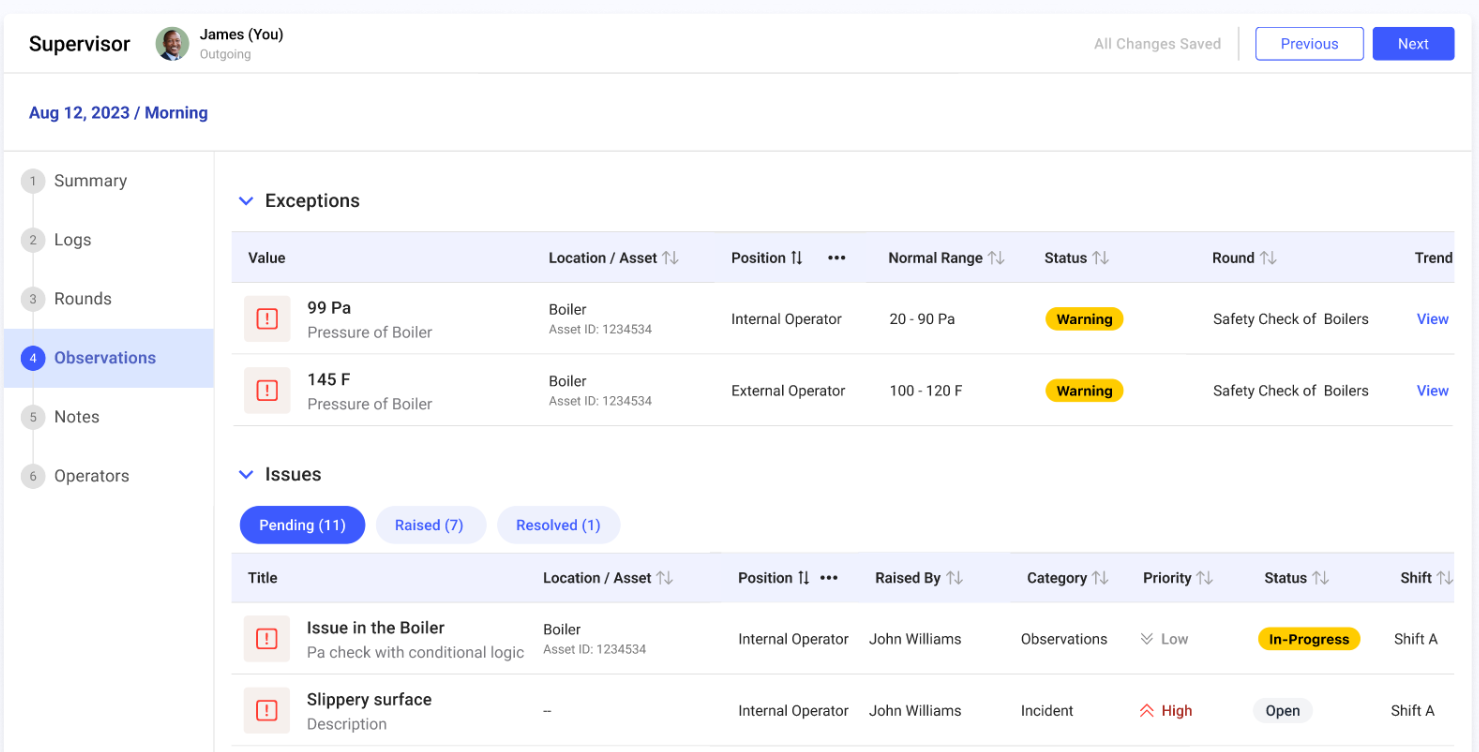
-
In the Notes tab, review the notes added for the round
during the shift and click Next.
Figure 5. SHR Notes 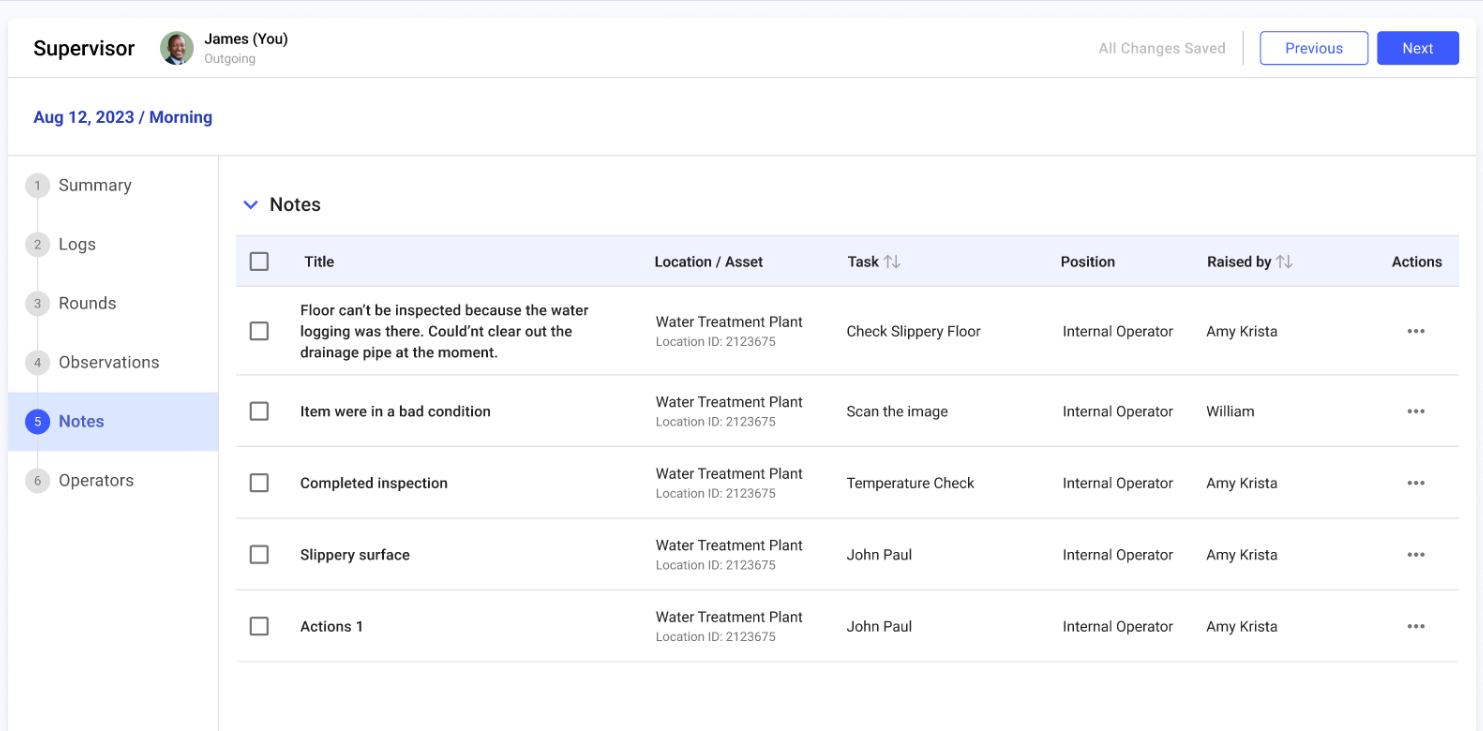
Note:You can edit and select required notes and logs and remove, which is not required. -
In the Operators tab, view the Operators along with the
rounds submitted status and click Submit on top
right.
Figure 6. SHR Operators 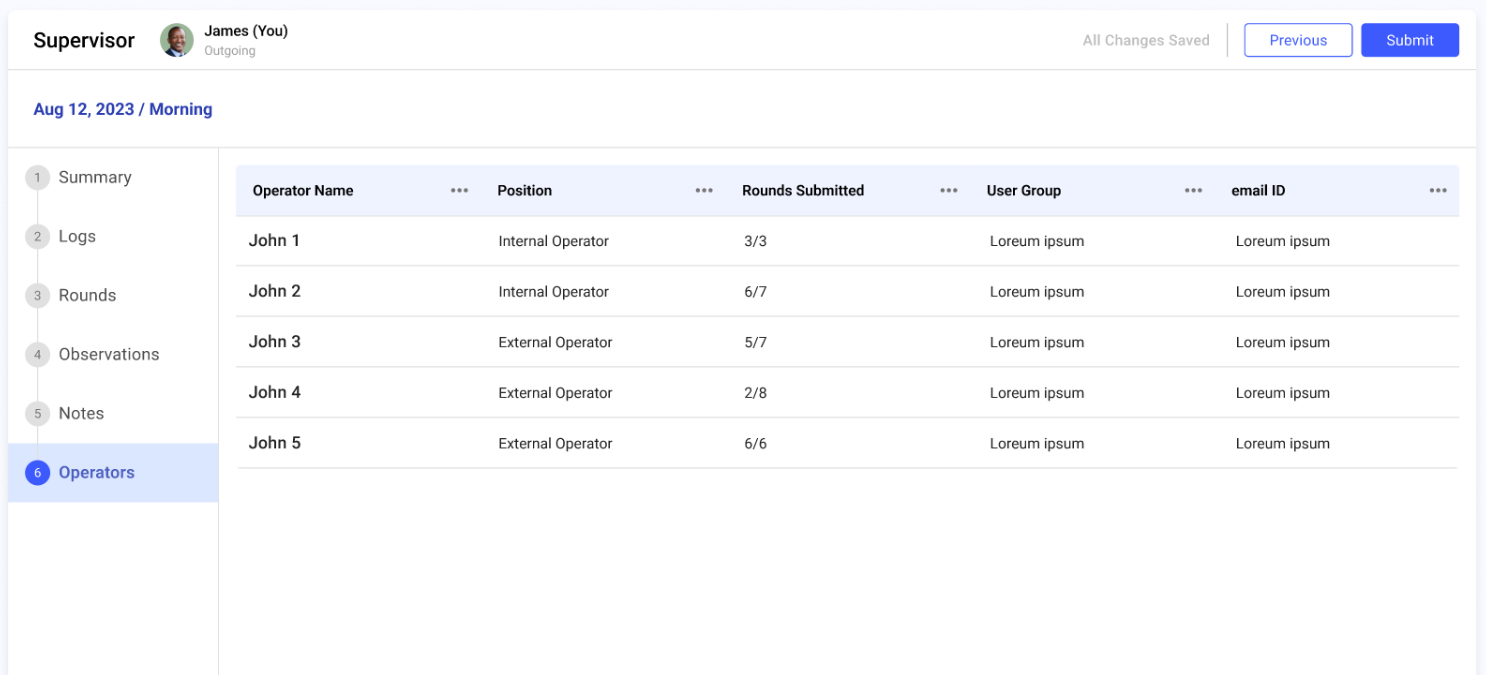
-
In the Confirm Submission window, review the shift
handover details and click Submit.
A message “Submitted and Email sent” is displayed. The Shift Status is changed to Completed, and the Handover Status is changed to Submitted in the Shift Handover screen.
Note:If the Outgoing Supervisor does not submit the report at the end of the shift, then the system automatically submits the report, and the status is changed to Auto-Submitted. -
In the Shift Handover screen, when the shift handover report is submitted,
download and share it with stakeholders for further review and
communication.
- Click next to the report and select View PDF
to see the report details.
- Click next to the report and select Download
PDF to save the report details in PDF format.
- Click next to the report and select Email
PDF. Add the recipient’s email addresses and click Send
to share the report via email.
- Click