
Review and Approve Round Plan to Publish
This section allows supervisors to view pending round plans approval requests assigned to them and track the status of their own submitted requests.
To approve round plan request for publishing:
-
Expand Workflows and select My
Approvals.
You can view the list of round plans, which are pending for approval.
-
Click on the round plan.
The round plan summary is displayed on the right-side.
Figure 1. Approve Round Plan 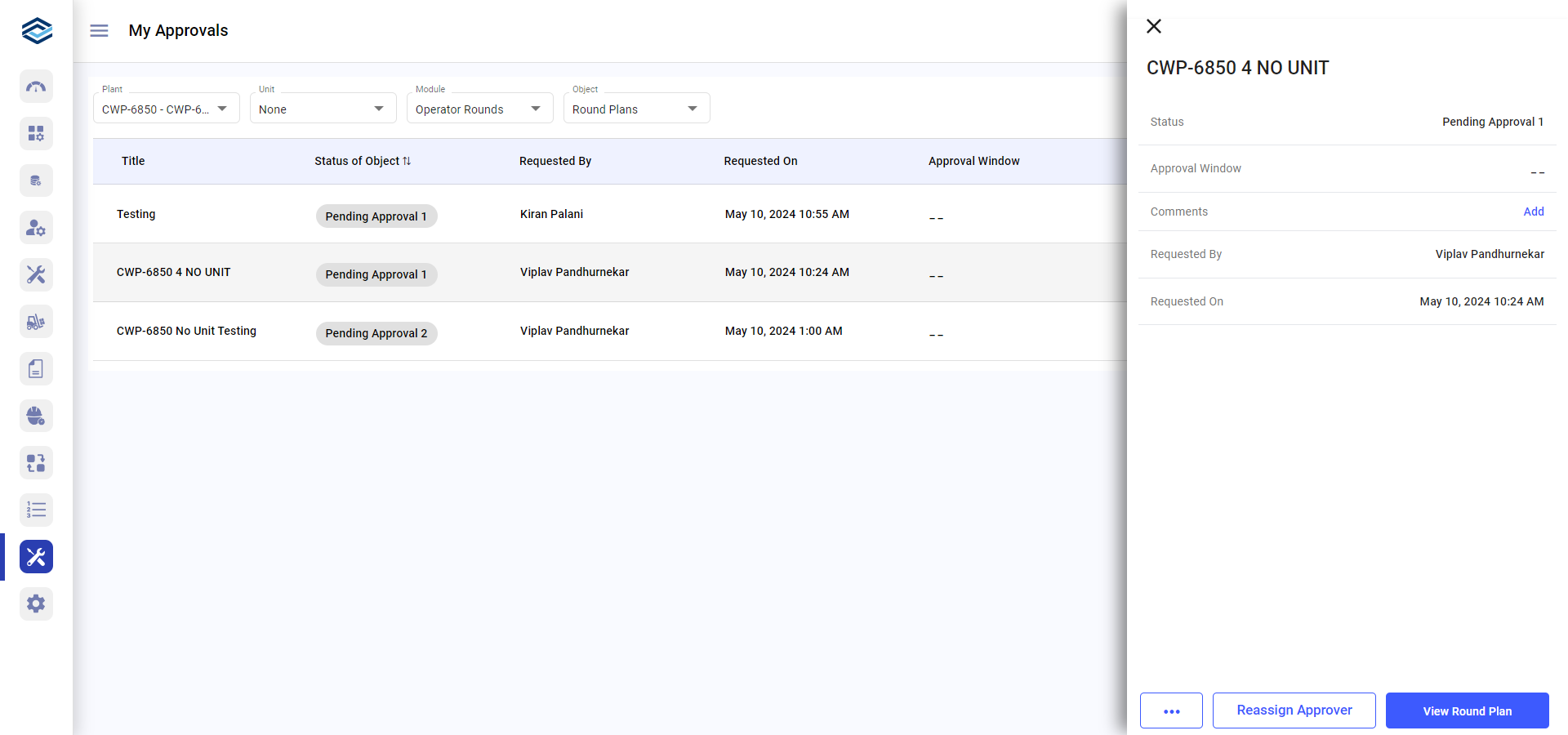
- Click the More icon and select Approve Round Plan.
-
In the Add Approval Comment popup, add comments and
click Comment and Approve.
Or
Click View Round Plan to view the round plan details.
Review the details and click Save and Next.
Click Next.
Click Approve.
Figure 2. Approve 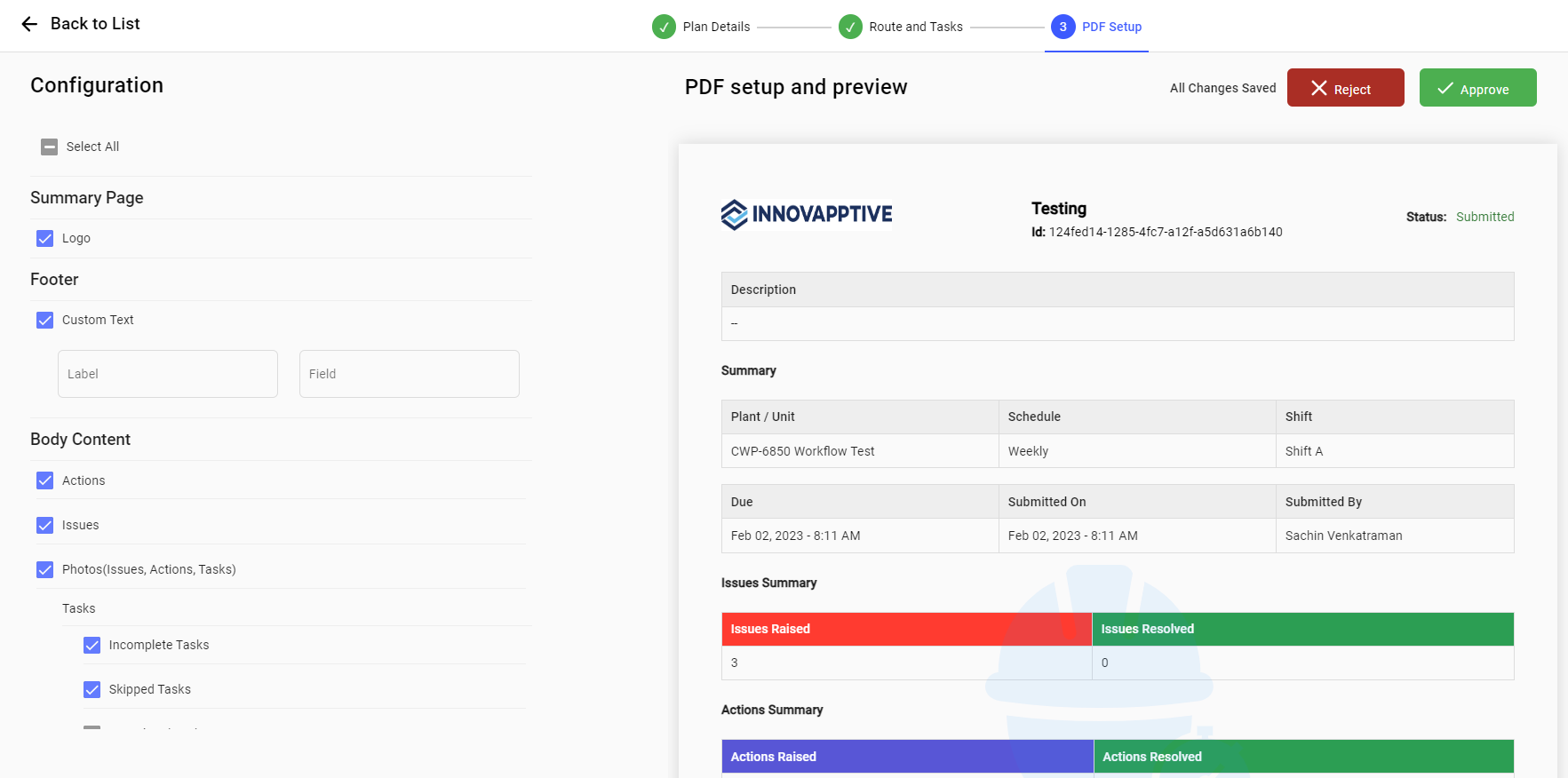
Note:You can click Reassign Approver to reassign the round plan to a user, user group, or position.In the My Approvals screen, you can,- Filter the round plans based on Plant, Unit, Module, and Object.
- Search the round plans using the Search bar.
- Click the More icon and select View Round Plan to view the round plan details and approve.
- Click the More icon and select Add Comment to add comments.
- Click the More icon and select View Details to view the round plan summary.
- Click the More icon and select View Approval Trail to view the approval details.